
Check and Apply Sensitivity Labels in Forage
5 min read · Last updated · Page version 1
Where content classification is enabled on a deployment.
Purpose: compare the files Forage has labelled with the sensitivity labels your organisation publishes in Microsoft 365, and, where labelling has been switched on, set those labels on the files.
These are Microsoft's labels, not Forage's. A Forage label records what a document contains. A sensitivity label records how your organisation has decided it should be handled, and a person or a Microsoft policy applied it, not Forage. Which sensitivity label a kind of file ought to carry is a decision only your organisation can make, because what counts as Confidential differs from one business to the next.
Choose and check
- Open Records, then Sensitivity Labels under Classification. The page shows how many sensitivity labels your tenant publishes and how many Forage labels are set up. The labels in your tenant are listed at the bottom, refreshed about once a day.
- On the row of a Forage label such as Bank details, press Choose. Pick the sensitivity label its files should carry, such as Confidential. You can tick other labels that are "also good enough", and labels that "can be replaced", which start as General and Public. A file with any other label is left alone.
- Press Check. Forage looks up what each file with that Forage label carries now. This reads only and changes nothing.
- Press Show to open the dry run. It sorts the files into Would get the label, Would have their label replaced, and the groups a run would leave alone: files that carry another label, files whose label is not known, and files that are no longer there. Each file shows where it is, the label it carries now and what a run would do. Open any file in the list, and press Export CSV to save up to 10,000 files as a spreadsheet.
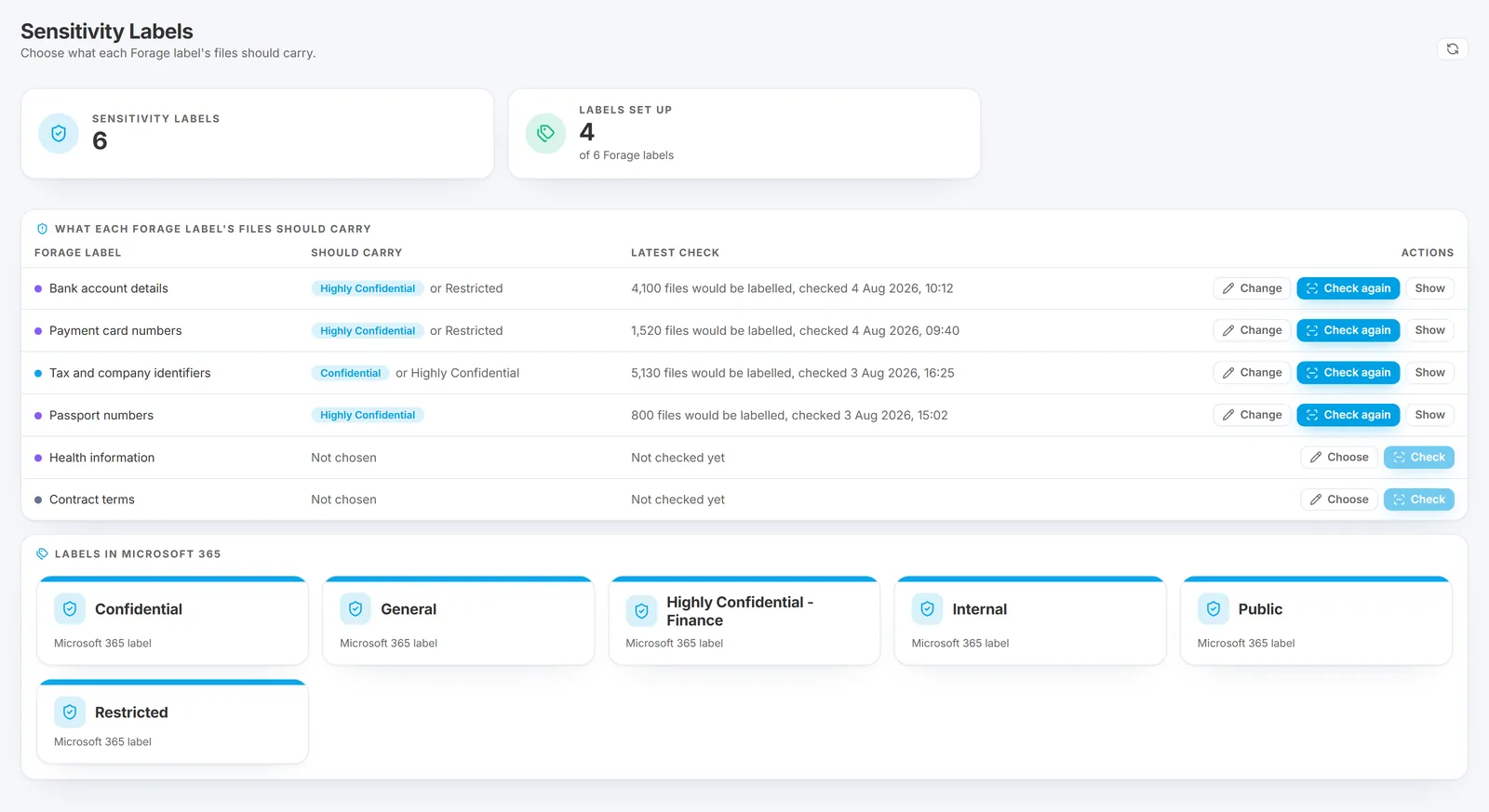
Choosing, checking and showing change nothing in SharePoint. Only a run that a person starts, where applying has been switched on, changes a file.
Apply the labels
Applying is switched off until it has been set up. Where it is off, the button under a finished dry run reads Preview: Apply labels. It opens the same window, marked Preview, so you can see the counts, the choices and the warnings, but its last button cannot be pressed and nothing is sent.
Labelling is set up outside the portal, with four things in place:
- a Microsoft 365 administrator gives the app Forage signs in with permission to write labels to files, and consents to it;
- Microsoft approves the use of its labelling service, which it asks to be requested separately;
- an Azure subscription is linked to the app, because Microsoft bills for each file labelled, at its own rate;
- labelling is switched on in the deployment's own settings. Switching it off again stops a run that is going at the next file.
Once labelling is on:
- Under a finished check's dry run, press Apply labels. The window says how many files would get the label and how many would have a weaker one replaced.
- Choose how many files to label in this run. Start with a few, and look at them in SharePoint before running more.
- Read what Microsoft charges for that many files, then tick the box that says you understand labels will change.
- Press Apply labels.
Just before each file, Forage reads its label again and leaves it alone if it has changed since the check. It also leaves alone archived files, files that are gone, and any address that now holds another file. Files the check left alone are never touched.
Stop, review and undo a run
The runs are listed under the dry run.
- Stop ends a run.
- Show lists the run's files with their label before and after, and what happened to each.
- Undo, pressed twice, sets the files the run labelled back to the label they had. Microsoft bills for the undo again.
Every run, stop and undo is recorded in the Log.
Good to know: a label applied this way adds none of the label's watermarks, headers or footers. Some files are refused, such as locked files, some encrypted files, and archived files, which are only placeholders in SharePoint. If Microsoft refuses because a permission, the approval or the billing is missing, the run stops at once with a message saying so. Files to Protect, which finds files that may need a label, only points them out; see find files that may need a sensitivity label.
See what each page shows for the rest of the Records section, and how the Classification pages fit together.
Questions go to sales@smikar.com.