
Squirrel Cost Allocation - Charge Storage Back to Departments
5 min read · Last updated · Page version 1
Cost Allocation charges SharePoint storage costs back to the departments that own the sites. You group sites into cost allocation groups, typically one per department or cost centre, and give each group two rates, both per TB per month:
- a live SharePoint rate, applied to each site's current SharePoint storage;
- an archive rate, applied to the data Squirrel has archived from each site.
The page then works out what each group, and each site in it, costs per month, and how much archiving is saving it. Open it from Analytics, then Cost Allocation. It is available to Full Administrators and Billing Administrators.
For the step-by-step setup, see how to charge storage costs back to departments.
Manage Groups
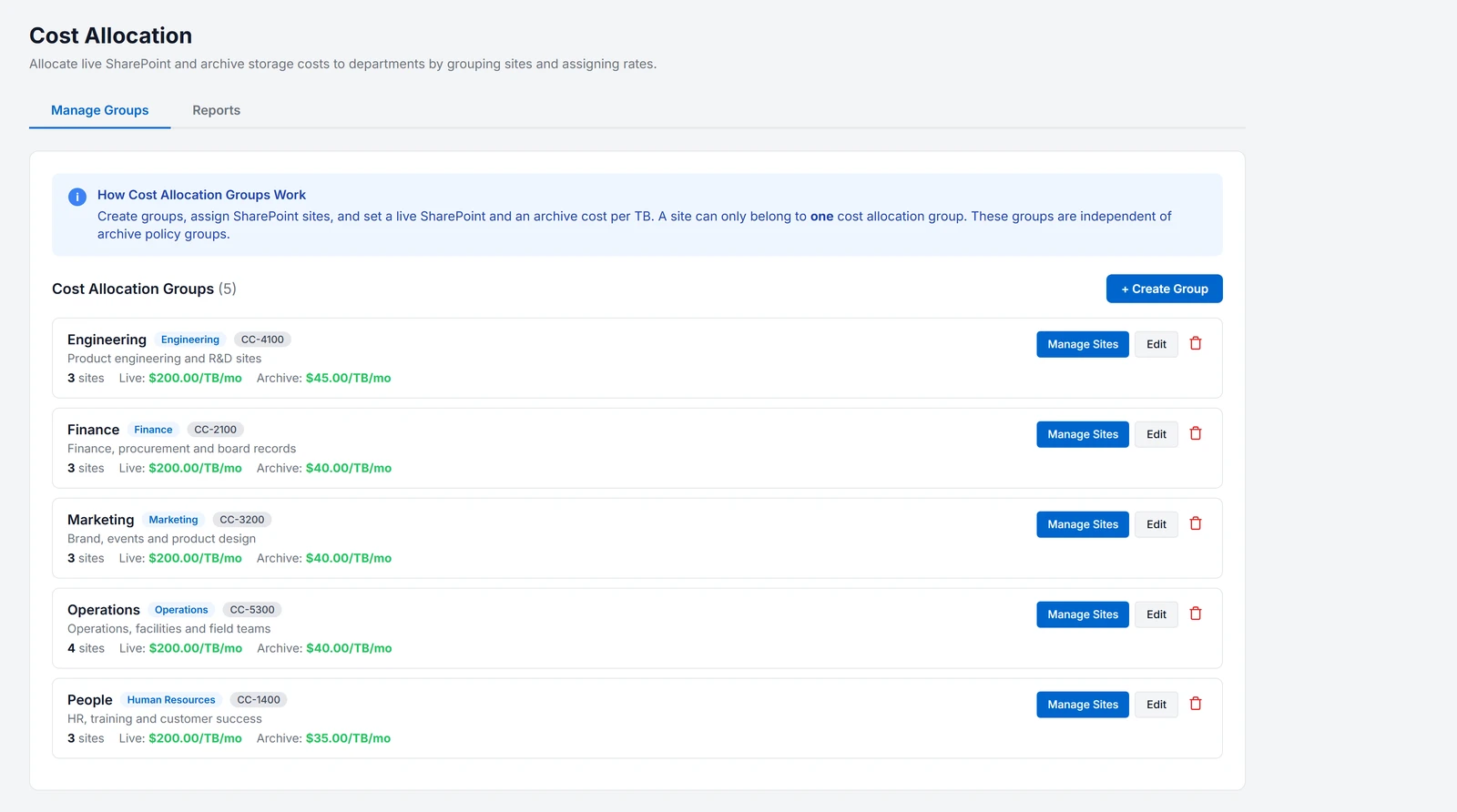
Each group card shows the group's name, department, cost-centre code, description, number of sites, and its two rates. A rate that has not been set shows as Not set.
- Create Group and Edit take the group name, which must be unique, the department, the cost-centre code, the Live SharePoint cost per TB / Month and the Archive cost per TB / Month, and a description.
- Manage Sites adds sites to the group in one of three ways:
- Search & Add - type three or more characters, pick the sites, then add them.
- Bulk by Keyword - every site whose URL contains the keyword, all ticked, so you untick any that do not belong. It also says how many of the matches are already in a group.
- Paste URLs - paste a list, one per line or separated by commas or semicolons, then Match Sites shows which matched and which were not found before you add them.
- Current Members lists the group's sites, with a remove button on each and Remove All.
- Delete removes the grouping only. It never touches any files.
A site belongs to one cost allocation group only. Sites already in another group are skipped and named in the warning, so move a site by removing it from its old group first. Cost allocation groups are separate from archive policy groups, and being in one does not affect the other.
Reports
Overview
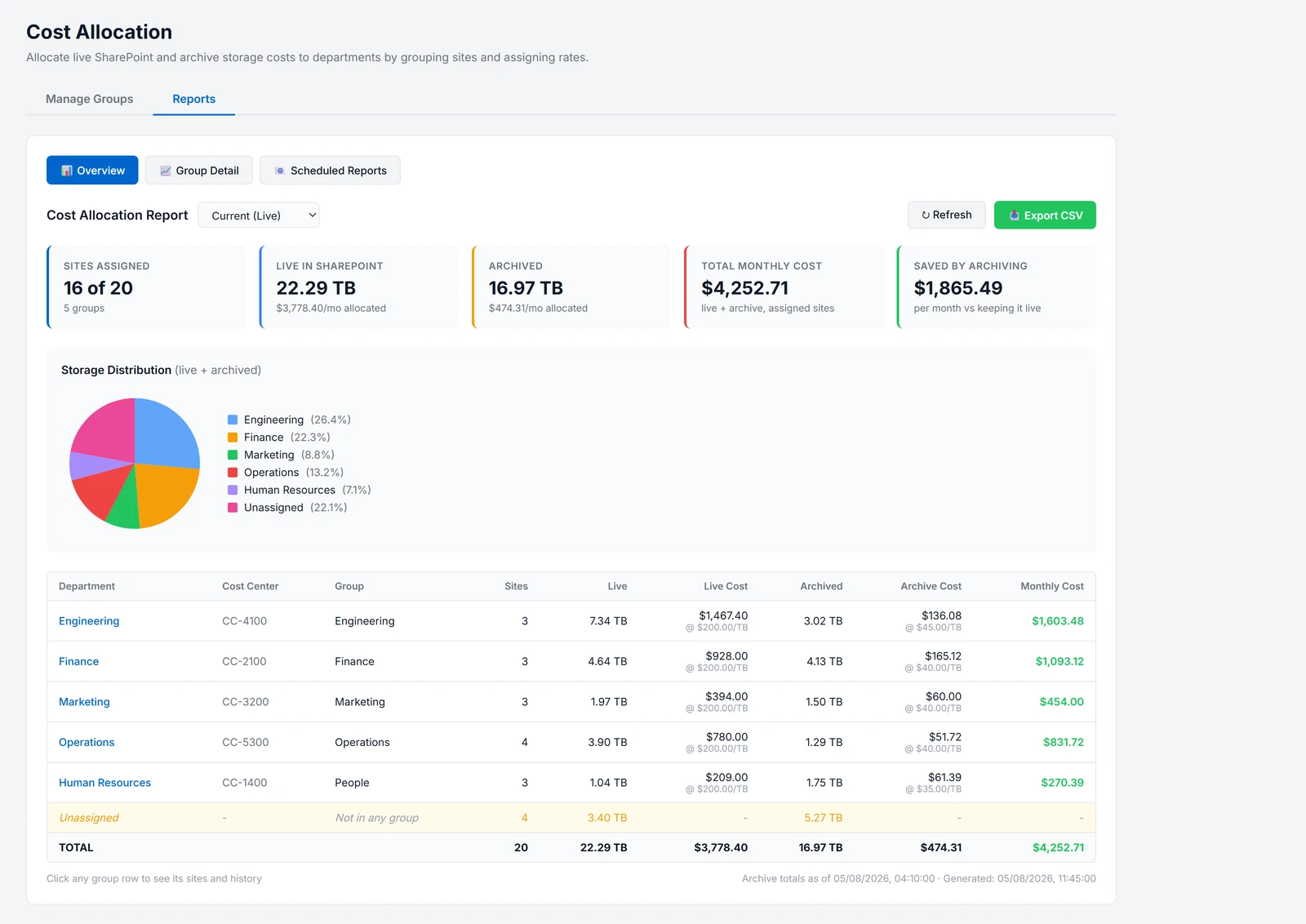
- Sites Assigned - how many sites are in a group, out of all sites, and how many groups there are.
- Live in SharePoint and Archived - the storage in each, with the monthly cost allocated to it.
- Total Monthly Cost - live plus archive cost, for the sites in a group.
- Saved by Archiving - what the archived data would cost each month at the live rate, minus what it costs in the archive.
- Storage Distribution - live and archived storage by group.
- The table - each group's department, cost centre, sites, live and archived storage, and each cost with its rate underneath, then the monthly total. An Unassigned row shows the storage of sites that are not in any group. It has no cost, because no rate applies. A Total row closes the table.
The footer says when the archive totals were last worked out. Export CSV downloads one row per group, with sizes, rates and costs, plus the Unassigned and Total rows. Click a group's row to open its detail.
Group Detail
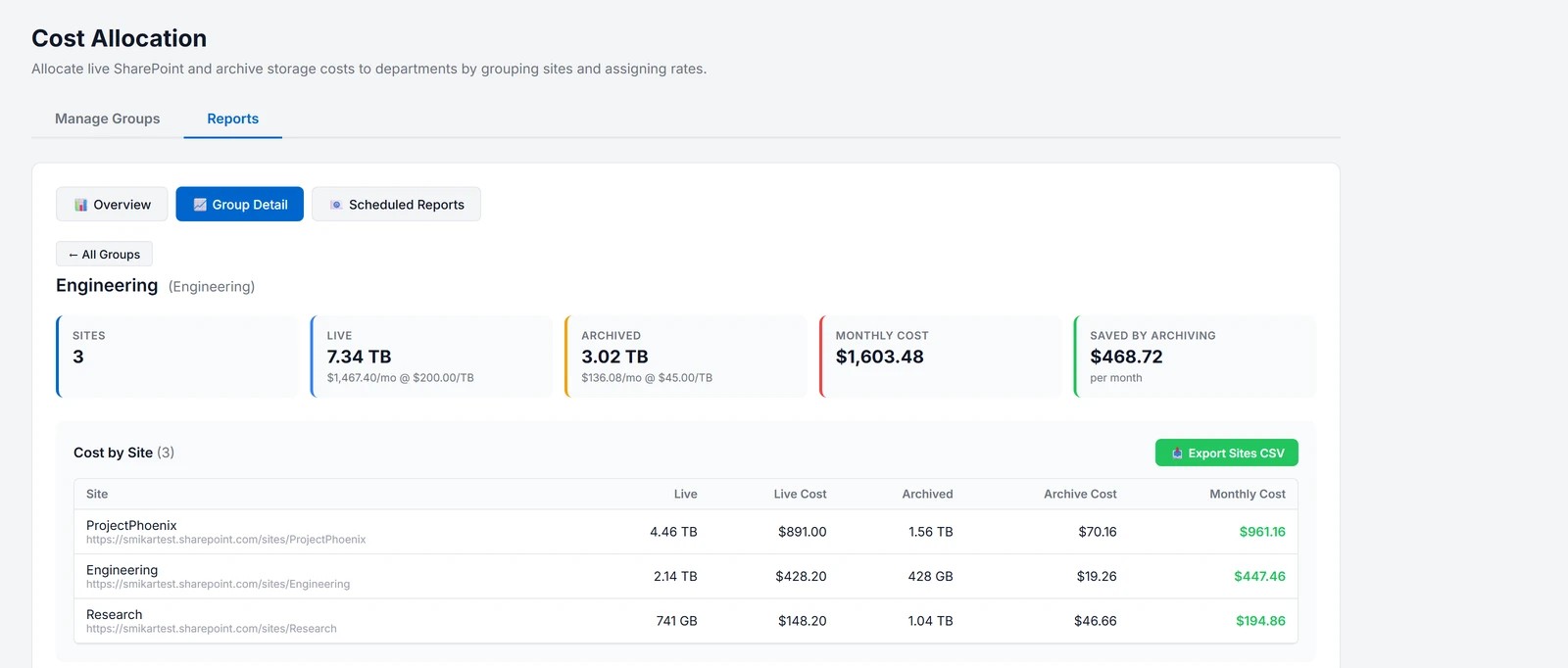
The group's own tiles, then Cost by Site: every site in the group with its live storage and cost, archived storage and cost, and monthly cost, most expensive first. Export Sites CSV downloads the same breakdown to send to the department.
How the numbers are worked out
- Live cost is the site's current SharePoint size times the group's live rate.
- Archive cost is the site's archived data times the group's archive rate.
- A group's cost is the sum over its sites. Rates are per TB per month, and 1 TB is 1,000 GB.
- Archived data is measured at original file size, like every other archive figure in Squirrel.
- Saved by Archiving is 0 when the archive rate is not lower than the live rate.
A site the daily archive calculation has not reached yet shows not calculated for archived data, in the table and in the CSV, rather than 0. Its live size and live cost are still shown.
When the numbers change
| What | When |
|---|---|
| Live size per site | Nightly, around 2am, with the site list |
| Archived size per site | Daily. The page footer shows when |
| Rates and group membership | Immediately |
So changing a rate or moving a site changes the report straight away, while the storage figures move once a day.
See also
- How to charge storage costs back to departments - the setup, step by step.
- Analytics - storage, costs and activity trends across the whole tenant.
- Site settings - each site's live size and archived size.
- Reports - the downloadable CSVs.
Need help? support@smikar.com.