
See Your SharePoint Estate on the Map
4 min read · Last updated · Page version 1
Purpose: see every SharePoint site at a glance, find the big ones, and go straight to the files you want.
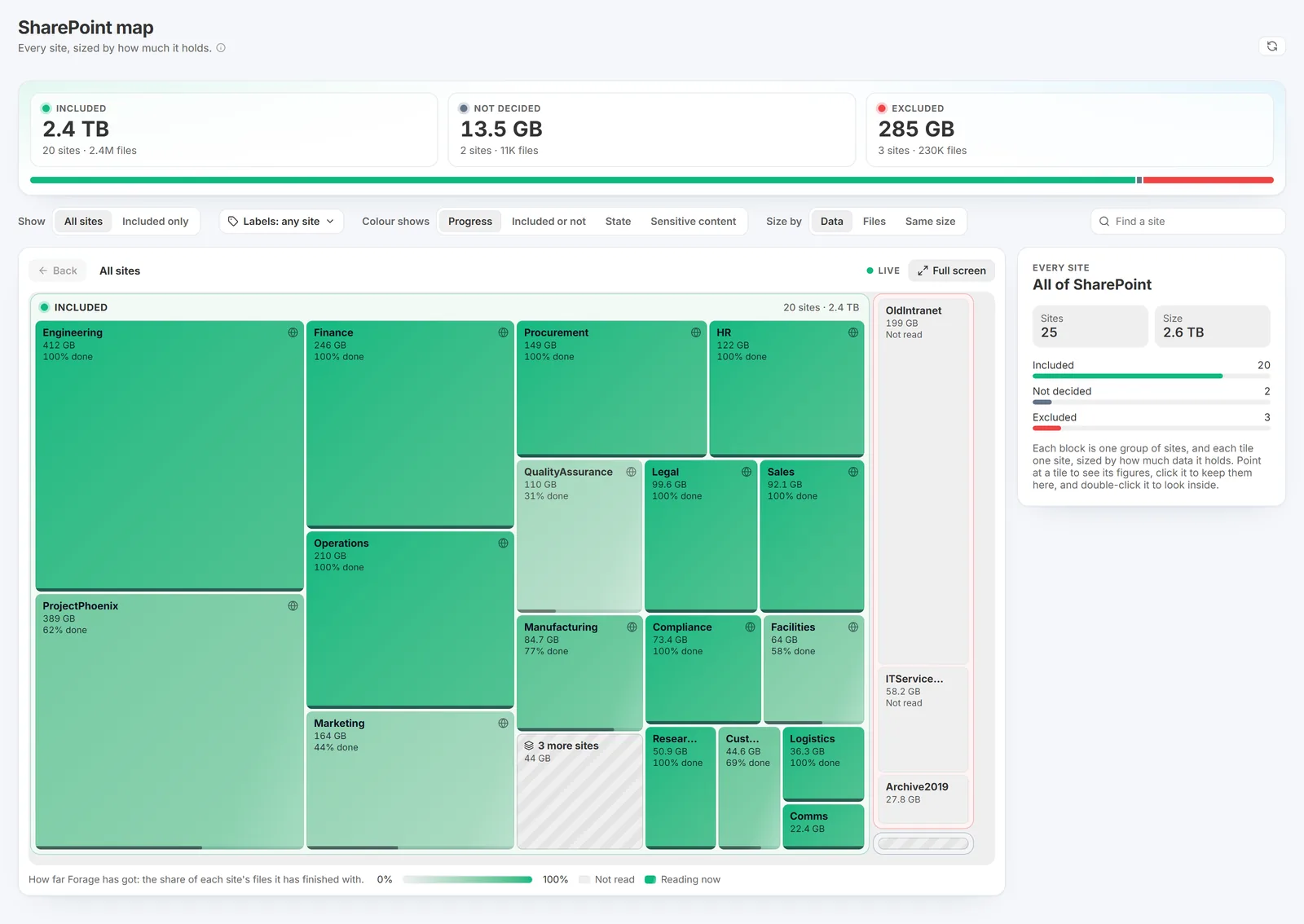
- Open Records, then Map. Every site on the Sites list is a tile. The bigger the tile, the more data the site holds. The tiles sit in three blocks: Included, Not decided and Excluded. Each block shows its biggest sites, and a striped tile stands for the rest.
- Read the cards above the map. Each gives one group's size, number of sites and number of files.
- Use Show to choose All sites or Included only. Included only opens the map on the included sites alone.
- Use Size by to size the tiles by Data or Files. Same size draws every site the same size, so a few very large sites do not crowd out the rest.
- Use Colour shows to colour the tiles:
- Progress: how far Forage has got with each site. A site still being read has a moving sheen.
- Included or not: which sites Forage reads.
- State: where each site stands.
- Sensitive content: the most sensitive label Forage has found in each site, in the label colours. This appears where content classification is enabled.
- Point at a tile to see its figures beside the map. Click a tile to keep it there while you move the pointer across the map to reach it.
- Double-click a site to see its libraries. Double-click a striped tile to open the sites or libraries inside it. You can press Enter instead. Click an empty part of the map to let go of a tile. Press Esc, or use Back or the path above the map, to go back up.
- In a site's panel, press Search this site to open Search with the site chosen, or Open in SharePoint to open the site itself. For a library, the panel lists its most common file types.
- To go to one site, type part of its name in Find a site. Its libraries open straight away.
- To find where certain files are, open Labels and type part of a label's name. Tick one or more labels, or choose every label of one severity at once. This appears where content classification is enabled. The map then shows only the sites that hold files with those labels, each sized by how many, and the panel names the label with its sites and files. Press Show every file with the label to open them in Search. In a site's panel, Show these files opens Search on that site with the label chosen.
- To bring a site into Forage, select a site that is not included and press Include this site. Confirm when asked. The change is recorded in the Log.
- Press Full screen to show the page on its own, for a meeting.
Good to know: the map is live and reads its figures again every minute, so the tiles and numbers move as Forage reads. A site is drawn only when its tile has room for its name and size. Smaller sites are counted in the striped tile. A site's libraries show the files Forage has listed in them, so a site still being listed has fewer files in its libraries than on its tile. A library's name is found in the background the first time you open its site, and a library with only archived files shows as an unnamed library. The map stops at libraries, because Forage keeps no folders for archived files or files it does not read.
See what each page shows for the rest of the Records section, and limitations for what Forage does not do.
Questions go to sales@smikar.com.