
Get Forage Reports by Email
3 min read · Last updated · Page version 2
Purpose: have Forage email its reports to the people who need them, on a schedule.
- Open Records, then Settings, and find Emailed reports. Email sending must say Ready. If it says Not set up, contact SmiKar support, who set it up for you; until then nothing can be sent.
- Under Send to, type the email addresses, one a line, up to 50. Each person gets their own copy and cannot see the other addresses.
- Under Reports to send, choose any of All your files, Sensitive content and Labels by file (the last two where content classification is enabled) and Files not read.
- Under When to send, choose Every day, Every week and the day, or Every month and the day of the month, then the hour and the time zone. In a month without the day you chose, the email goes on the last day of the month. Daylight saving is followed.
- Under Sender address, type the part of the sender address before the @; the address always ends in @smikar.com. Type the Sender name people will see.
- Press Save changes, then Send a test email. The test goes to the saved list within a minute, whether the schedule is on or off.
- When the test has arrived, choose On under Send the reports by email and press Save changes. The first email goes at the first scheduled time after that.
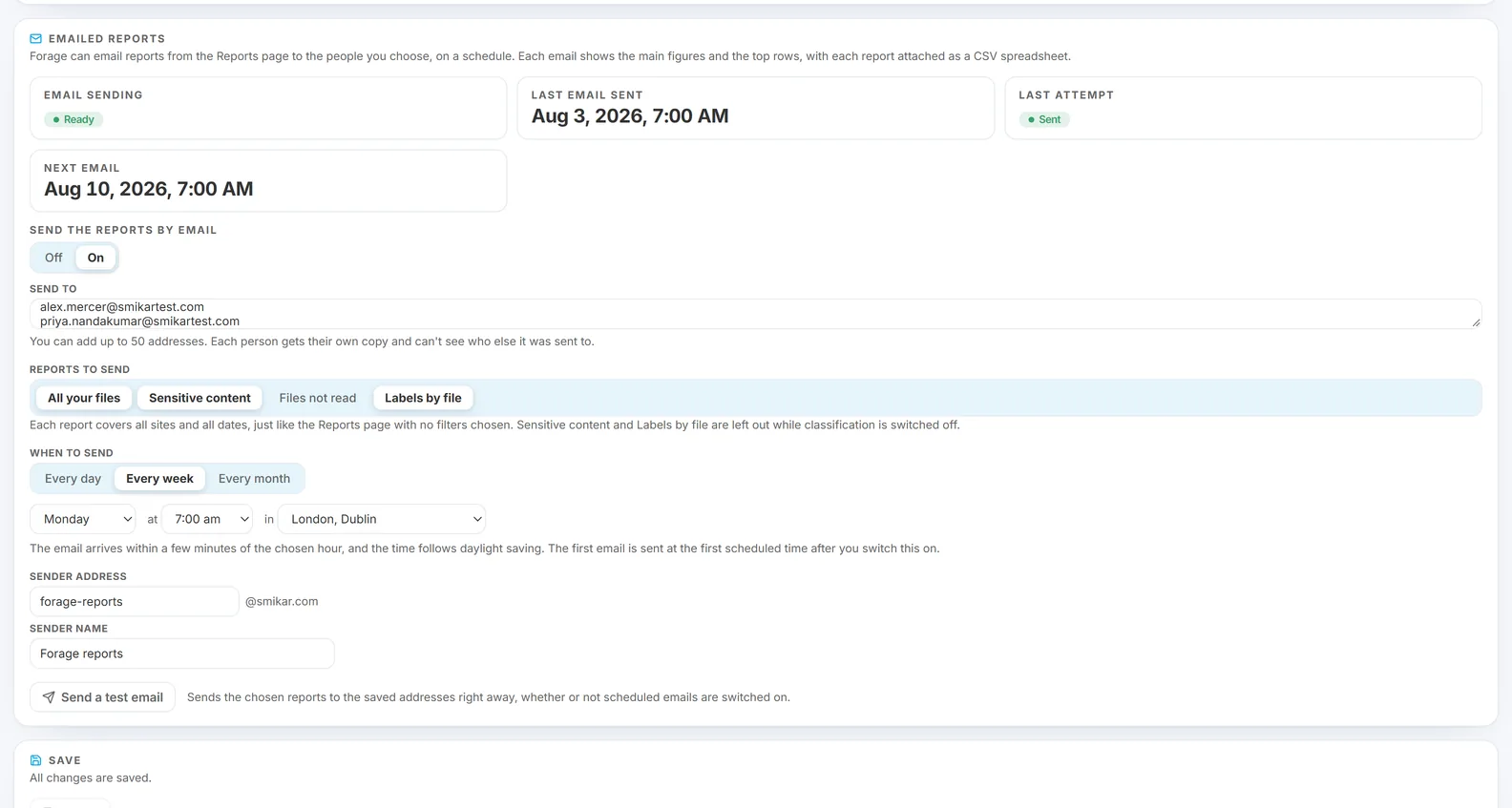
Good to know: each email shows the main figures and the top rows of each report you chose, covering all sites and all dates, with each report attached as a spreadsheet that holds up to 1,000 rows in each table. For other filters, or a PDF, use the Reports page; the email links to it. A report that cannot be made is left out, and the email says why. The Settings page shows when the last email was sent, whether the last try worked and, if not, why, and when the next one goes.
No email holds the text inside a file. The Sensitive content report names the files most recently found under each label and their sites, as it does on the Reports page. An administrator can send the reports to any address, and whoever receives one sees what it holds, so choose the list with that in mind. Every email sent, every one that could not be sent, and every test asked for is recorded in the Log.
See what each page shows for the rest of the Records section, and limitations for what Forage does not do.
Questions go to sales@smikar.com.