
Squirrel End User Guide: Archive and Restore Files
10 min read · Last updated · Page version 7
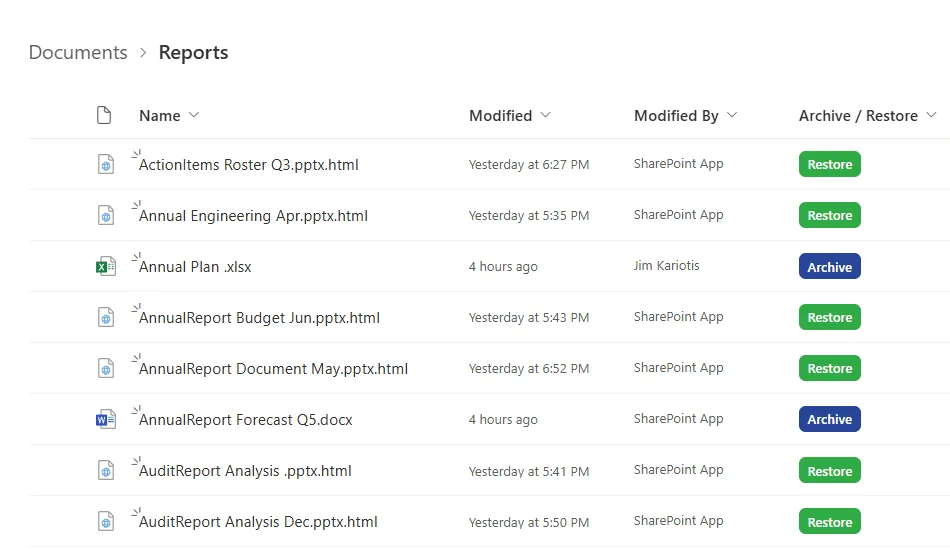
Squirrel moves files that have not been used for a long time out of SharePoint and into low-cost storage. It leaves a small placeholder behind, called a stub, so you can still see the file and bring it back whenever you need it. This guide shows you how to restore files and folders, how to archive them yourself, and what to do if a stub is moved, renamed or deleted.
What you will see
- A stub has the same name as the original, with
.htmlon the end.Quarterly Report.docxbecomesQuarterly Report.docx.html. - It sits in the same folder as the original, in SharePoint, Teams and your synced folders.
- It is only a few kilobytes, and its icon is usually a browser icon rather than Word, Excel or PowerPoint.
- Opening it does not open your document. It opens a Squirrel page that restores the document.
Nothing is lost. Version history, dates and the original location all come back with the file.
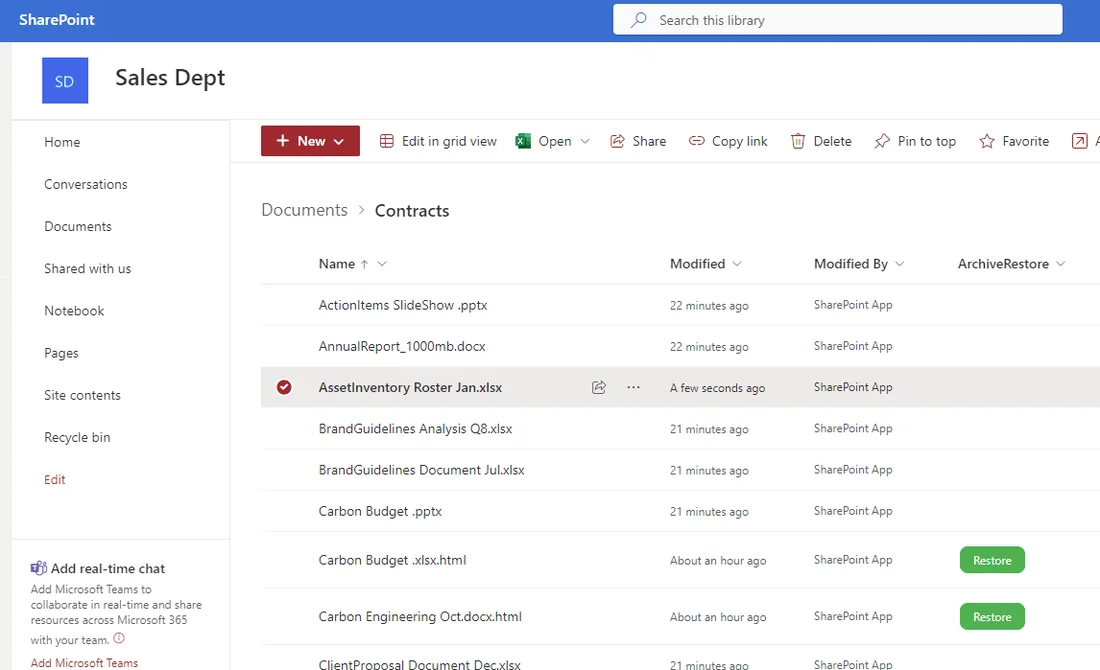
If your organisation has deployed the Squirrel buttons, your library also has an Archive / Restore column. A green Restore button sits beside each stub, and a blue Archive button sits beside each file that is still in SharePoint.
Restore a file
Option 1: use the Restore button
-
Open the library and find the stub. It has the original name with
.htmlon the end, and a green Restore button beside it.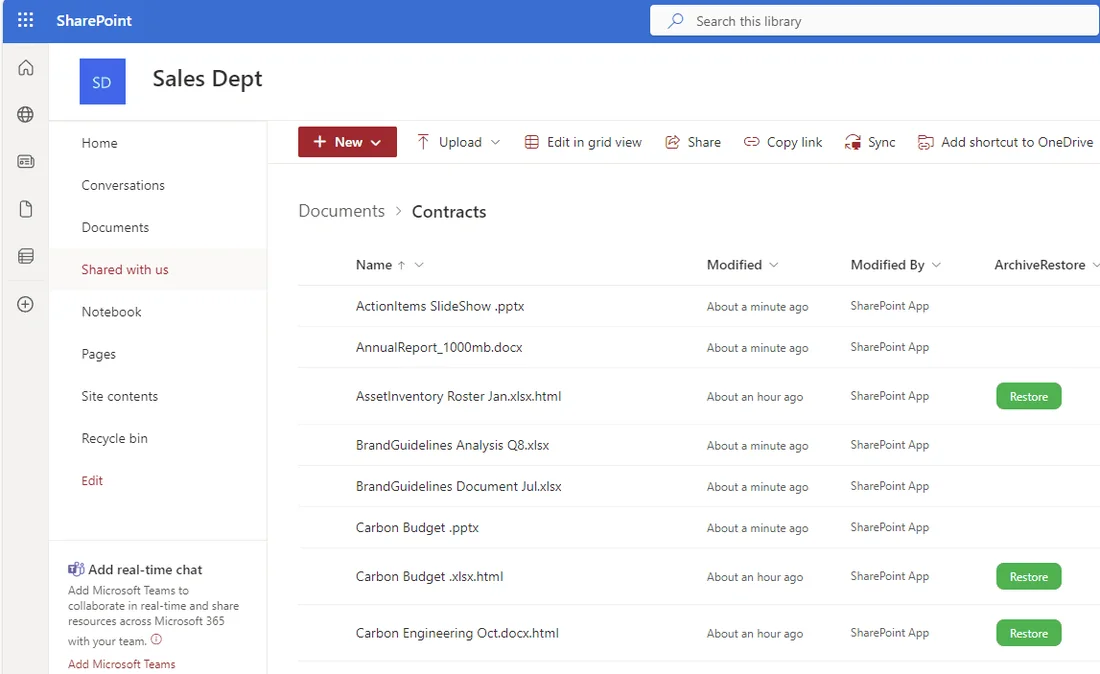
-
Click Restore. A new tab opens with the Squirrel restore page.
-
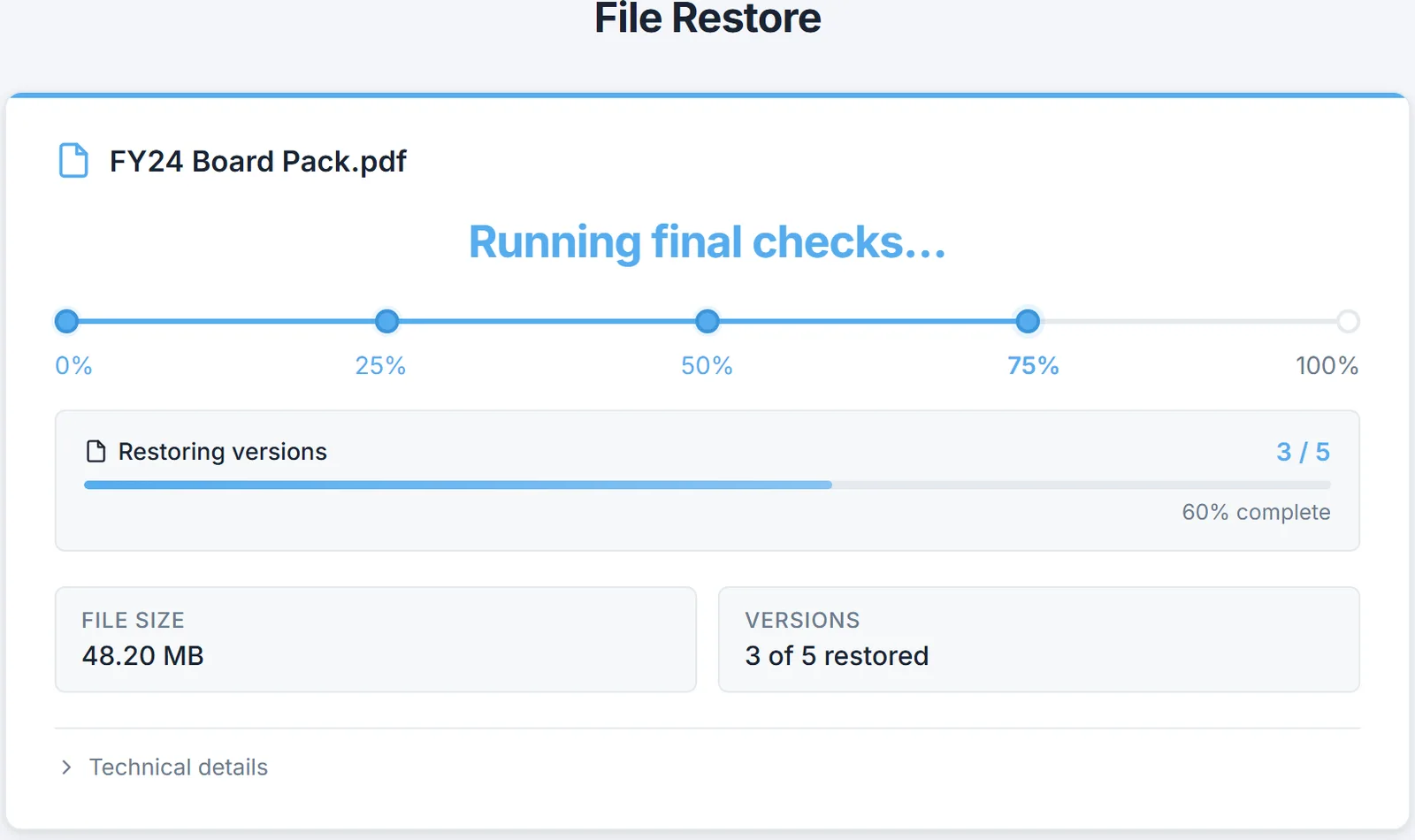
The File Restore page shows a progress bar from 0% to 100%, with a message at each step: Your request is in the queue, Preparing your file, Restoring your file and Running final checks. It also shows the file size and how many versions have been restored.
-
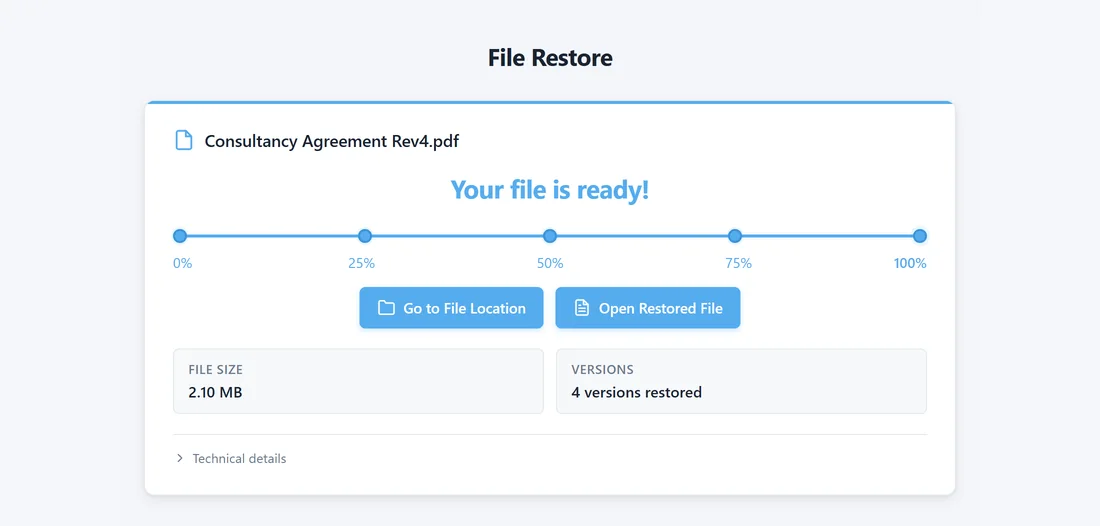
When the bar reaches 100% the page says Your file is ready! and shows two buttons. Open Restored File opens the file in your browser. Go to File Location opens the folder it is in.
-
The stub has been replaced by the real file, with its original name and its full version history. If you refreshed the folder instead, the file is there too.
Option 2: open the stub
-
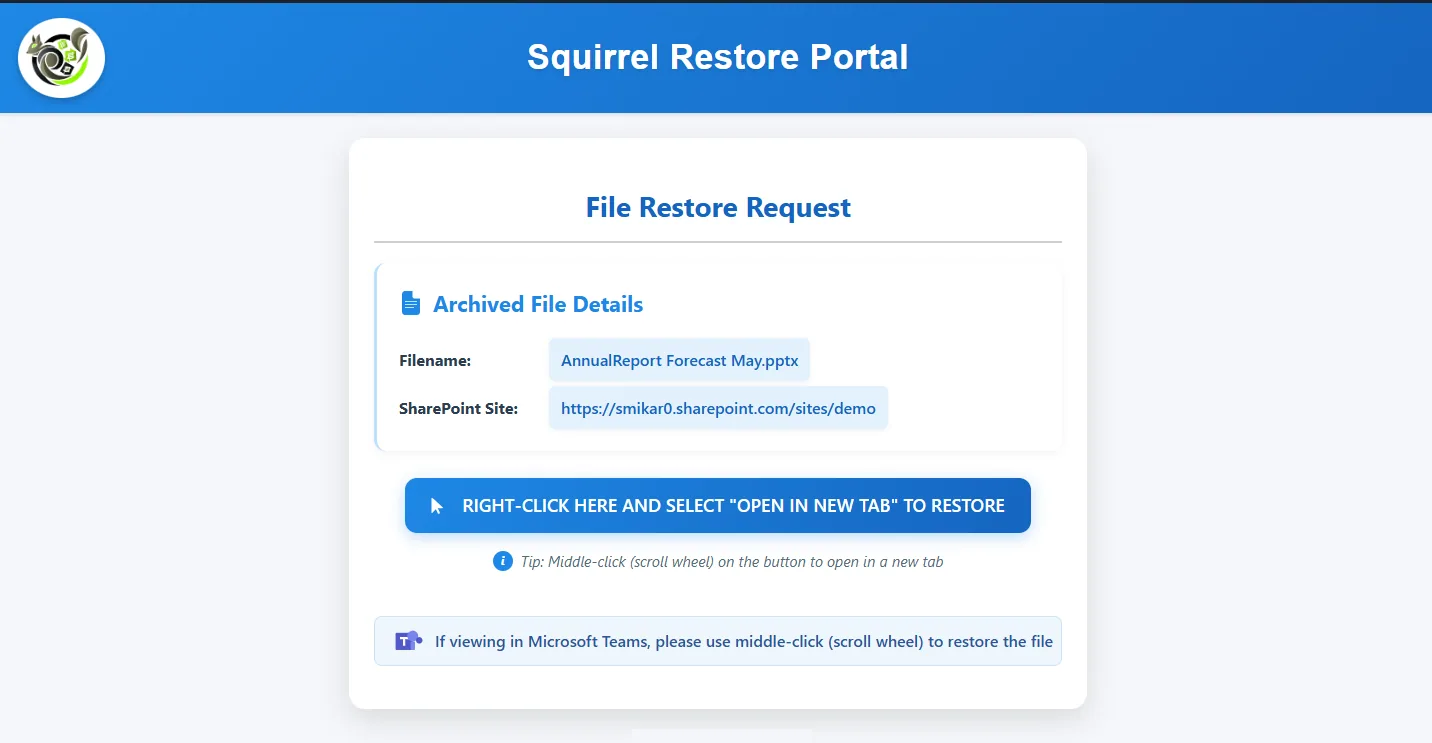
Open the stub as you would open any file. It opens the Squirrel Restore Portal page, headed File Restore Request, which shows the file's name and the SharePoint site it came from.
-
Right-click the restore button and choose Open in new tab. You can also middle-click it (press the scroll wheel). In Microsoft Teams, use the middle-click.
-
The new tab shows the same File Restore page as above. When it says Your file is ready!, click Open Restored File, or Go to File Location. The file is back in its original place and the stub is gone.
Option 3: from File Explorer
If you sync a library with OneDrive, or use it as a mapped drive, stubs appear in File Explorer as .html files.
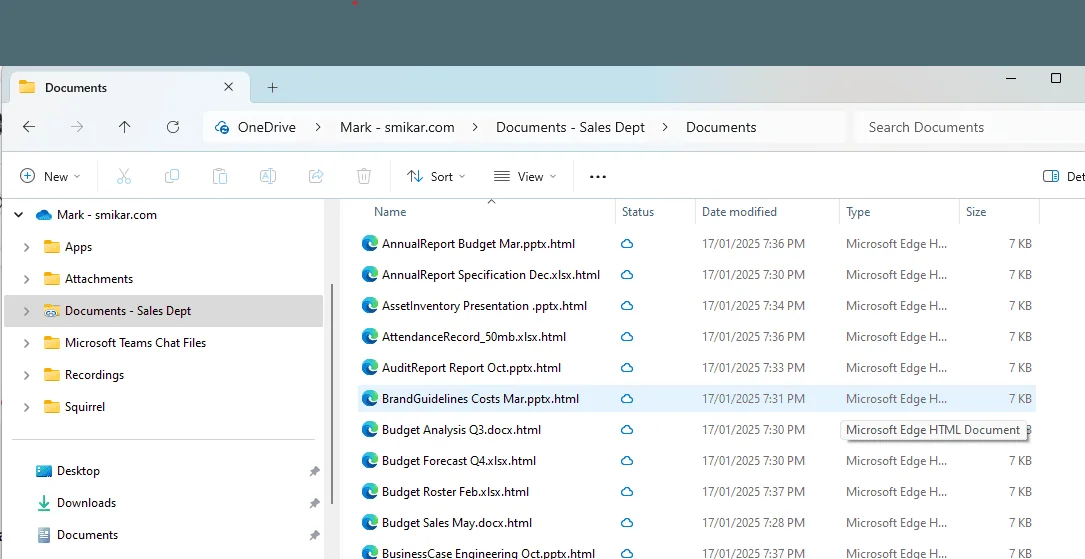
- Open the stub. It opens in your web browser on the same Squirrel Restore Portal page.
- Right-click the restore button and choose Open in new tab.
- When the restore has finished, the file appears in the synced folder with its original name.
How long it takes
Small files restore in seconds. Large files, over about 100 MB, can take a minute or two. You do not have to wait: the file appears in the folder on its own when it is ready.
Version history
Every previous version of the document comes back with it. Right-click the file and choose Version history to see them.
Restore a folder
If your organisation has deployed folder buttons, you can bring back everything archived in a folder, including its subfolders, in one go.
-
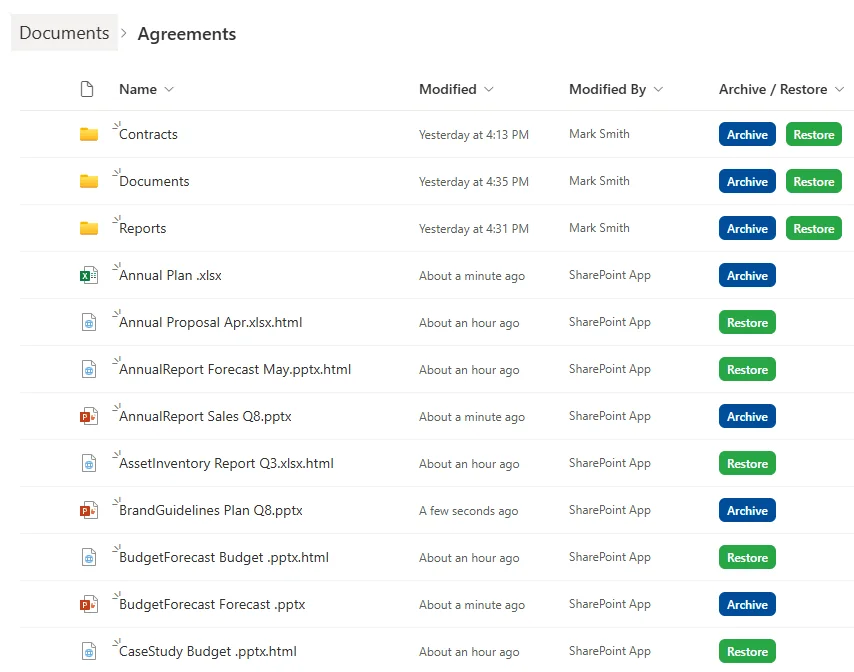
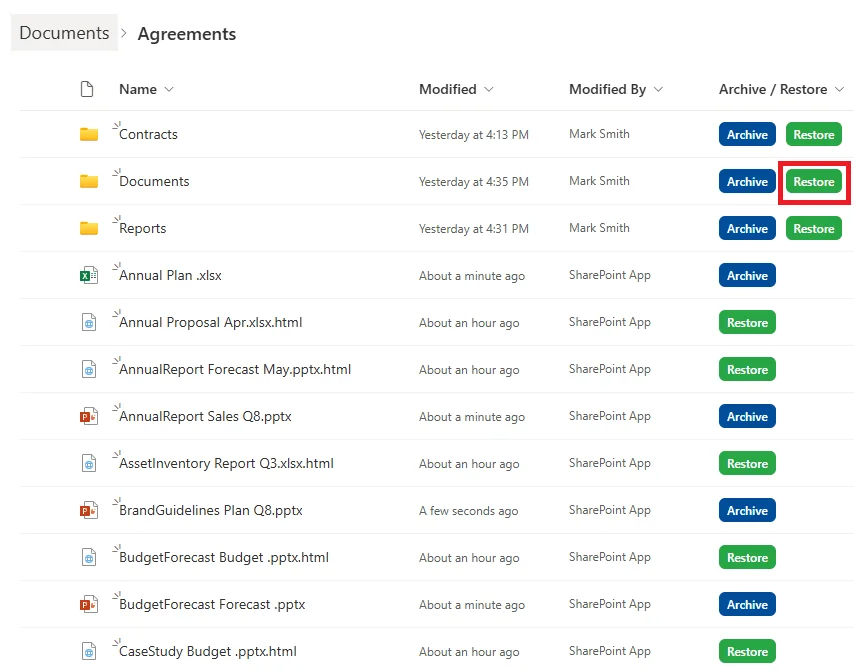
Open the library and find the folder. In the Archive / Restore column, each folder has an Archive button and a Restore button.
-
Click Restore beside the folder you want.
-
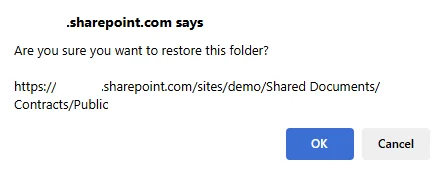
A prompt shows the full path of the folder. Check it is the right one and click OK.
-
A confirmation page shows how many files have been queued for restore, and the folder path. Close it when you have read it.
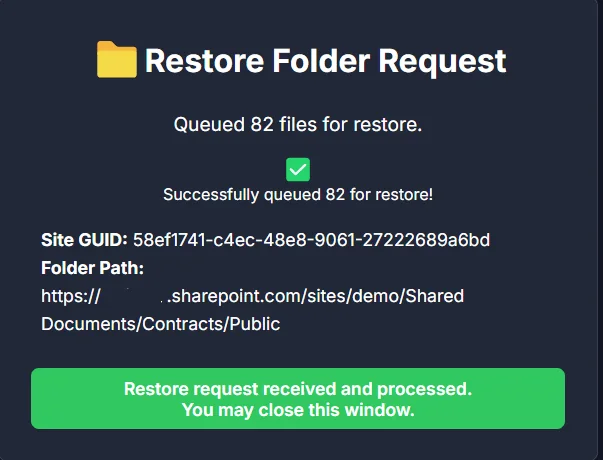
Only files that were archived are restored. Files in the folder that were never archived are left exactly as they are. For a very large folder you may be asked to confirm again, or asked to contact your IT team.
Archive a file yourself
If your organisation has deployed the Archive button, you can archive a file you have finished with. This section applies only if you see a blue Archive button in your library.
-
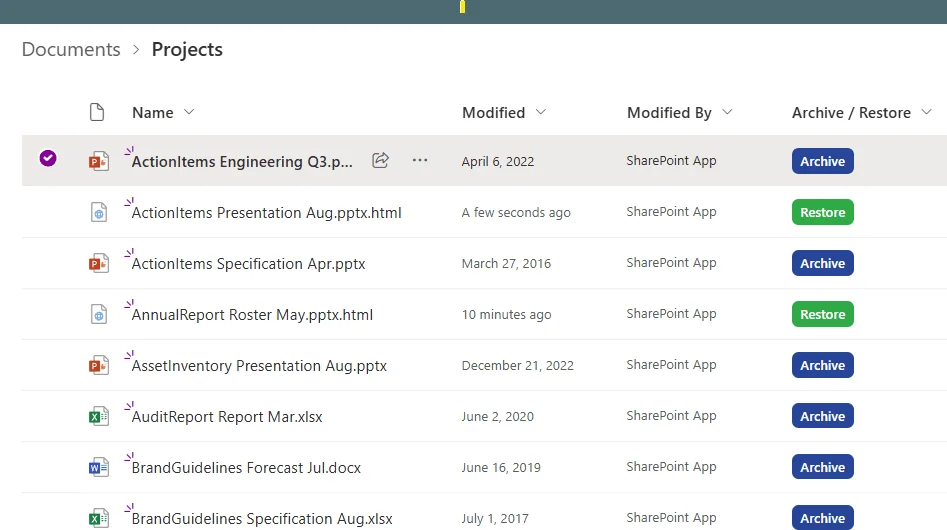
Open the library and find the file. Active files show a blue Archive button in the Archive / Restore column.
-
Click Archive. A new tab opens with the Archive Request page.
-
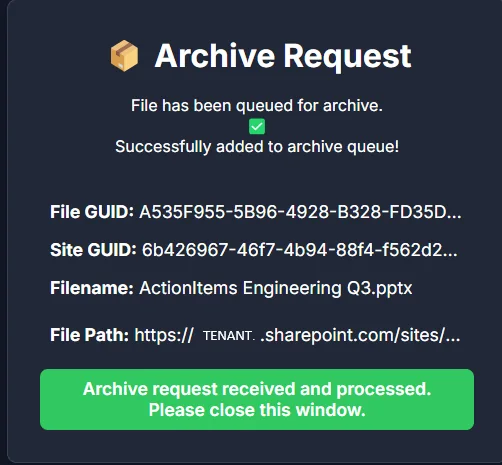
The page confirms that the file has been queued for archive, and shows its name. When it says Archive request received and processed, close the window.
-
Back in the library, the file is replaced by a stub, with
.htmlon the end. The Restore button now sits where the Archive button was.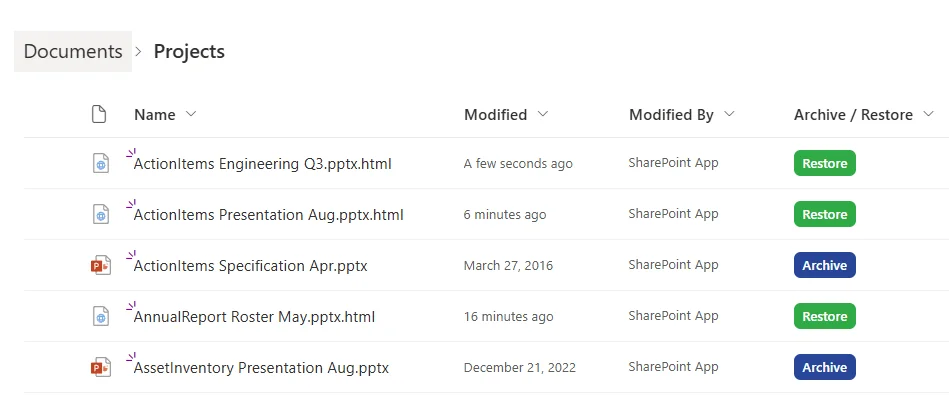
Things to know:
- The Archive button archives whatever you select, whatever its age or size. It does not apply your organisation's automatic archiving rules, so choose the file deliberately.
- If you archive something by mistake, restore it straight away from its stub.
Archive a folder
Where folder buttons are deployed, each folder also has an Archive button. Click it, check the folder path in the prompt and confirm. Everything in the folder is queued for archive, and a confirmation page shows how many files. As with a single file, this ignores the automatic rules, so check the folder before you confirm.
If you do not see an Archive button, your organisation may have deployed Restore buttons only. You can still restore archived files. Ask your IT team if you need something archived.
What happens if...
...the stub is deleted
The archived file is safe. Deleting a stub does not delete the file in the archive.
- Tell your IT team the file name and the folder it was in. They can restore it for you.
- The file then appears in your administrator's Orphaned Files list, with the date the stub was deleted and the path it came from, and can be restored from there.
- It is restored to the original folder. If that folder no longer exists, it goes to the Orphaned Files site your administrator has set up, and they can share it with you or move it back.
If a stub was removed from the SharePoint recycle bin, ask IT to check recycle bin capture, which can preserve deleted files before SharePoint purges them.
...the stub is renamed
A stub is an ordinary SharePoint file and can be renamed like any other. Squirrel picks up renames on a scheduled cycle, so a rename can take up to 24 hours to be reflected.
...the stub is moved to another folder or site
You can move a stub like any other file. Squirrel picks up moves on a scheduled cycle, usually within 24 hours.
- Once Squirrel has picked up the move, restoring the stub puts the file in the stub's new location.
- If you restore a stub straight after moving it, before Squirrel has picked up the move, the file comes back to the place it was archived from, and the moved stub stays where you put it. Delete that leftover stub.
- Moving a stub to a different site is followed on a best-effort basis. In some cases the restored file returns to its original site and path. If the exact location matters, leave stubs where they are.
...a folder is renamed or moved
Squirrel monitors SharePoint changes, including moves and renames, on the same scheduled cycle, so give it up to 24 hours to catch up. Until it has, a restore returns the file to the location it was archived from. If that location no longer exists, for example because the site has been deleted, the file is restored to the Orphaned Files site instead, and your administrator can share it with you or move it.
...I cannot open the restore page
Contact your IT team. Give them the file name, the folder and the time you clicked.
For the administrator who publishes this guide
Before you publish, check these settings. Each changes what your users see or are told.
| Setting | What it controls | Where |
|---|---|---|
| Orphaned Files site | Where a file is restored when its original folder no longer exists. Name it in the guide so users know where to look. | Global settings and Orphaned Files |
| Squirrel buttons | Whether users see the Archive / Restore column. Without it, users restore from the stub. Delete the button sections you have not deployed. | Archive and Restore buttons |
| Deploy buttons to folders | Whether folders get their own Archive and Restore buttons. If not, delete "Restore a folder" and "Archive a folder". | Archive and Restore buttons |
| Deploy Archive buttons | Whether users can archive a file themselves. If you deploy Restore buttons only, delete the "Archive a file yourself" section. | Archive and Restore buttons |
| Restore confirmation thresholds | When users are asked to confirm, or blocked, on a large restore. | Restore limits |
| Your colours | The restore page can be set to your organisation's colours, so users know it is yours. Ask support to apply them. | End user restore |
| Who users contact | Replace "your IT team" with your helpdesk name and address. | This page |
More detail on each part of the process:
- Stub files explained, including how moves and renames are tracked
- What happens during a restore
- Version history
- Orphaned Files
- Archived Files, the administrator's view of everything in the archive
Need help? support@smikar.com.