
Weekly Executive Briefing
6 min read · Last updated · Page version 19
The weekly executive briefing is Burrow's Monday-morning summary of the week's signal - alert volume, week-over-week change, dominant categories, top at-risk identities, and an AI-written 200 to 300 word narrative. It is the artefact that goes to management, compliance leads, and anyone else who needs the signal without working alerts day to day.
What is in the briefing
Each briefing has four parts:
Header tiles
Four numbers at a glance:
- Alerts this week - total count across all severities (whole tenant, a volume metric).
- Week-over-week change - percentage delta vs the previous week (whole tenant).
- Human Critical + High count - the alerts on real people that actually demanded operator response. Automated-account volume is deliberately kept out of this number (see below).
- Active incidents - Investigations still open at the end of the week.
AI-written narrative
200 to 300 words of plain prose summarising what the data shows. Topics covered:
- Top concerns - which categories or identities dominate the week.
- Trend - is volume up or down vs prior weeks, and why.
- Repeat offenders - identities that have shown up in multiple weeks.
- Recommended actions - concrete tuning, exception, or follow-up suggestions.
The narrative is generated by Burrow's AI engine using the deterministic numbers as input. As with all AI narration in Burrow, an AI safety check verifies every number in the narrative against the source data and falls back to a plain template if anything was invented. The briefing uses a stricter verification level than per-alert text because it reaches executives.
Top entities (human actors only)
A table of the week's highest-risk human identities - risk score, alert count, and a one-line behavioural summary. Click any row to open the Identity dossier for deeper context.
Top categories (human actors only)
A table of the week's most-firing alert categories with counts, again for human actors. Useful for understanding where the real signal is coming from at a glance.
Service accounts (excluded from ranking)
A separate, clearly-labelled line summarises the volume from the tenant's own automation - the document-pipeline service principals that legitimately generate mass-deletion- and ransomware-shaped bulk activity. It reads like "N automated accounts generated X alerts - expected bulk processing, excluded from ranking; review only if far outside their own norm."
The reason for the split: without it, a tenant's own document pipeline would headline the risk leaderboard every week (it does the most bulk file operations of anyone), burying the actual human signal. Service principals are identified by identity shape (app@sharepoint, SHAREPOINT\system), not a hardcoded name, so the split works in any tenant. The whole-tenant alert total and week-over-week trend above still include everything - those are volume metrics, not risk rankings.
Operator-suppressed entities are known noise too. The briefing's incident-chain narrative and the Active incidents tile now honour your entity exceptions the same way the rest of Burrow does. An entity you have blanket-suppressed - a suppress exception covering all categories (category *) - is treated as expected noise: its clustered incidents are summarised as automation / known noise, never presented as "notable chains requiring investigation", and it is not counted in the Active-incidents tile. A category-scoped suppression is deliberately left to the per-category layers and does not blanket-hide the entity from the executive view. Previously a chain from a suppressed service-app account could still surface in the briefing as something to investigate.
When the briefing is generated and sent
- Generated: automatically every Monday at 06:00 local time.
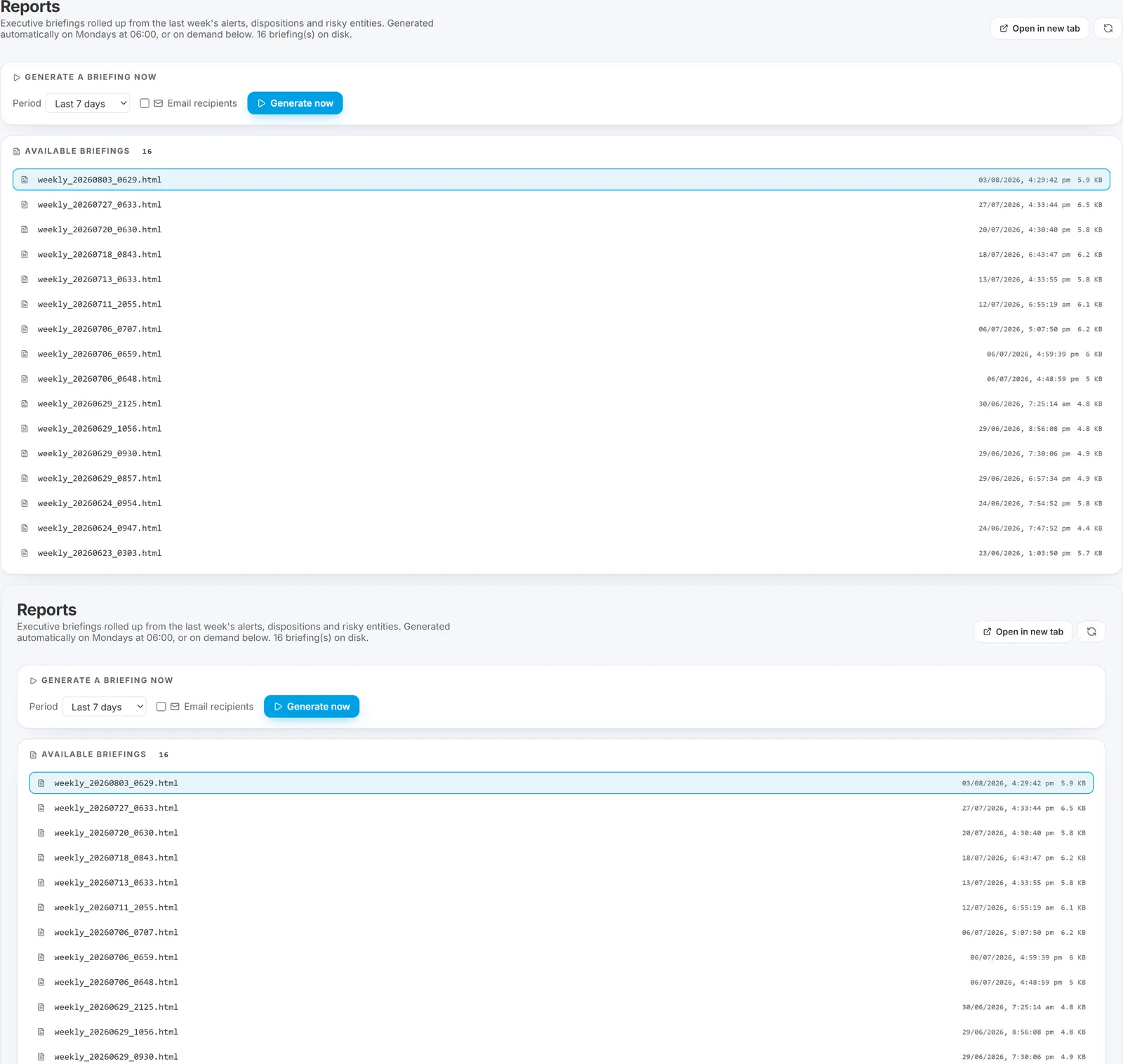
- On demand: the briefing does not only arrive on Monday - it can also be generated on demand from the Reports page (it takes about a minute), which also lists every past briefing for retrospective review.
- Emailed: to every recipient on the Notifications list whose Weekly briefing gate is on (see Configuring alert email recipients).
- Archived: every briefing is kept for retrospective review.
Where it lives now: the weekly briefing's content is reachable from the Reports page, which is where the sidebar's Reports entry now opens. The briefing is one of the five reports there, alongside User Activity, Security Posture Snapshot, Stale Guest Access, and the External Sharing Audit.
Viewing past briefings
- Open the Burrow dashboard → Briefing in the left navigation.
- The current week's briefing renders in-page.
- A list of archived briefings (one per week) is available below - click any to view it inline.
The in-page version is identical to the emailed version, useful for forwarding to someone who is not on the email list or for printing as part of a monthly compliance pack.
Who should be on the briefing list
- SOC lead - to see what was triaged this week.
- Compliance / audit lead - for the regulatory-facing summary.
- Risk lead - for tracking trends.
- Executive sponsor (CISO, CTO, or equivalent) - for the management view.
Each can have a different per-alert Min severity setting; the Weekly briefing gate is independent. A recipient with Min severity = Critical (so they never see per-alert emails) can still receive the weekly briefing.
When the narrative falls back to a template
You will occasionally see a briefing where the narrative section reads like a generic "Total alerts this week: N. Categories: X, Y, Z." instead of natural prose. That is the AI safety check fallback - the AI's first narrative attempt contained an invented number or name and was rejected. The deterministic numbers, top entities, and top categories are still authoritative.
If the fallback still happens frequently, raise a support ticket; the engineering team uses these reports to improve the verifier.
Pairs well with
- Suggestions page (main nav → Tuning → Suggestions) - review on Monday alongside the briefing.
- History page - see what operator actions were taken during the briefing's week.
- Hunt - drill into specific identities or sites mentioned in the briefing.
See also
- Configuring alert email recipients - where you set who gets the briefing.
- Email types Burrow sends - the briefing alongside the three other email types.
- Tuning a noisy rule - actioning the recommendations from the briefing's narrative.
Need help? support@smikar.com.