
Tuning a Noisy Rule (with the Suggestions Page)
8 min read · Last updated · Page version 19
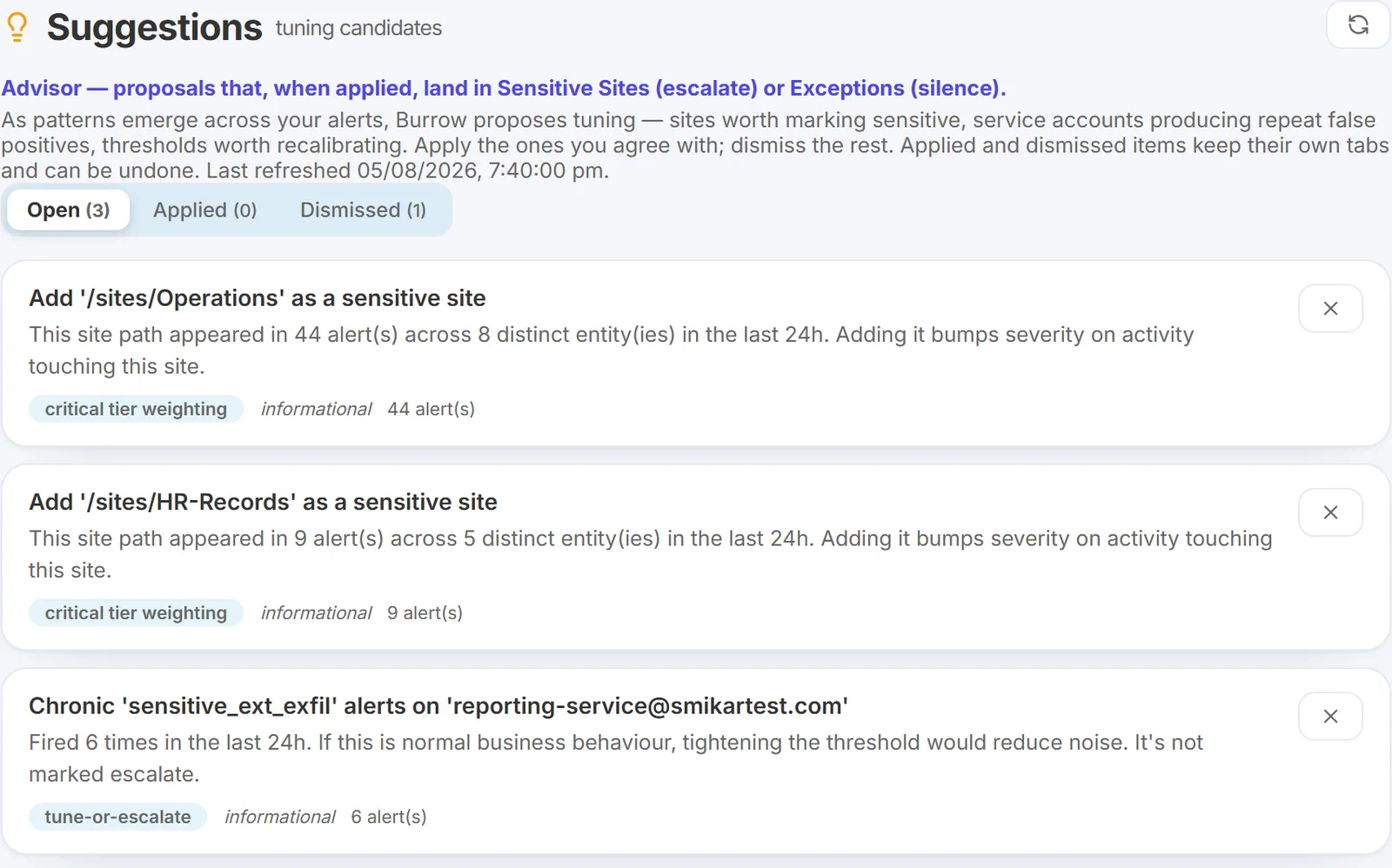
The Suggestions page turns your team's actual behaviour - what they dismiss, which sites and apps keep showing up - into concrete tuning candidates, each with a one-click Apply. When a pattern is clear enough to act on, Burrow surfaces it here so you do not have to hunt for it. This article walks the four kinds of suggestion, plus a manual tuning path for cases where nothing has surfaced yet.
Before reaching for a threshold - pick the right control
Burrow has five layered controls for tuning a rule: posture, per-rule override, baseline-maturity gate, persistence gate, and entity exceptions. Reaching for a threshold is rarely the right first move:
- One noisy service account? An entity exception is almost always better than lowering a global threshold. It leaves the rule sharp for everyone else.
- New hires cold-starting UEBA rules? The baseline-maturity gate is the fix, not raising the sigma.
- One rule fires once and does not repeat? A persistence gate ("fire only after 2 trips in 1 hour") reads better than a numeric threshold change.
The tuning model article covers all five layers with a decision table. The suggestions described below mostly write a layer-5 entity exception or a sensitive-site entry.
Where the Suggestions page lives
Main left navigation → Tuning → Suggestions. It is its own page rather than a panel on the Rules page, and it sits in the Tuning menu group alongside Exceptions and Sensitive sites / labels. See The Tuning menu for how the group fits together.
Candidates are sorted by evidence (strongest first) and the list is capped at roughly the top 50 per kind, so even a very busy environment cannot flood the page. If the page is empty, there are no recommendations right now - usually a good sign.
Three tabs: Open, Applied, Dismissed
The page is organised into three tabs, each paginated at 40 per page:
- Open - candidates awaiting a decision. Apply (on the applyable kinds) writes the change; Dismiss hides the suggestion.
- Applied - everything you have applied. Undo reverses the exact config change it made (removes the sensitive-site entry by its pattern, or the exception by its id); Dismiss just hides the row.
- Dismissed - everything you have hidden. Undo restores it to Open, or you can Apply it directly from here.
Applied and dismissed state persists server-side - it survives a browser refresh, and an actioned suggestion does not reappear even though the underlying worker regenerates its candidate list every cycle. The current state is layered on top of the fresh list at the moment you load the page.
The four kinds of suggestion
1. Add exception from dismissals (the most common)
When a named operator has marked the same (user, category) pair Not real on three or more separate calendar days, Burrow proposes a suppress entity exception for that pair. Reads as:
Add exception for
bob.smith@example.comonunusual_hour_activity(dismissed on 3 separate days)
One click on Apply writes the exception; future alerts of that pair stop firing (still visible in History).
Only judged dismissals count. Bulk queue sweeps do not feed this. A Dismiss ALL, a Suppress matching, or a multi-select dismissal you marked as a sweep is recorded and reversible, but never counts toward the three days - clearing a queue is not a judgment about the alerts in it. Only dismissals you made deliberately, one at a time or explicitly marked as judged-benign, train the suggestion.
Reopening cancels the vote. If you reopen a dismissed alert, that dismissal stops counting toward the pattern. A mistaken dismissal you have since undone does not go on quietly teaching Burrow to stay silent.
Two things make this precise rather than noisy:
- Only named-operator dismissals count. Dismissals attributed to the system, to automated processes, or to a generic web session do not count toward the threshold. A human has to have made the call.
- Distinct days, not raw count. Three dismissals in one afternoon is one bad day, not a pattern. Three dismissals across three different days is a genuine recurring false positive worth silencing.
A related point: the AI's own "routine for this user" verdicts already auto-hide those alerts, so they never generate an exception suggestion - this kind reflects human triage decisions only.
Because this and the Exceptions page share the same underlying store, an applied exception suggestion is tagged "→ also on Exceptions page" so it is clear the two are the same entry, not duplicates.
2. Add sensitive site
A site path that keeps showing up in alerts and is probably worth marking sensitive (which bumps severity on activity touching it). Apply adds it to the sensitive-sites list.
3 and 4. Chronic pattern and Noisy app - informational only
These two kinds are heads-ups, not actions. They have no Apply button - only Dismiss.
- Chronic pattern - a (user, category) pair firing repeatedly. A prompt to look at whether it should be tuned, excepted, or escalated; you decide the right control.
- Noisy app - a service application consistently downgraded as normal. This is usually a sign that Burrow's own service-principal handling is already dealing with it, so there is nothing to apply. (For this reason Burrow no longer raises a Noisy-app card for the standard service identities like
app@sharepoint*andSHAREPOINT\system- that outcome is expected, not actionable.)
You can still Dismiss either to clear it off the Open tab.
Which kinds are applyable
Only Add exception from dismissals and Add sensitive site map to a concrete config change, so only those two carry an Apply button. The two informational kinds cannot be applied - Burrow will not let an informational card fall through and write stray config.
Apply writes the change immediately and it appears on the History page attributed to your operator account. An exception created this way also appears on the Exceptions page tagged source: dismissal pattern, so you can later tell auto-derived exceptions apart from ones you added manually. If you later decide it was wrong, Undo on the Applied tab reverses that exact edit.
The workflow
The recommended cadence is a weekly review on Monday morning, alongside the weekly executive briefing:
- Open the Suggestions page and read the candidates top-down (they are already evidence-sorted, so the strongest are first).
- For each actionable suggestion ask:
- Does this match my environment? If yes, click Apply. If you are unsure, leave it - it stays on the list while the pattern persists.
- Is the evidence right? The dismissal counts are your team's own input - if a count surprises you, talk to your SOC shift first.
- After applying, watch the Alerts page for the next few days to confirm the noise has actually dropped.
When to override the suggestion
Burrow sees behaviour patterns, not your environmental context. Sometimes the right move is different from what it proposes:
- It may suggest a (user, category) exception when the rule is actually noisy across many users. If you find yourself applying many same-rule exceptions across different users, the rule itself is the problem - change the per-rule override or the posture instead.
- A chronic-pattern or noisy-app suggestion is a prompt, not a prescription. Pick the tuning layer that fits.
Auto-suppress: skip the click
For mature SOC teams that want noise reduction without the weekly review, an opt-in Dismissal auto-suppress feature applies a dismissal-pattern threshold automatically - no Suggestions review, no Apply click. See Dismissal auto-suppress for the trade-offs and its configurable threshold.
Manual tuning when there is no suggestion
Suggestions only surface after the evidence has accumulated (dismissals across multiple days for a specific pair, or a site/app showing up repeatedly). If you want to act on a noisy rule sooner:
- Open the Alerts page filtered to the noisy category. Look at the volume and which users are firing it.
- If it is concentrated on a small number of accounts → add entity exceptions for those accounts directly.
- If it is spread across many users → raise the rule's threshold via a per-rule override on the Rules page.
- Before saving the override, use Rule replay to preview what the rule would have caught at the new threshold over the last 24 hours.
How to know your tuning is working
Healthy tuning signals:
- Alert volume per detection pass stable or trending down over 2-week windows (visible on the Burrow home page trend chart).
- Disposition rate above 50% Real or Maybe. A low rate means too many false positives - keep tuning.
- Suggestions page small and growing slowly. A page that fills up with new suggestions every day means the SOC team is dismissing a lot - they probably want more tuning.
- No "we missed an alert" stories from the SOC. Tune for signal-to-noise, not absolute zero noise.
See also
- The tuning model - five ways to control a rule - pick the layer that matches the noise shape.
- Entity exceptions - for one-user noise.
- Noise gates - the automatic filters that already demote platform-machinery patterns.
- Dispositions - the input that drives dismissal-driven suggestions.
- Dismissal auto-suppress - opt-in skip-the-click version.
- Rule replay - preview a change before committing.
- Rule catalog - per-rule reference with tuning advice.
Need help? support@smikar.com.