
Configuring Alert Email Recipients
7 min read · Last updated · Page version 11
Burrow sends email when an alert fires, when an Investigation is opened, when a daily pattern escalation triggers, or when the weekly executive briefing is generated. The Email notifications card on the Settings page is where you configure who gets which emails, with the gates that control volume.
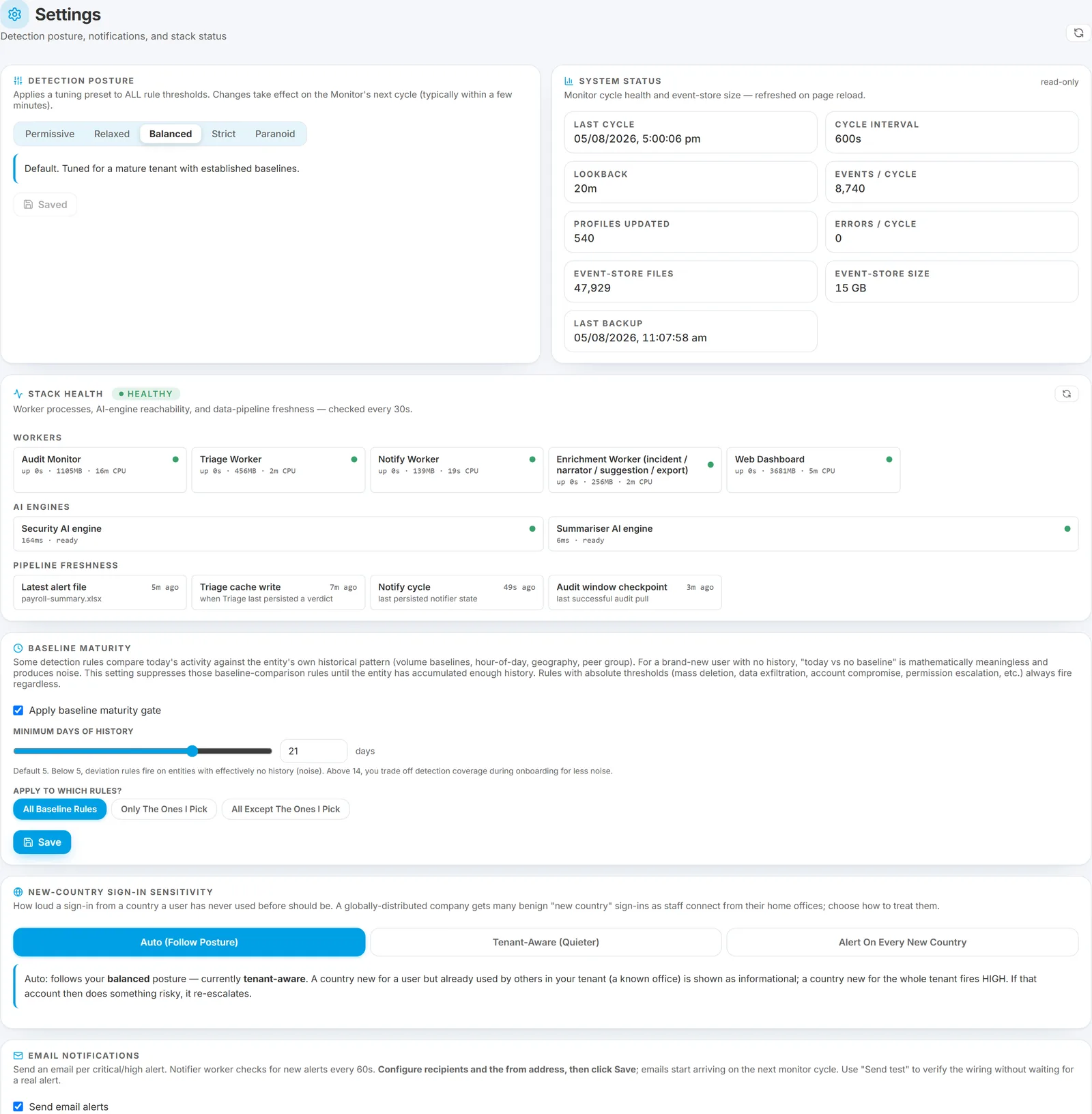
Opening the Email notifications card
- Open the Burrow dashboard → Settings in the left navigation.
- Scroll to the Email notifications card. Settings is a single page of cards, so there are no tabs to click.
The email gates
Together these control how much email each recipient gets. Set them deliberately on day 1, then revisit after a week.
Minimum severity
The severity floor below which alerts do not email. Options: Low, Medium, High, Critical. Burrow ships with this set to High, which is where most teams start.
- Low - every alert emails. Useful only in a war-room or pen-test scenario where you want to see everything.
- Medium - Medium, High, and Critical email. Low and Info are dashboard-only. A good next step once you have tuned out the routine noise and want more coverage.
- High (shipped default, recommended starting point) - only High and Critical email: the serious stuff. Lower to Medium once you have tuned the noisy categories.
- Critical - only Critical emails. Reserved for "page someone immediately" scenarios.
Email which rules?
Controls whether all rule categories email, or only a chosen subset. Three modes:
- All (recommended day-1) - every rule category at or above the minimum severity emails.
- Only the ones I pick - only the rule categories you add to the include list email. Use this once you know which categories matter most (e.g. the compliance lead only wants exfil + tampering categories).
- All except the ones I pick - everything emails apart from the categories you add to an exclude list. Use this to mute one or two chronically noisy rules while keeping the rest.
Weekly briefing toggle
When on, recipients get the auto-generated weekly executive briefing every Monday morning. Independent of the per-alert gate above - a recipient with Min severity = Critical and Weekly briefing = on still gets the Monday briefing.
Skip auto-downgraded alerts
When on, Burrow does not email alerts that its deterministic pre-filter already classified as not-real (the routine, expected activity it demotes before the AI ever sees it). The alerts still appear on the dashboard - they are just kept out of the inbox. AI dismissals are deliberately not skipped by this toggle: those still email so you can audit the AI's judgement. Leave it on to cut inbox noise; turn it off if you want to see every demotion in email during initial tuning.
When the AI marks a high-stakes alert "routine"
A dropdown that decides how far to trust the AI's own "likely routine" verdict for the serious categories only - mass deletion, data exfiltration, ransomware, password spray, risky sharing, and privilege / DLP. (Ordinary behavioural noise the AI calls routine is already handled by Skip auto-downgraded above; this control governs only the high-stakes ones, because a small local AI should not be able to silence a real-threat category on its own.)
- Always email (recommended, and the default) - these always email even when the AI thinks they are routine, stamped "AI: likely routine" so you can glance and dismiss in seconds. You get a few of these a day; the trade-off is you never miss a real one the AI got wrong.
- Suppress only when the evidence independently backs it up - the email is silenced only where something other than the AI supports the "routine" call: a reorganisation or sync verdict computed from the raw events, one file re-fetched repeatedly (which moves no new data), a recipient on your trusted-partner list, or a long-established pattern for that person. Anything else still emails.
- Suppress when the evidence backs it up, or the person has settled history - as above, plus cases where the individual has enough baseline history for the comparison to be meaningful. Quieter, still evidence-led.
- Suppress whenever the AI says routine - trusts the AI fully. Quietest inbox, but a real mass-deletion or ransomware the AI wrongly calls routine will not email (it is still on the dashboard). Use with care.
Whatever you pick, everything stays on the dashboard - this only changes what reaches the inbox, and your deterministic dismissals (entity exceptions, reorganisation / content-turnover demotions) still quieten regardless.
Why this is graded on evidence rather than the AI's own confidence. A language model's self-rated certainty is not a measurement - it writes the word a confident analyst would write, rather than reading off any internal gauge. Measured across roughly 960 verdicts, Burrow's model rated itself "high" on about three-quarters of them and "low" not once. A grade that never declines is no safeguard, so Burrow works the grade out from the underlying signals instead and takes whichever is lower: the AI is allowed to be less sure than the evidence, never more. That is what makes the middle two options worth using - they mean something specific about the evidence, rather than "the AI said so".
Adding recipients
In the Recipients list:
- Click Add recipient.
- Enter the email address.
- Set the three gates per the above guidance.
- Save.
Burrow's email step picks up the new recipient on the next cycle (within a minute).
Removing or editing recipients
Each row in the recipients list has Edit and Delete buttons. Edits take effect on the next email cycle; deletes stop the recipient from getting any further emails.
Both actions are logged on the History page.
Other fields on the Email notifications card
- From address localpart - the part before the
@. The domain is fixed at@smikar.com. Example:burrow-alertsmakes emails arrive fromburrow-alerts@smikar.com. Pick something your team will recognise. - Dashboard URL - the URL that "Open in dashboard" links in emails should point to. Pre-filled with your tenant's Burrow URL; only change if it is wrong.
- Tenant display name - used in email subject lines (e.g.
[HIGH] data_exfiltration_high - tenant: Contoso). - Test send - sends a one-line test email to all recipients using the current From / Dashboard / Display name configuration. Use it to confirm everything is wired correctly before relying on it for real alerts.
A typical day-1 setup
For most tenants:
- Add 2 to 4 SOC operators as recipients. Min severity = High (the shipped default), Rules mode = All, Weekly briefing = on. Lower to Medium once you have tuned the noisy categories.
- Add 1 management / compliance lead as recipient. Min severity = High or Critical (whatever they will actually read), Rules mode = All, Weekly briefing = on.
- Run Test send once. Confirm everyone received the test.
After a week of live alerts:
- If SOC operators are overwhelmed, tighten Min severity to High.
- If management lead never gets emails, they are at the right gate.
- Consider switching Rules mode to Selected per recipient if specific categories are noisy.
How the gates interact with the rest of Burrow's pipeline
Even with permissive gates here, alerts are still subject to the broader email pipeline before being sent: an entity exception can suppress them, the AI triage step can mark them not-real (which suppresses by default), cooldown prevents the same user-and-category emailing twice within an hour, and a consolidated Investigation card or daily escalation can pre-empt per-alert emails.
See How an alert flows through Burrow for the full email-decision chain.
See also
-
The Settings page - every other card on the same page.
-
Weekly executive briefing - what the Monday email contains.
-
Email types Burrow sends - the four kinds of email and when each is sent.
-
Exporting the suppression journal - to see what was suppressed despite the gates.
Need help? support@smikar.com.