Nutshell AI: Archive Summaries for Microsoft Copilot
8 min read
Nutshell is the AI document-summarisation feature inside Squirrel. When Squirrel archives a SharePoint document to Azure Blob Storage, Nutshell reads the document content and writes a plain-language summary back into the stub file that remains in SharePoint — so the document stays discoverable in SharePoint Search and Microsoft 365 Copilot even after it has been moved out of the SharePoint index.
For a marketing overview see the Nutshell AI product page.
The problem Nutshell solves
By default, when a file is archived out of SharePoint, the stub file left behind contains only the filename, the originating site, and a link to restore the original. That stub carries no content — so the document drops out of SharePoint's search index, and Microsoft Copilot (which queries that index) can no longer surface it in answers. Archived data effectively becomes "dark" — preserved, but invisible to the tools your organisation actually uses to find information.
Nutshell closes that gap by embedding an AI-generated summary directly into each stub file. The summary is indexed by SharePoint Search and read by Copilot, so archived documents remain part of your organisation's discoverable knowledge base without forcing you to keep them in primary SharePoint storage.
How Nutshell works
The Nutshell pipeline runs after Squirrel's normal archive process. It does not change how Squirrel archives — only what is left behind in SharePoint after the archive completes.
- Archive. Squirrel moves a document from SharePoint Online to Azure Blob Storage in your own Azure subscription, in line with your archive policy. File metadata is preserved.
- Extract. If Nutshell is enabled, the archived document's text content is extracted for processing.
- Summarise. The content is passed through Nutshell's AI engine using the configured mode and temperature, producing a structured summary.
- Store. The summary is written into the stub file that Squirrel leaves in SharePoint in place of the original, and a copy is preserved alongside the archive in Azure Blob Storage.
- Discover. SharePoint Search and Microsoft Copilot index the updated stub, so the archived document surfaces in relevant search results and Copilot responses.
If a user clicks the stub, the normal Squirrel restore flow brings the original document back. The summary just makes sure they can find the right document to ask for.
Retrospective summarisation
Because summarisation runs after archive, Nutshell can be turned on or off at any time. Enabling it later does not lock you out of older content: previously archived documents can be queued for bulk summarisation, so historical archives are made just as discoverable as anything archived going forward.
Summarisation modes
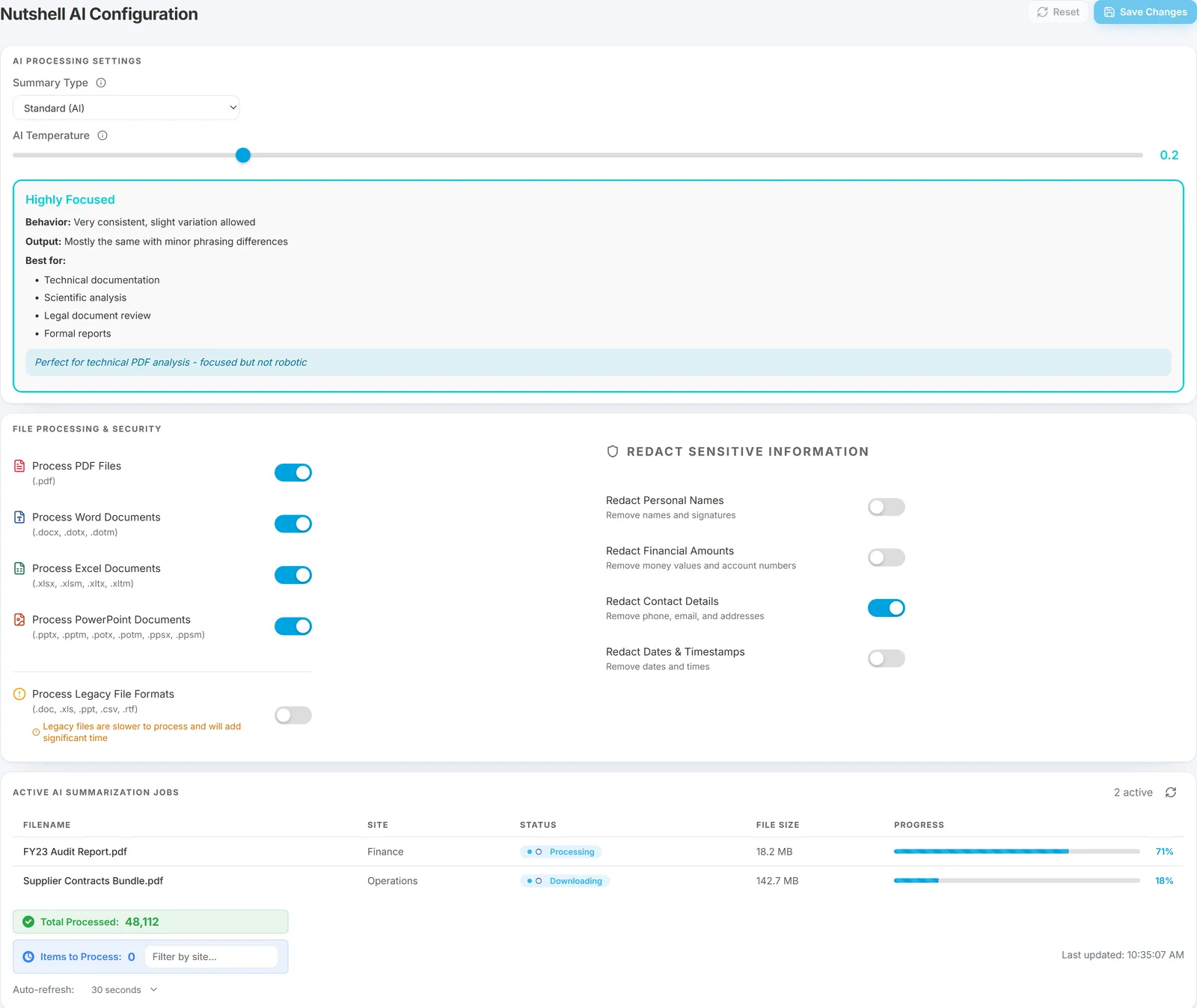
Nutshell offers three modes that control how much of a document is read before generating the summary. Mode is configured per-tenant from the AI Processing Settings page in the Squirrel admin portal.
| Mode | Scan coverage | Throughput per worker | Best for |
|---|---|---|---|
| Brief | Opening slice only (first ~16,000 characters, typically the introduction and first few pages) | ~50 files/min (~3,000/hour) per worker | Triage, executive dashboards, high-volume bulk passes |
| Standard | Start + middle + end slices (~48,000 characters total) | ~40 files/min (~2,400/hour) per worker | General-purpose summaries that balance coverage with throughput |
| Detailed | Entire document, no omissions | ~12 files/min (~720/hour) per worker | Compliance, legal, archival reference where full fidelity is required |
A worker is a GPU-backed processing engine — Nutshell licensing scales by worker, so you can add capacity by adding workers. Throughput scales close to linearly: doubling the worker count roughly doubles the files-per-minute. Figures are measured against a ~7,500-word, 1 MB Word document; real numbers vary with file size, file type, and SharePoint API throttling.
Intelligent resource management
Each Nutshell worker node monitors its own CPU and GPU load in real time and adjusts how many documents it processes concurrently. Under heavier load Nutshell reduces concurrency to stay stable; when spare capacity is available it scales back up. The effect is consistent throughput across large batches without manual tuning.
Temperature
Temperature is a slider from 0.0 to 1.0 that controls how closely the AI sticks to the wording of the source document. Lower values mean more deterministic, repeatable output. Higher values mean more rephrasing and varied style — at the cost of some risk of drift away from the source.
| Range | Behaviour | When to use |
|---|---|---|
0.0–0.2 | Highly focused. Sticks very close to source wording. Output is consistent across runs. | Compliance, legal, technical documentation, audit-grade summaries |
0.3–0.5 | Balanced. Slightly smoother phrasing while remaining faithful to the document. | Stakeholder reports, knowledge sharing, internal docs |
0.6–0.8 | Expansive. More descriptive and explanatory; tone shifts towards a rewritten brief. | Executive briefings, training material |
0.9–1.0 | Creative. May add framing or context not present in the source. | High-level messaging only — not recommended for authoritative records |
Recommended defaults: Brief = 0.1, Standard = 0.1–0.2, Detailed = 0.1. Lower temperatures favour fidelity to source over stylistic variety, which is what archived-document summaries need.
For side-by-side examples of what each mode and temperature actually produces from the same source document, see Nutshell sample summaries.
Supported file types
Nutshell summarises the following formats. Files outside this list are still archived by Squirrel; they just don't receive a Nutshell summary.
| Category | Extensions |
|---|---|
.pdf | |
| Word | .docx, .dotx, .dotm |
| Excel | .xlsx, .xlsm, .xltx, .xltm |
| PowerPoint | .pptx, .pptm, .potx, .potm, .ppsx, .ppsm |
| Plain text | .txt, .text |
| Legacy Office | .doc, .xls, .ppt, .csv, .rtf |
Per-extension processing can be toggled on or off from the File Processing & Security page. Modern formats are the fastest to process — Nutshell reads their text directly. Legacy Office formats (.doc, .xls, .ppt, .csv, .rtf) are fully supported but slower because they require an additional parsing step.
How each file type is read
- Word — full text body, the fastest and most accurate to summarise.
- Excel — sheet/tab names, headers, comments, and cell text. Nutshell summarises trends and context, not raw formulas.
- PowerPoint — visible text on slides, slide titles, and speaker notes. The summary captures the flow and themes of the deck.
- PDF — text content. Image-only / scanned PDFs without an OCR layer will produce thin summaries.
- Text / legacy — straightforward read; legacy formats add conversion overhead.
Redaction
Nutshell can automatically strip sensitive fields from the summary before it is written back to SharePoint. Toggles live on the same File Processing & Security page:
- Personal names — removes individual names and signatures.
- Financial amounts — removes money values and account numbers.
- Contact details — removes phone numbers, email addresses, and other identifiers.
- Dates and timestamps — removes date and time references that may reveal sensitive activity.
Redaction is applied during summary generation, so even when the summary is later read by Copilot or SharePoint Search, the redacted values never reach the search index.
Stub file: before and after Nutshell
Without Nutshell, an archived document leaves a stub in SharePoint that contains only the filename, the site it came from, and a Restore link. SharePoint Search and Copilot have no content to index — the document effectively disappears from search until it is restored.
With Nutshell, the same stub additionally carries an embedded summary of the original document's contents. SharePoint Search and Copilot index that summary the same way they would index a regular file's body text, so the archived document continues to surface in relevant searches and Copilot answers.
Monitoring jobs
The Active AI Summarization Jobs page in the Squirrel admin portal gives a live view of every document Nutshell is currently processing. Each row shows the filename, the originating SharePoint site, current status, file size, and a percentage progress bar. Jobs move through these states:
- Downloading — the archived file is being copied from Azure Blob Storage to the Nutshell appliance.
- PendingAI — the file is queued and waiting for an available worker.
- Processing — a worker is actively summarising the file.
A running counter at the bottom of the page shows total files processed since the appliance started, and the view auto-refreshes so you can watch a bulk pass complete in real time.
Why Nutshell matters
- Copilot keeps working on archived content. Copilot is only as useful as the data it can see. Nutshell ensures the act of archiving doesn't blind Copilot to that part of your organisation's knowledge.
- Faster decisions for users. End users can decide whether a search result is worth restoring based on the summary, rather than restoring a document just to find out what it contained.
- Cleaner audits and reviews. Records, compliance and legal teams get a human-readable description of every archived document — useful for retention reviews, eDiscovery scoping, and access audits.
- Storage savings without information loss. You get the cost reduction of moving cold data out of SharePoint without the usual side-effect of making that data hard to find again.
For licensing and rollout questions, contact sales@smikar.com.