
Dismissal Auto-Suppress (Tier 2)
7 min read · Last updated · Page version 5
By default, Burrow requires a click. When the SOC team dismisses the same alert enough times, a Suggestion appears on the Rules page proposing an entity exception, and someone clicks Apply to enact it.
Dismissal auto-suppress is an opt-in feature that skips the Apply click. When the same (user, category) pair has been dismissed enough times within the lookback window, Burrow creates the exception automatically - no Suggestion review, no operator action required.
This article covers when to use it, when not to, how to enable it, and how to audit what it has done.
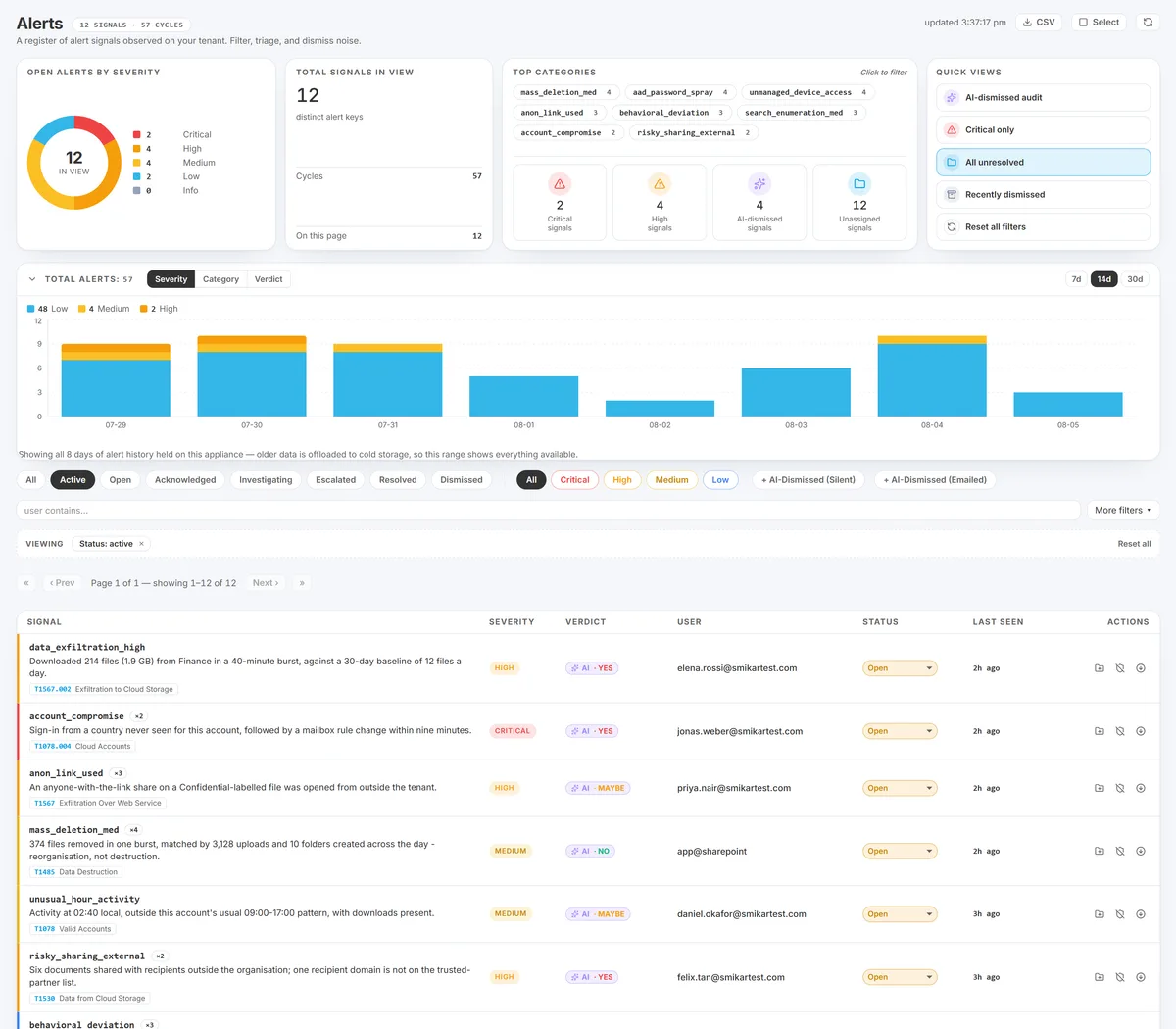
Before a bulk dismissal runs, Burrow shows you what you are about to hide.
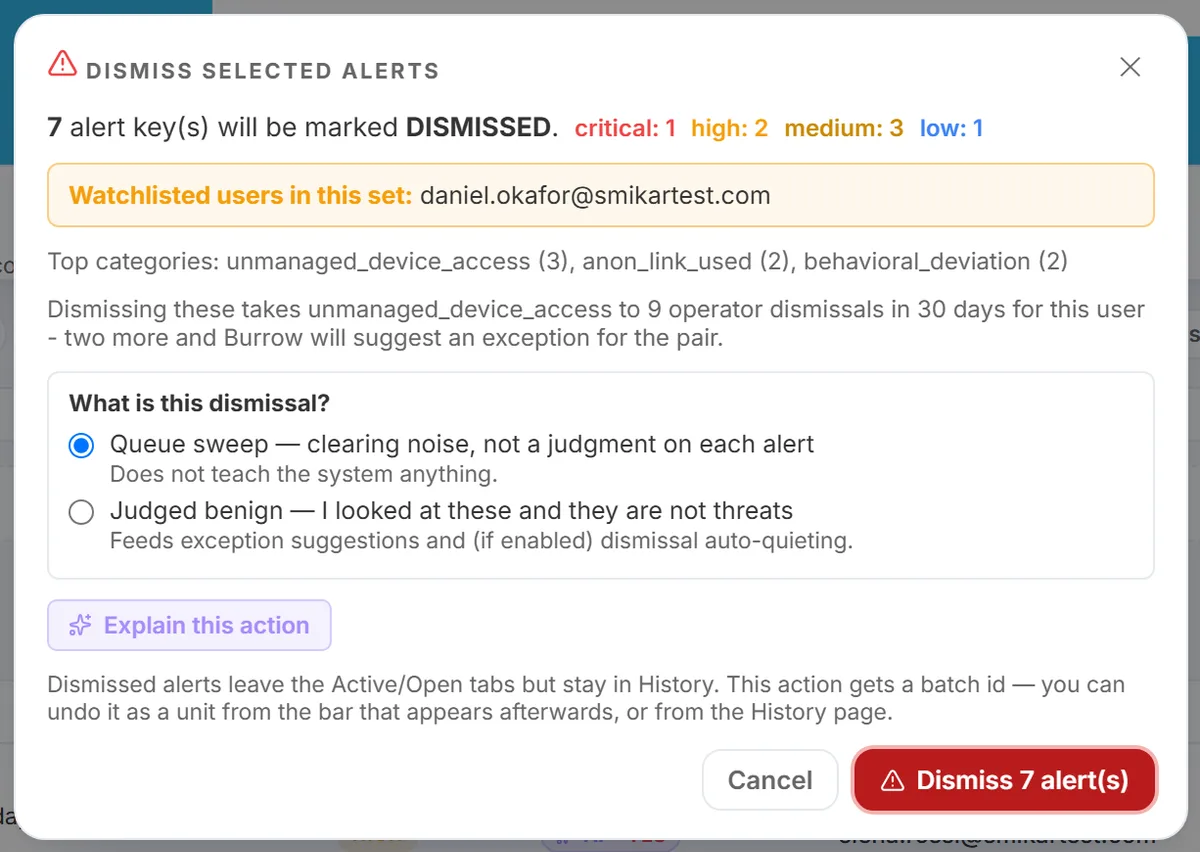
The two options at the bottom are the important part. Queue sweep is recorded and reversible but teaches Burrow nothing. Judged benign feeds the exception suggestions and the learned quieting. Picking the wrong one is how a routine clean-out quietly trains the system to stop alerting on something nobody actually reviewed.
Default state
Off. Burrow never silences anything without an operator click out of the box. The Suggestions panel does its job, and someone reviews and applies the proposals on a weekly cadence (or whenever they choose to).
Auto-suppress is opt-in because silently-applied silencing is risky in some environments - compliance, regulated industries, new deployments where you have not yet learned which dismissal patterns are noise vs. real signal.
When to use it
- Mature SOC team that already has a stable dismissal pattern and trusts the threshold.
- High-volume tenants where the Suggestions panel produces too many recommendations per week for the admin to review individually.
- Well-tuned environments where the most-common dismissal patterns are already silenced via manual exceptions, and auto-suppress just catches the long-tail of newly-emerging noisy accounts.
- After several months of operation with the Suggestions-then-Apply flow, when you have data on what kinds of patterns the advisor proposes and can confidently say "I would have clicked Apply on all of these anyway."
When NOT to use it
- New deployments. In the first 4-8 weeks, you are still learning what counts as normal in your tenant. Auto-suppress can silence things you would have wanted to investigate.
- Compliance / regulated environments. Some auditors want every suppression to have a human authorising it. Auto-suppress puts the system in that authorising role, which can complicate evidence trails. Confirm with your compliance lead before enabling.
- High-turnover SOC team. The dismissal pattern depends on consistent triage decisions. If different shifts dismiss the same alert for different reasons, auto-suppress can encode bad assumptions.
- Service accounts you have not yet seen. A new service account that fires high-volume alerts in its first week might trigger auto-suppress quickly - and Burrow would silence it permanently before you have decided whether the activity is genuinely benign.
How to enable it
- Open the Burrow dashboard → Settings → Dismissal auto-suppress tab.
- Toggle Enabled to on.
- Confirm or adjust the threshold:
- Dismissal count: how many Not real dispositions on the same (user, category) pair trigger auto-suppress. Default: 3.
- Lookback window: the time window the dismissals must occur within. Default: 14 days.
- Action: Suppress (skip the email entirely, hide from the dashboard) or Downgrade (drop severity by one tier and skip emails for the downgraded severity).
- Save. The change applies on the next detection pass.
If the Dismissal auto-suppress tab is not present in your Settings page yet, contact support@smikar.com and we will configure it on your behalf.
How auto-suppress and Suggestions interact
Both systems read the same operator dispositions and act on the same dismissal-pattern signal. The difference is what they do when the pattern is recognised:
- Suggestions (always on): write a recommendation to the Suggestions page. Wait for an operator to click Apply.
- Auto-suppress (opt-in): create the entity exception directly, no operator action needed.
When auto-suppress is enabled, both still happen - the Suggestion may briefly appear in the panel and the auto-suppress also fires. In practice the operator never sees the Suggestion because the silencing already took effect.
Audit trail
Every auto-suppression is journaled in the suppression journal and shown on the System Activity page with one of:
auto_dismissed_pattern- Suppress action.auto_downgraded_pattern- Downgrade action.
The created entity exception itself appears on the Exceptions page with source: auto-suppress and a reason field showing the dismissal count that triggered it.
The History page logs the exception creation with the source attributed to the auto-suppress system rather than a named operator - useful for an auditor to distinguish operator-driven vs. system-driven changes.
How to review what auto-suppress has done
A monthly review is recommended:
- Open System Activity in the left navigation and select the Suppressed filter.
- Filter Reason to
auto_dismissed_patternorauto_downgraded_pattern. - Review the list. For each entry ask:
- Was this (user, category) pair really noise? Or did Burrow silence something I should have investigated?
- Is there a broader pattern? Multiple auto-suppressions on the same user might mean a tuning issue elsewhere.
If you find auto-suppressions you disagree with, see "How to undo" below.
How to undo an auto-suppression
Two levels of undo:
Undo a specific suppression (the noise floor was right but this one entity should still alert):
- Open the Exceptions page.
- Find the entry for the (user, category) pair you want to re-enable. Auto-derived entries are tagged with source: auto-suppress.
- Click Delete.
- Future alerts of that pair fire normally on the next detection pass.
Disable the feature globally (you want all silencing to require operator approval again):
- Settings → Dismissal auto-suppress → toggle Enabled to off.
- Save. No new auto-suppressions are created from the next detection pass onward.
- Existing exceptions created by auto-suppress remain in place - disabling the feature only stops new ones. Delete the existing ones individually from the Exceptions page if you want to fully revert.
Threshold tuning advice
The default 3-in-14-days is conservative - most legitimate false-positive patterns get dismissed many more times than that in two weeks. Most tenants leave it at the default.
If you find auto-suppress is firing too aggressively (silencing things you would have wanted to investigate), raise the dismissal count to 5 or 7. If it is firing too rarely (you still see noise that should have been auto-suppressed), drop the lookback to 7 days or the count to 2.
Run the change for at least a fortnight before judging the effect - the threshold needs time to interact with the dismissal patterns to produce visible volume change.
See also
- Dispositions - the input that drives the auto-suppress threshold.
- Tuning a noisy rule - the default Suggestion-then-Apply workflow that auto-suppress short-circuits.
- Entity exceptions - the underlying mechanism auto-suppress uses.
- Exporting the suppression journal - for the audit trail of what was silenced and why.
Need help? support@smikar.com.