
Monitoring Active Summarisation Jobs
3 min read · Last updated · Page version 4
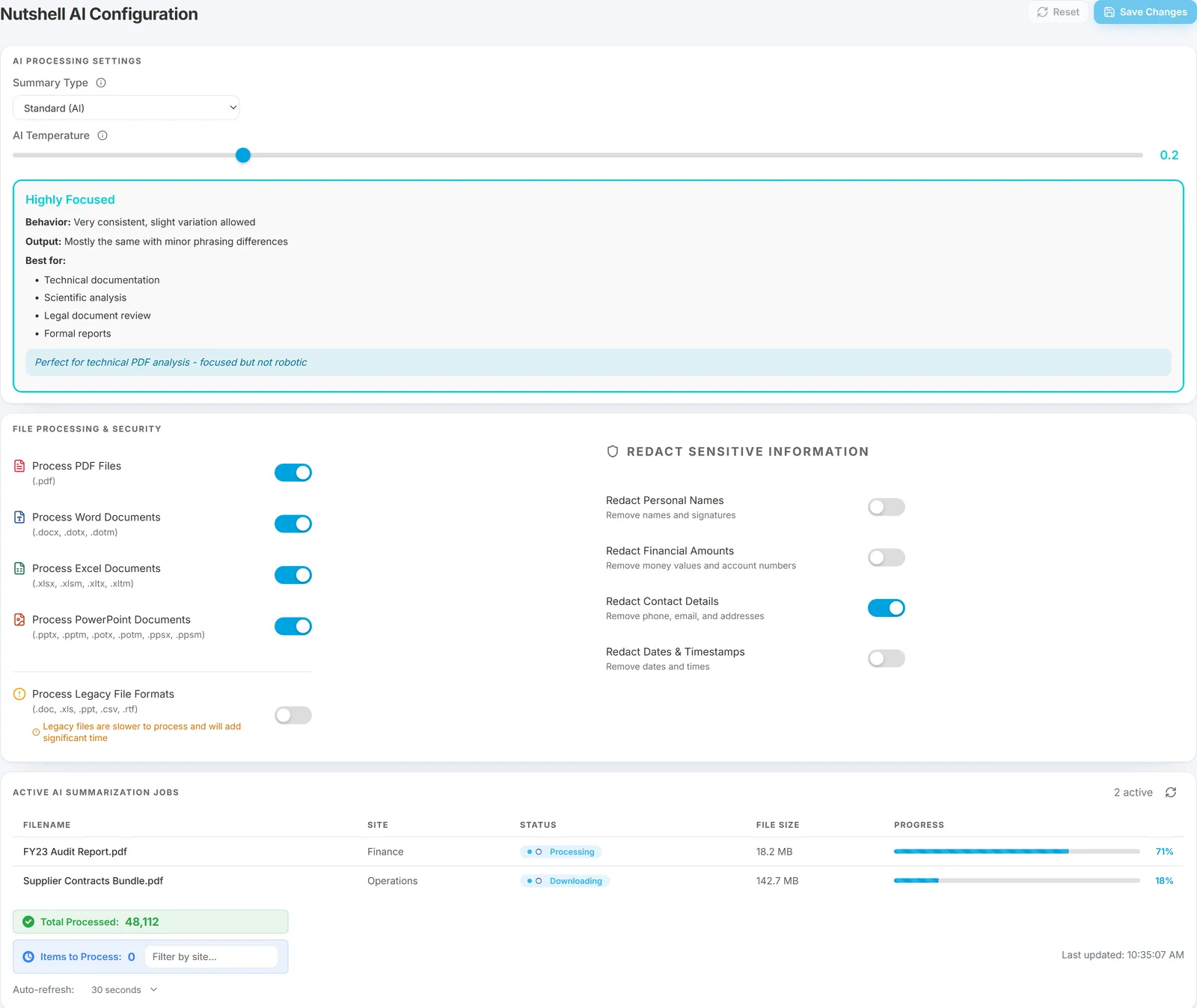
The Active AI Summarization Jobs page in the Squirrel admin portal gives a live view of every document Nutshell AI is currently processing. Use it to confirm a bulk pass is progressing, spot files stuck in a state, and track lifetime throughput for capacity planning.
What the page shows
For every in-flight file, one row with:
- Filename - the archived document being summarised.
- Originating SharePoint site - where the file was archived from.
- Current state - see below.
- File size - the original document size, useful for spotting large files that will take longer.
- Progress bar - percentage complete for the current state.
A running counter at the bottom of the page shows total files processed since the appliance started. The view auto-refreshes, so you can watch a bulk pass complete in real time without needing to reload.
Job states
Jobs move through three states in order:
- Downloading - the archived file is being copied from Azure Blob Storage to the Nutshell processing appliance. Time in this state scales with file size and Azure network throughput.
- PendingAI - the file is queued and waiting for an available worker. Time in this state scales with how many other jobs are ahead and how many workers your Nutshell licence covers.
- Processing - a worker is actively summarising the file. Time in this state scales with mode (Detailed takes longest) and file length.
Once a file completes, its row leaves the active list and the total-processed counter at the bottom of the page increments.
When to check this page
- After enabling Nutshell on a new tenant - confirms the first batch of archives is being summarised as expected.
- During bulk backfills - retrospective summarisation can queue thousands of documents at once; the page is where you watch the queue drain.
- When throughput seems low - if the PendingAI queue is deep and Processing rows are few, you may be worker-constrained; contact sales@smikar.com about adding worker capacity.
- After a mode or temperature change - verifies the new setting is being applied to the current batch.
What to expect for throughput
Per-worker throughput depends on mode - see Summarisation modes for the per-worker files-per-minute figures. If you have N workers licensed, expect roughly N × (per-worker rate) files-per-minute in aggregate, up to the limit of SharePoint API rate limits and Azure Blob read throughput.
Files stuck in a state
Occasionally a file will stay in a state longer than expected:
- Stuck in Downloading - usually a transient Azure Blob issue; will typically resolve on its own within a few minutes.
- Stuck in PendingAI - normal if the queue is deep; check the total queue length before assuming a problem.
- Stuck in Processing - most often an unusually large or complex file (a 500-page contract, a spreadsheet with dozens of tabs). Detailed mode on a large file can legitimately take several minutes per file.
If a file has been in a single state for an hour or more with no progress, raise a support ticket with the filename and site so the engineering team can look into it.
See also
- How Nutshell works - the pipeline states shown on this page.
- Summarisation modes - per-worker throughput expectations.
- Redaction - the other Admin Guide, for sensitive-content settings.
Need help? support@smikar.com.