
Charge SharePoint Storage Costs Back to Departments
3 min read · Last updated · Page version 1
Purpose: charge each department for the SharePoint storage it uses and the data archived from its sites, and show how much archiving is saving it.
You need to be a Full Administrator or a Billing Administrator.
-
Decide your two rates. Work out what live SharePoint storage costs you per TB per month, and what archived storage costs you per TB per month. Groups can use different rates, for example a department on a different agreement.
-
Create a group. Open Analytics, then Cost Allocation. On Manage Groups, choose Create Group. Enter the group name, for example "Marketing", the department, the cost-centre code, the live rate and the archive rate, then Create Group.
-
Add its sites. On the group's card, choose Manage Sites, then:
- for a handful of sites, use Search & Add;
- for a naming convention, such as every URL containing "mkt", use Bulk by Keyword, untick any that do not belong, then add;
- for a list from finance or IT, use Paste URLs, then Match Sites, check the "not found" list, then add.
A site belongs to one group only. Sites already in another group are skipped and named in the warning. To move a site, remove it from the other group first.
-
Repeat for each department. On Reports, aim to bring Unassigned close to zero, so all storage is accounted for.
-
Check the result. Reports, then Overview, shows each group's live and archive cost and the monthly total. Click a group to see its Cost by Site.
-
Export at month end. Export CSV on the Overview gives finance one row per group, with sizes, rates and costs, plus the Unassigned and Total rows. Export Sites CSV on a group's detail gives a per-site breakdown to send to the department.
-
Change rates when they change. Use Edit on the group's card. The report recalculates straight away.
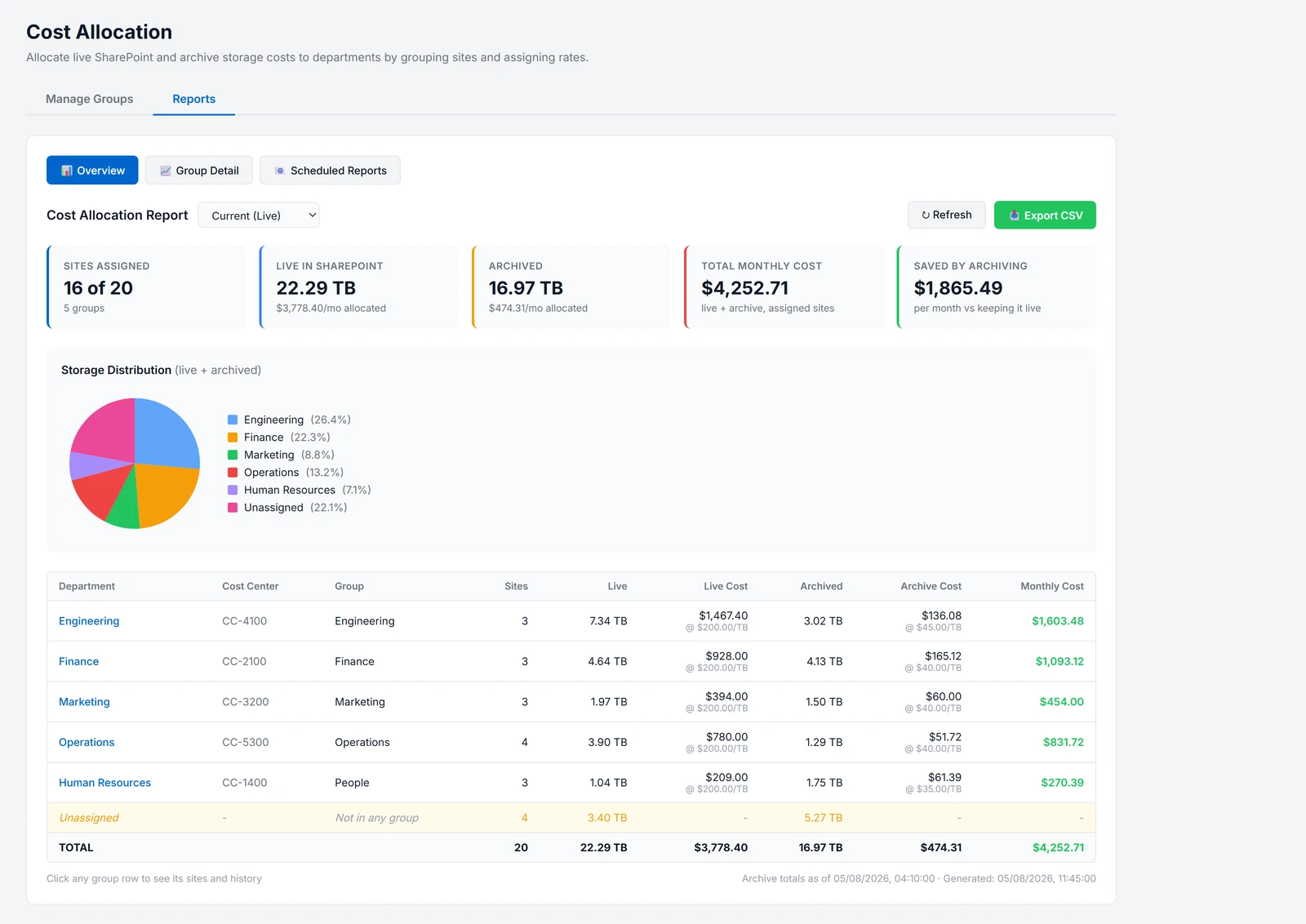
Good to know: storage figures refresh once a day, so a site you have just added shows its storage straight away, but its sizes move only after the next daily run. A site the archive calculation has not reached yet shows not calculated for archived data rather than 0, and its live cost is still counted. Unassigned sites have no cost, because costs come from a group's rates. Their storage is still shown so you can see what is not being charged back yet.
See Cost Allocation for what every figure on the page means.
Need help? support@smikar.com.