
Monitoring Active Summarisation Jobs
3 min read · Last updated · Page version 1
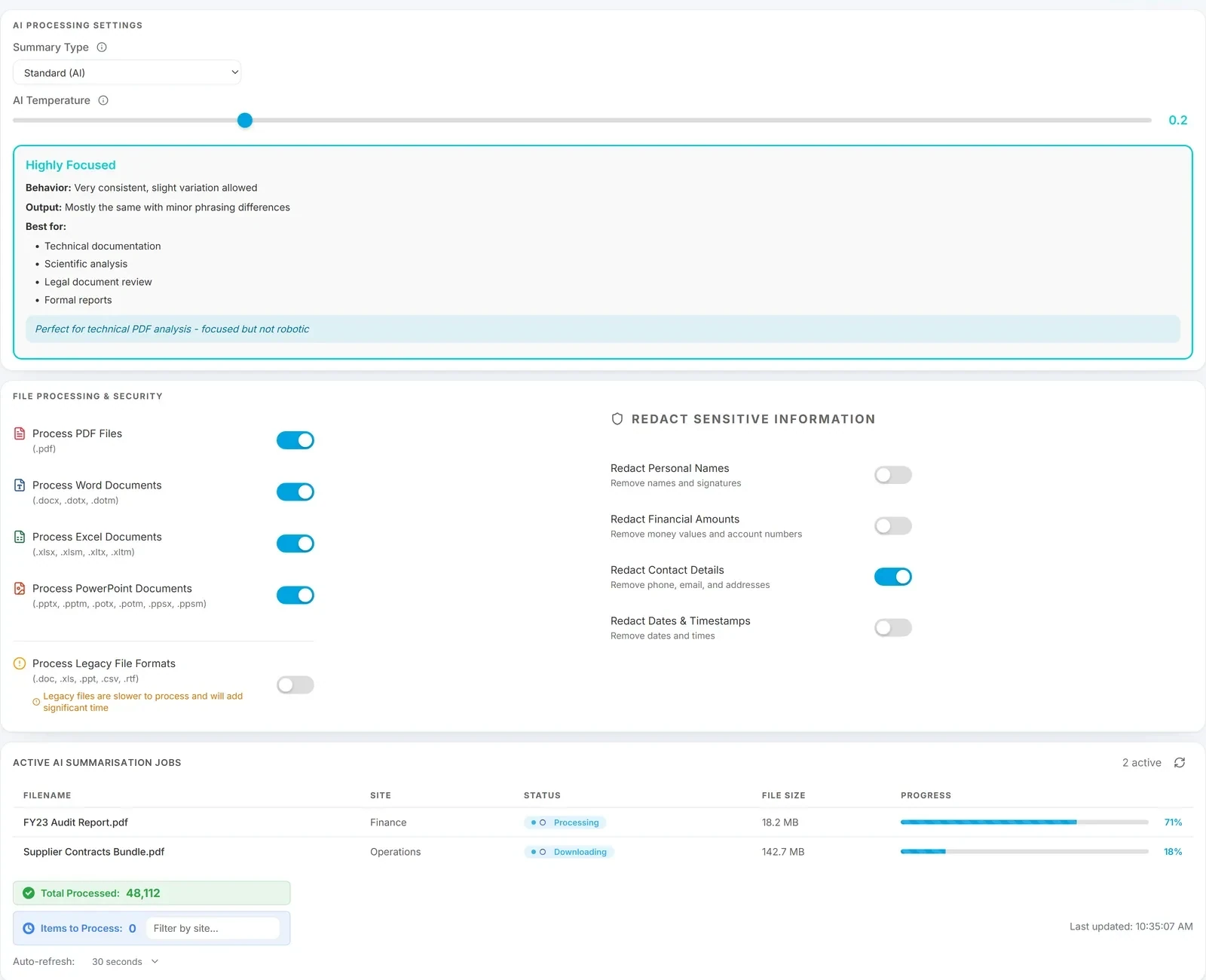
The Active AI Summarisation Jobs page in the Squirrel admin portal gives a live view of every document AI Summarisation is currently processing. Use it to confirm a bulk pass is progressing, spot files stuck in a state, and track lifetime throughput for capacity planning.
What the page shows
For every in-flight file, one row with:
- Filename - the archived document being summarised.
- Originating SharePoint site - where the file was archived from.
- Current state - see below.
- File size - the original document size, useful for spotting large files that will take longer.
- Progress bar - percentage complete for the current state.
A running counter at the bottom of the page shows total files processed since the appliance started. The view auto-refreshes, so you can watch a bulk pass complete in real time without needing to reload.
Job states
Jobs move through three states in order:
- Downloading - the archived file is being copied from Azure Blob Storage to the AI Summarisation processing appliance. Time in this state scales with file size and Azure network throughput.
- PendingAI - the file is queued and waiting for an available worker. Time in this state scales with how many other jobs are ahead and how many workers your AI Summarisation licence covers.
- Processing - a worker is actively summarising the file. Time in this state scales with mode (Detailed takes longest) and file length.
Once a file completes, its row leaves the active list and the total-processed counter at the bottom of the page increments.
When to check this page
- After enabling AI Summarisation on a new tenant - confirms the first batch of archives is being summarised as expected.
- During bulk backfills - retrospective summarisation can queue thousands of documents at once; the page is where you watch the queue drain.
- When throughput seems low - if the PendingAI queue is deep and Processing rows are few, you may be worker-constrained; contact sales@smikar.com about adding worker capacity.
- After a mode or temperature change - verifies the new setting is being applied to the current batch.
What to expect for throughput
Per-worker throughput depends on mode - see Summarisation modes for the per-worker files-per-minute figures. If you have N workers licensed, expect roughly N × (per-worker rate) files-per-minute in aggregate, up to the limit of SharePoint API rate limits and Azure Blob read throughput.
Files stuck in a state
Occasionally a file will stay in a state longer than expected:
- Stuck in Downloading - usually a transient Azure Blob issue; will typically resolve on its own within a few minutes.
- Stuck in PendingAI - normal if the queue is deep; check the total queue length before assuming a problem.
- Stuck in Processing - most often an unusually large or complex file (a 500-page contract, a spreadsheet with dozens of tabs). Detailed mode on a large file can legitimately take several minutes per file.
If a file has been in a single state for an hour or more with no progress, raise a support ticket with the filename and site so the engineering team can look into it.
See also
- How AI Summarisation works - the pipeline states shown on this page.
- Summarisation modes - per-worker throughput expectations.
- Redaction - the other Admin Guide, for sensitive-content settings.
Need help? support@smikar.com.