
Using the Forage Records Section
6 min read · Last updated · Page version 4
Forage appears as a Records section inside your Squirrel portal, alongside Archive and Security.

The menu has three groups.
- Records: Dashboard, Search, Coverage, Sites, Exceptions, two processing status pages, and Activity.
- Classification: Labels and Content Rules. Where content classification is not switched on for a deployment, this group shows a padlock.
- Disposition: Retention Rules, Review Queue, Disposal Certificates, and Settings.
Dashboard

The overall picture:
- how many documents Forage is tracking, and how many are searchable, waiting, and could not be read;
- document libraries read and still to read;
- progress by source, live and archived;
- documents made searchable per day and per hour, and an estimate of the time to finish at the rate actually achieved.
The estate total is only as current as Squirrel's last scan of each site, which the page states. Other figures refresh on a short cycle.
Search
One full-text search across live and archived content. Results carry highlighted extracts, the file's name and location, and the retention and sensitivity labels Squirrel recorded for it.
Search tips, as the page gives them:
- Put a phrase in quotes to find those words together and in order.
- Use
|between words for OR. - Put
-in front of a word to exclude it.
Filter results by All, Live or Archived, and open any result to read its text.
Two things worth knowing before you rely on it. Search covers only what Forage has read so far, which the Coverage page quantifies. And results are not limited to what each person could open in SharePoint.
Coverage
Coverage keeps two questions apart: how much of the estate has been read, and whether what was read is being kept current.
It shows:
- which sites have been read and which are still to be read;
- whether read sites are being kept current;
- what is being read right now;
- coverage by document type;
- what was excluded and why.
Everything Forage does not read is still counted, with the reason. It is accounted for, not missing.
Sites
Each SharePoint site Forage has taken on, and whether reading it is complete, in progress, or stopped by an error. Find a site by its address, and open it in SharePoint.
Exceptions
What could not be read, grouped by cause and ranked by documents lost.

- which causes are still happening;
- which kind of cause each is, and so who can act on it;
- whether each cause will be retried or needs someone to act;
- which sites lost documents;
- the documents behind each cause, with filters, and an export of the current page of that list.
Failures that belong to the file itself, such as an old format Forage cannot open, a damaged PDF or a password, are labelled as such so nobody chases them as faults.
Scanned pages that could not be read are not yet listed here. Their documents are counted as partly read.
Activity
- what has been read;
- what an administrator changed;
- who searched, and for what;
- what would not open;
- documents Squirrel reported as changed where the content turned out to be identical, so nothing needed reading again.
The two processing status pages
The Records section also has processing status pages for administrators.
Labels
Where content classification is enabled:
- how much of what Forage has read has been examined against the current rules;
- each label with its document count and severity;
- the rules behind the labels, with the documents behind each.
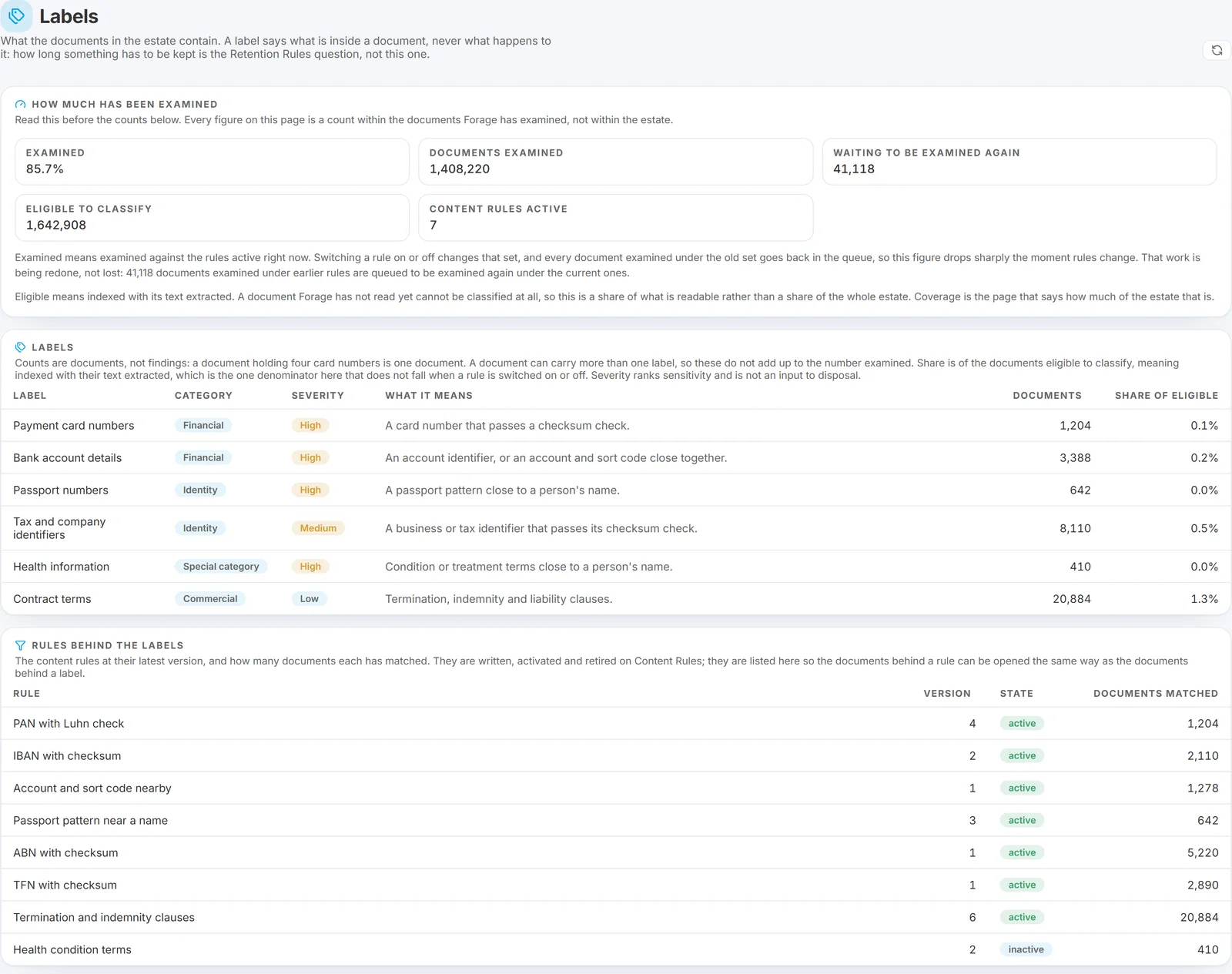
Counts are within the documents examined, not the whole estate, and are counted in documents rather than findings. When the rules change, the examined figure falls and refills as Forage re-examines in the background.
Content Rules
Where content classification is enabled, this is where a rule is written, saved as a new version, dry run, activated, retired, or deleted while still an unused draft.
Every change is a new version. Rules are not edited in place.
A dry run before a rule goes live shows three figures:
- the most the rule could match;
- a sample checked with the real rule;
- a projected range across the documents read so far.
The dry run is offered rather than required, and its projected range covers the documents read so far rather than the whole estate.
Retention Rules, Review Queue and Disposal Certificates
These pages exist, and each says that its feature is not yet available. A retention rule cannot be saved today.
Settings
- Read live content, archived content, or both.
- Choose which document types are read.
- Choose what happens to documents of a type that is switched off: Keep them, or Delete them permanently.
Delete them permanently requires a reason, which is recorded. It removes Forage's copy of the text, its search entries, and its record that those documents were examined. The documents themselves, in SharePoint and in the archive, are untouched.
Every change is recorded with who made it and when, and takes effect automatically.
Which document types a deployment can read is confirmed by SmiKar. A new deployment starts with the most common types.
Questions go to sales@smikar.com.