
File History - What Happened to a File or Folder
6 min read · Last updated · Page version 6
"A folder has gone from SharePoint - what happened to it?" used to mean checking three pages and joining the answers up yourself: Archived Files for a stub, Orphaned Files if the stub had gone too, and Recycle Bin Capture if somebody had deleted it. File History asks all of them at once and gives you one answer.
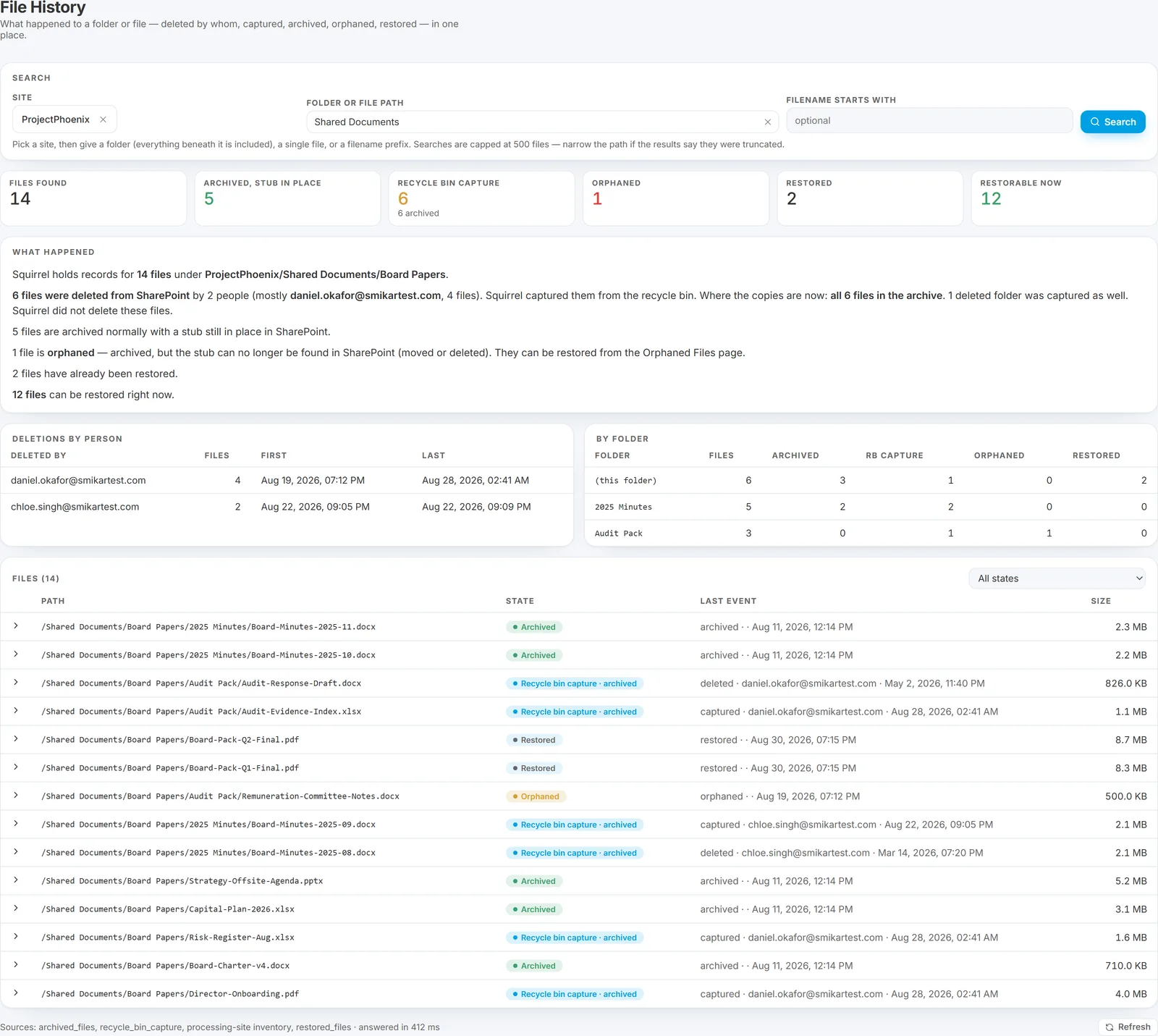
Running a search
On By folder or file, pick a site, then narrow it one of two ways - or both:
- Folder or file path - everything beneath the folder is included. Paste a SharePoint URL and it is accepted as-is.
- Filename starts with - a prefix, when you know roughly what the file was called but not where it lived.
Searches are capped at 500 files. If you hit the cap the page says so, and the fix is to narrow the folder or add a filename prefix rather than to search again.
Searching by user
Switch the search from By folder or file to By user to see what one person restored. Type at least two characters of a name or email address and pick a match from the list, which offers the names recorded on restores. Site, Folder or file path and Filename starts with are optional here, and narrow the answer when you give them.
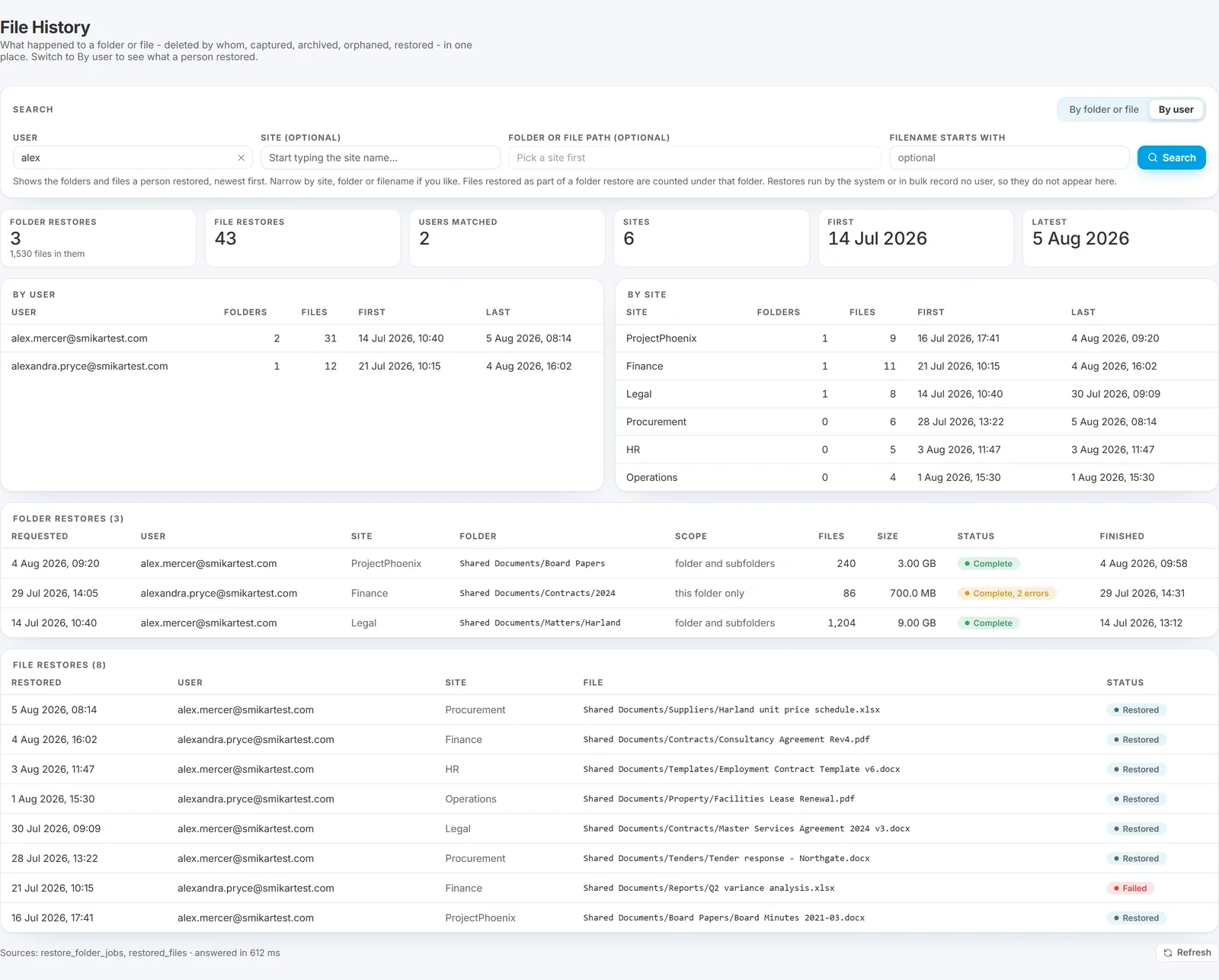
The results are newest first:
- Tiles for folder restores (with the number of files in them), file restores, sites, and the first and latest dates. When more than one user matches, a tile also counts the users matched.
- By user and By site tables, when more than one matches, with the folders and files restored and the first and last time.
- Folder restores, one row per request: when it was asked for, who by, the site, the folder (a link to open it), whether it was the folder and its subfolders or the folder only, the files and size, its status (complete, complete with errors, or in progress with how many files are done) and when it finished.
- File restores, one row per file: when, who by, the site, the file (a link to open it) and its status.
Files restored as part of a folder restore are counted under that folder, not listed again. Restores run by the system or in bulk record no user, so they do not appear here. If there are more file restores than the page shows, the tile says it is showing the newest.
What it tells you
Six counters sit above the detail: how many files were found, how many are archived with a stub still in place, how many were deleted by a user and captured, how many are orphaned, how many have already been restored, and how many are restorable right now.
Beneath them is a plain-English summary. This is the part worth reading first, because it answers the question in the form it was asked - for example that six files were deleted by two people, that Squirrel captured them from the recycle bin, that all six copies are in the archive, that one deleted folder was captured as well, and, importantly, that Squirrel did not delete these files. It is a common first assumption when content disappears, and the page addresses it head-on rather than leaving you to infer it.
Two tables follow:
- Deletions by person - who deleted files in this scope, how many, and the first and last time they did. This is the table to open before assuming a mass deletion was malicious; a single person tidying one folder on one afternoon looks very different from the same count spread across weeks.
- By folder - the child folders beneath your search path, each with its own counts by state, so you can see whether the loss is concentrated in one place.
The file list
Every file found, with its path, its current state, its last event and the size. A file can carry more than one state - Captured, archived means Squirrel took it from the recycle bin and it now lives in the archive. Expanding a row shows that file's timeline: when it was stubbed, archived, deleted, captured, orphaned or restored, and by whom where a person was involved.
A restored file shows the restore as its most recent event, which is usually what you want to see - it is the thing that resolved the story. Where a restore predates the record keeping a date for it, the row says so rather than showing a misleading timestamp.
The All states selector filters the list down to one state when you only care about, say, what is orphaned.
Acting on what you find
A file that has already been restored carries a link to where it went - the live SharePoint URL the restore put it back at, not the place it was deleted from. Those are not always the same, since a captured item can be recovered to a different site or library, so the destination is the useful answer to "where is it now?"
Each file carries a link to the page that can actually recover it - Restore in Archived Files, Restore in Orphaned Files, or Recover in Recycle Bin Capture. The link carries the filename with it, so the destination page opens with the search already filled in and run. You do not have to retype a filename you have just been reading.
Where the answers come from
File History reads Squirrel's own records - the archive, the recycle-bin capture store, the processing site inventory and the restore history - and merges them per file. It does not query SharePoint, so it is safe to run at any time and tells you what Squirrel knows. A file Squirrel never held will not appear, which is itself an answer: if a file is missing and File History has no record of it, Squirrel was not involved.
Where one of those lookups is slow enough to be cut short, the page says which one and what to do about it, rather than silently returning a partial answer.
See also
- Archived files - the archive itself, and restoring from it.
- Orphaned files - archived content whose stub has gone.
- Recycle Bin capture - how deleted items are captured and recovered.
- Log viewer - the raw event log, when you need more than the per-file story.
Need help? support@smikar.com.