
How to Archive a Full SharePoint Online Site
7 min read · Last updated · Page version 17
Archiving an entire SharePoint Online site with Squirrel is an efficient way to optimise storage, meet compliance requirements, and keep your Microsoft 365 environment tidy.
This guide walks administrators through the step-by-step process of fully archiving a SharePoint Online site using Squirrel. If you only need to archive specific libraries or folder paths inside a site rather than the whole thing, see Document Library Exclusions and Site Custom Policies instead.

Steps to Archive a SharePoint Online Site
| Step | Description | Image |
|---|---|---|
| Step 1: Access the Squirrel Archive Dashboard | Log into the Squirrel web portal. From the left-side menu, go to Site Archive Settings and locate the SharePoint site you wish to archive. | 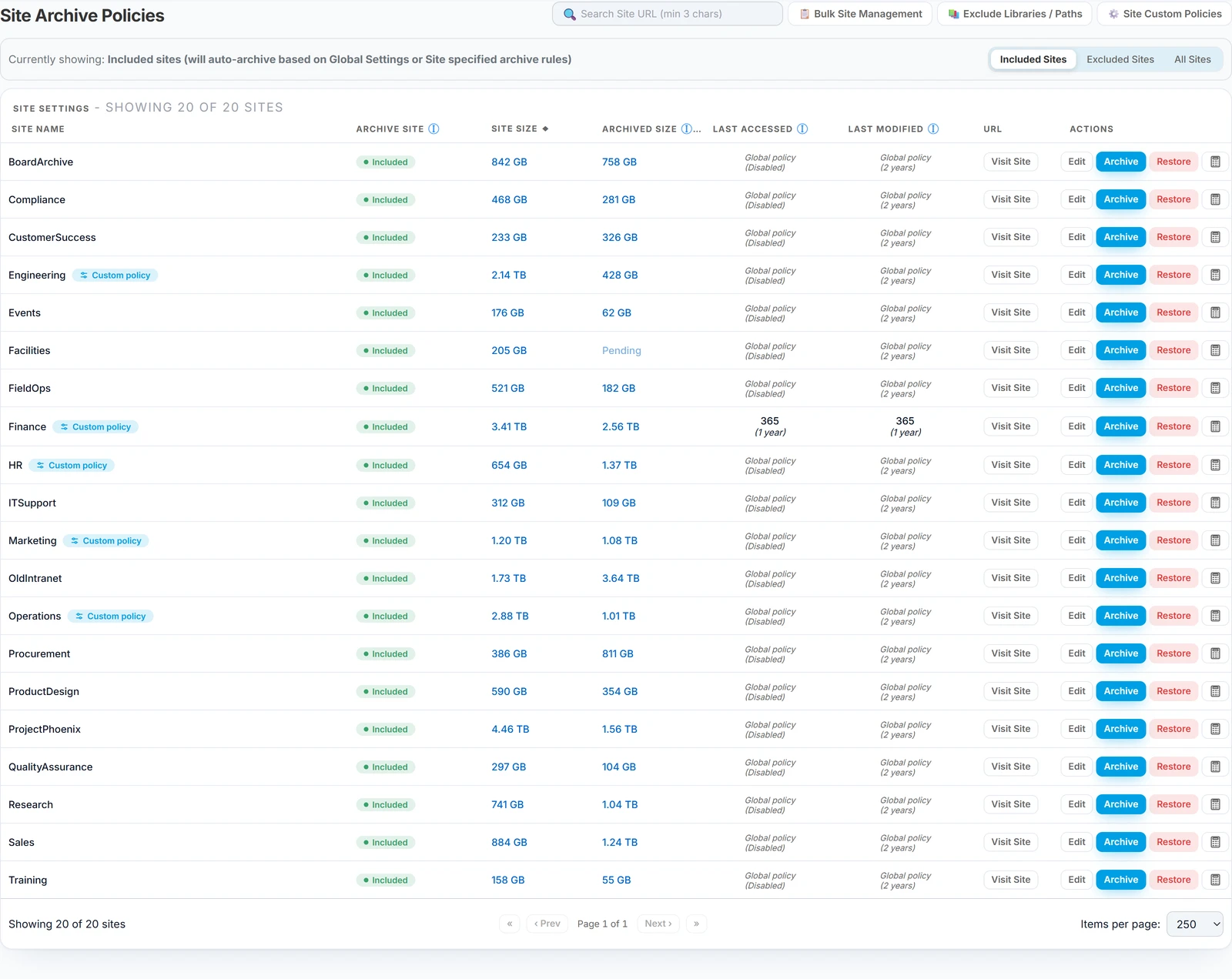 |
| Step 2: Select the SharePoint Site | Within the dashboard, identify the target site. Ensure it meets your archiving criteria - typically low recent activity and aged content. The Squirrel Dashboard is useful for confirming archive-eligibility before kicking off a site-wide job. | |
| Step 3: Start the Archiving Process | Click the Archive button next to the selected site. Confirm the prompt to initiate the archive job. The site will now be added to the archive queue. | |
| Step 4: Monitor Archiving Progress | Go to the Archive Queue in the Squirrel dashboard. Here you can monitor file processing and track progress as files are offloaded to Azure Blob Storage. For long-running jobs you can also watch the Activity Monitor for tenant-wide throughput. | 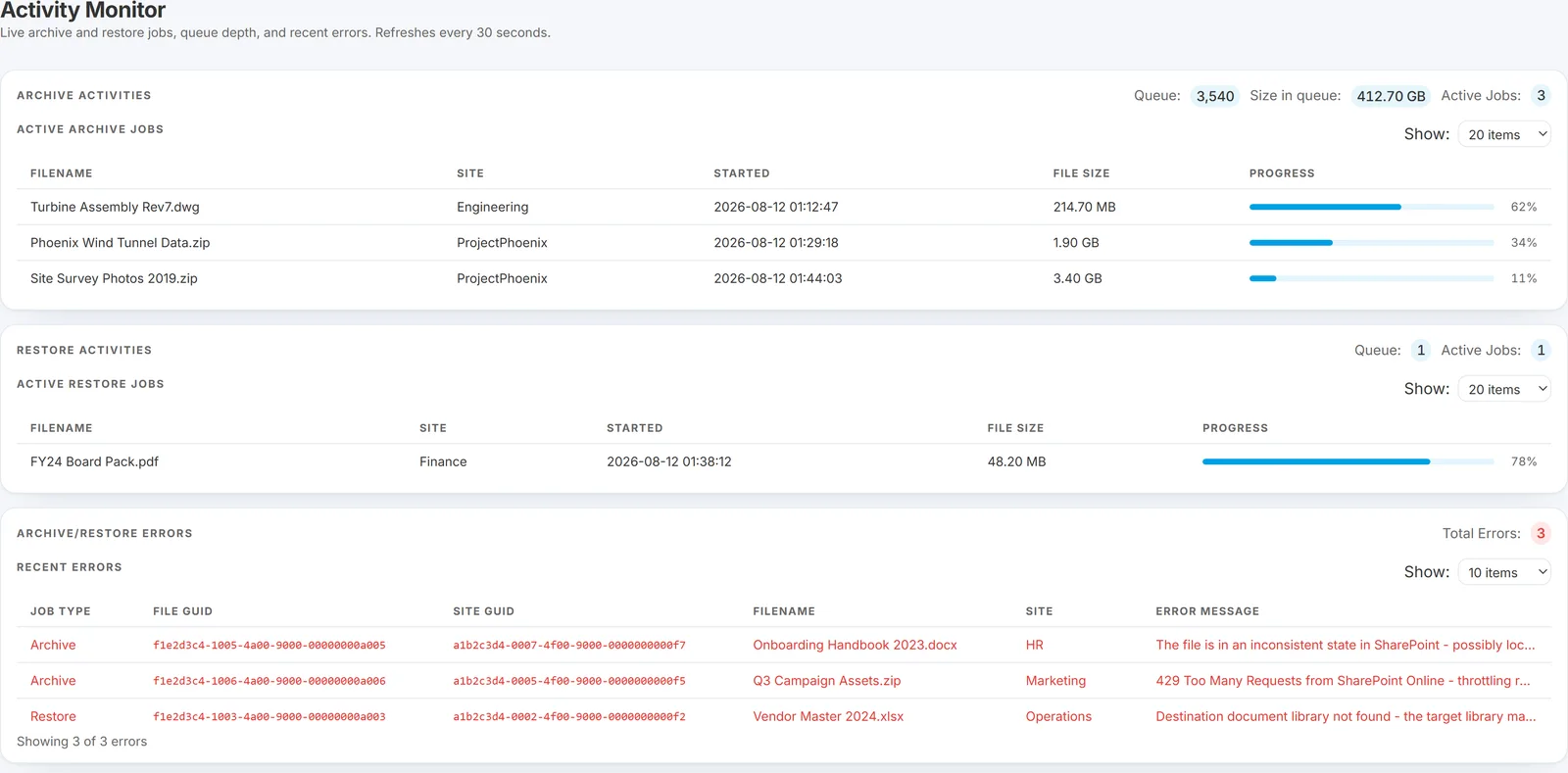 |
| Step 5: Verify the Archived Data | After the archive process is complete, go back to SharePoint. Open the document library and confirm that original files have been replaced with stub files, and content is now securely stored in your Azure Blob Storage account. | 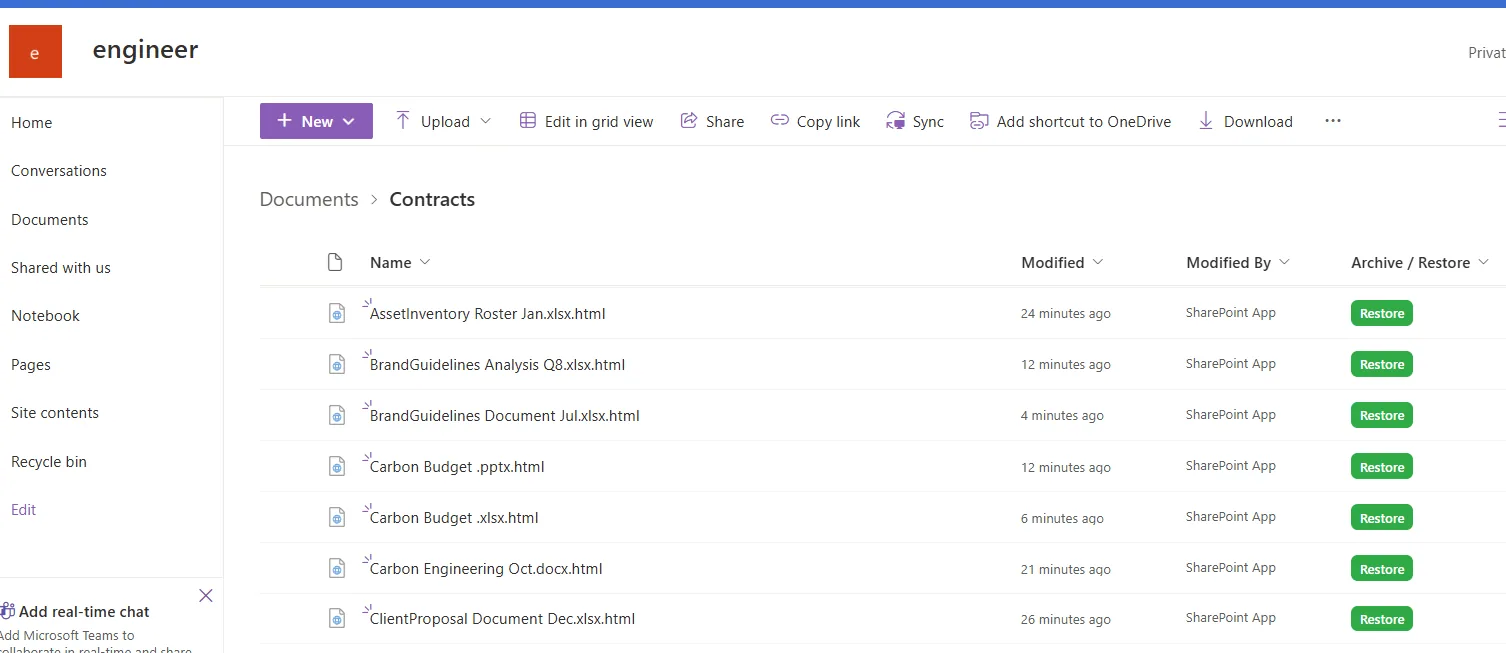 |
| Step 6: Restoring Archived Files | If a file needs to be recovered, go to the Restore section in Squirrel. Find the file or site and click Restore. The file will be rehydrated and returned to its original SharePoint location. End users can also restore individual files themselves from the stub file - see End User Restore and the detailed Restore Process page. | 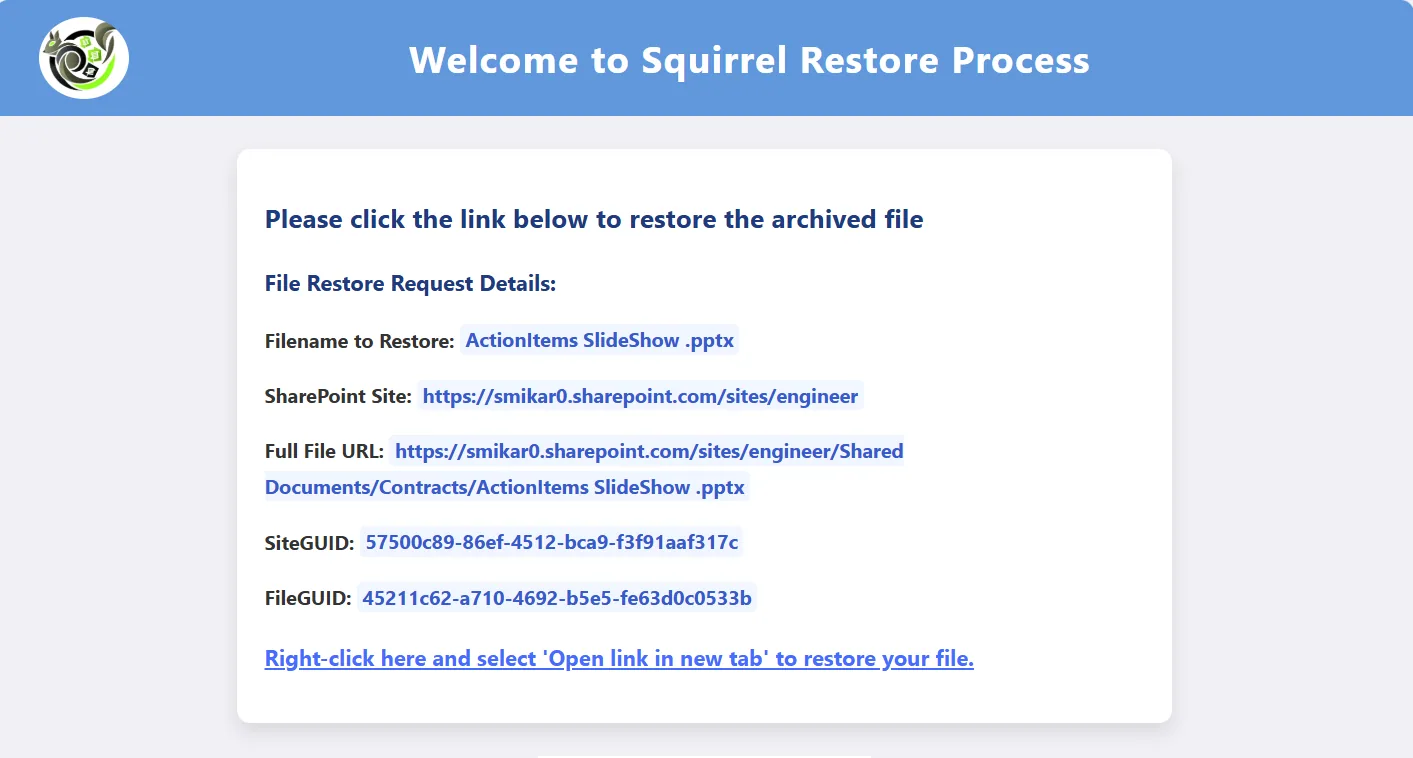 |
What Happens to a Site After Archiving
After Squirrel finishes processing the site:
- All eligible files are moved to your Azure Blob Storage account. The container, tier, and retention behaviour are governed by global settings (
Azure_Container,Azure_StorageTier,ArchivesDeleteAfter). - A stub file replaces each original in the same SharePoint folder, preserving the filename, metadata, and version history. End users continue to see the file in SharePoint and can click the stub to restore it.
- Site quota usage drops dramatically - typically a 95–99% reduction depending on the average file size before archive.
- Age thresholds do not apply to a site-wide archive. This is the important difference between this button and the nightly policy run. Every live file in the site is queued, however recently it was modified or accessed - your
LastModifiedandLastAccessedthresholds are not consulted. Exclusions still hold: files matchingExclude_Filetypeand anything in an excluded library or path are skipped, as are files already archived. If you only want the files your policy would normally take, use Preview to see that count and let the nightly run do it, rather than the site-wide Archive button. - The archive transaction is recorded in the dashboard counters and is auditable through the Reports page.
Restoring a Whole Site
The reverse operation - bringing a previously archived site back into SharePoint in bulk - is available from the same Site Archive Settings panel. Locate the site, click Restore, and Squirrel will rehydrate every archived file back to its original library and folder location. The site-wide restore reverses the archive in step order: stub files are removed, originals are written back, and any orphaned files (whose original location no longer exists) are placed in the orphan-restore path you configured in global settings.
Before it runs, the confirmation shows the file count and total data size, warns you if an archive is still in progress for that site (a restore cancels those pending archive jobs), and notes that the site will be excluded from the archive policy so the restored files are not immediately re-archived. That last part persists: the site stops archiving until you set it back to Included in site settings.
For files where the original site itself has been deleted, see the dedicated Full Site Restore guide, which covers restoring archived content into a different (or rebuilt) SharePoint site.
Common questions
Q: How long does a full-site archive take?
- It depends on the total file count and the SharePoint API rate limits applied to your tenant - not on the file size. A site with 100,000 small files takes much longer than a site with 100 large files, even if the total bytes are similar, because every file is processed individually through the SharePoint API. Plan for archive throughput in the order of tens of thousands of files per hour on a standard tenant. You can watch real-time progress on the archive queue and tenant-wide activity on the Dashboard.
Q: Can I archive a site that's still actively in use?
- Yes, but understand what the button does first. A site-wide Archive takes every file in the site, including ones being actively worked on - it does not consult your age thresholds. Users are not locked out and the site keeps functioning; the files come back as stubs and are one click from restore. But if your intent is "archive the old content in this site and leave current work alone", the site-wide button is the wrong tool - set the thresholds on the site and let the nightly run apply them, or use Archive/Restore by path to target a specific folder. Run it outside business hours either way.
Q: What happens if someone edits a file mid-archive?
- Squirrel detects in-flight modifications and skips files that change during the archive cycle. The next cycle picks them up if they meet the criteria. You won't end up with a half-archived file or a stale archive copy.
Q: Can I undo a full-site archive?
- Yes - every archived file can be restored, either individually by clicking the stub file or in bulk via the Restore button on the site. The original file content is preserved in Azure Blob Storage until you explicitly delete it (controlled by the
ArchivesDeleteAftersetting). There's no time pressure to "undo".
Q: Will the site's SharePoint permissions, sharing links, and Teams associations be preserved?
- Yes. The archive only moves file content - the SharePoint structure (libraries, folders, permissions, sharing links, Teams channel associations) stays exactly as it was. Stub files inherit the same permissions as the originals.
Q: What happens to file versions when a site is archived?
- All file versions are captured and stored alongside the current version in Azure Blob Storage, up to the
VersionLimitconfigured in global settings (default 500). When the file is later restored, the full version history comes back with it.
Conclusion
Archiving an entire SharePoint Online site using Squirrel is a straightforward operation that delivers significant benefits:
- Reduces SharePoint storage usage and Microsoft 365 storage costs
- Keeps historical content organised without losing accessibility
- Supports quick restoration of individual files, folders, or the whole site when needed
By following this guide, administrators can confidently manage site-wide archival, helping teams stay compliant and efficient - without sacrificing access to valuable data. For licensing or large-volume rollout questions, contact sales@smikar.com.