
Quick Tour of the Burrow Dashboard
9 min read · Last updated · Page version 36
The Burrow dashboard groups its features into pages reached from the left navigation. This tour walks each one briefly so you know where to look next time a question comes up.
Burrow (home page)
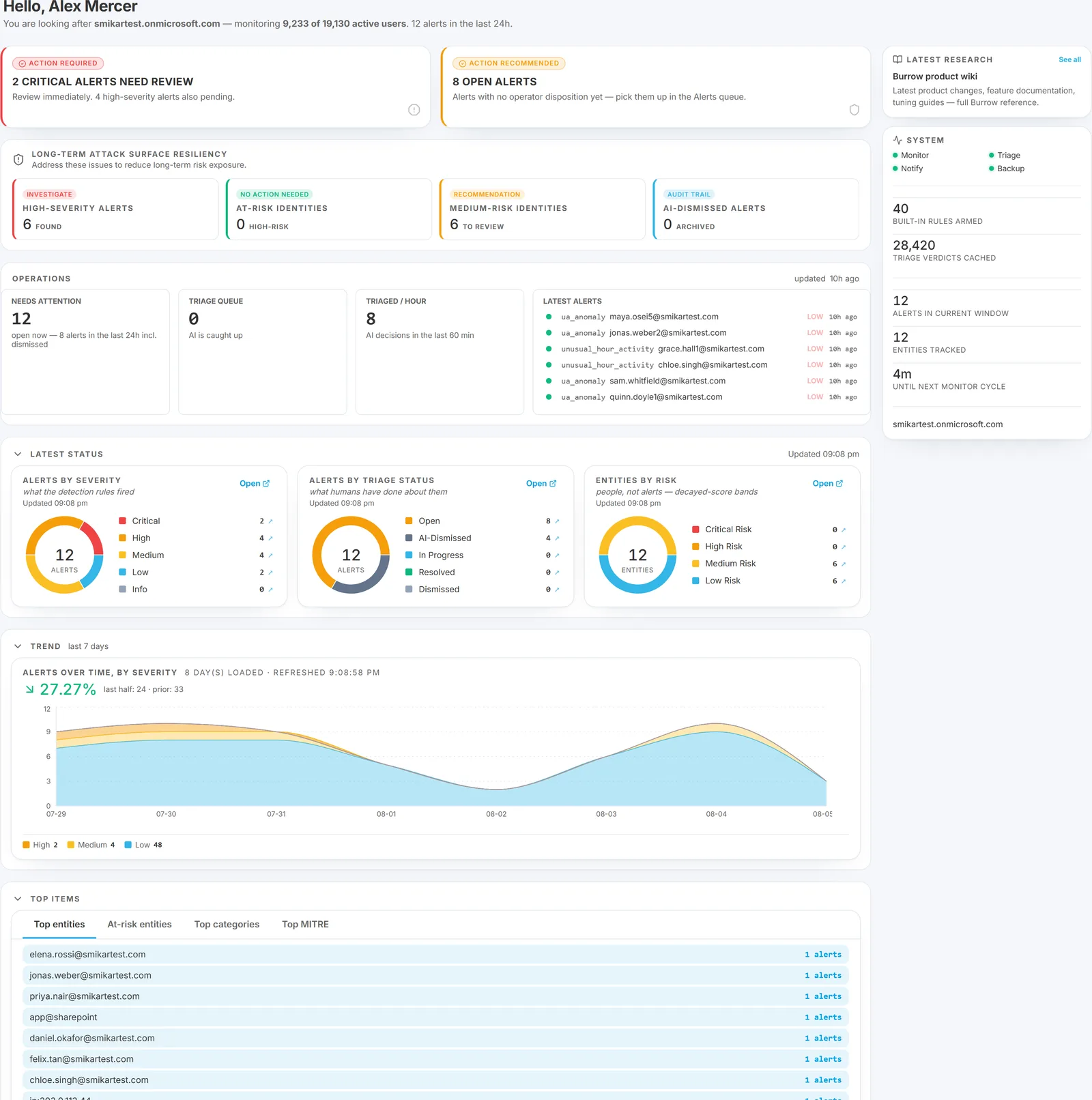
The SOC overview, and the screen to open first. A coverage line states how many users Burrow is monitoring, an Operations strip gives the day's to-do count, three donuts break down severity, disposition and risk band, and a trend chart plus Top items card show where the volume is coming from. Clicking any slice or row opens the Alerts page pre-filtered to it.
Full detail: The Burrow dashboard home page.
Alerts
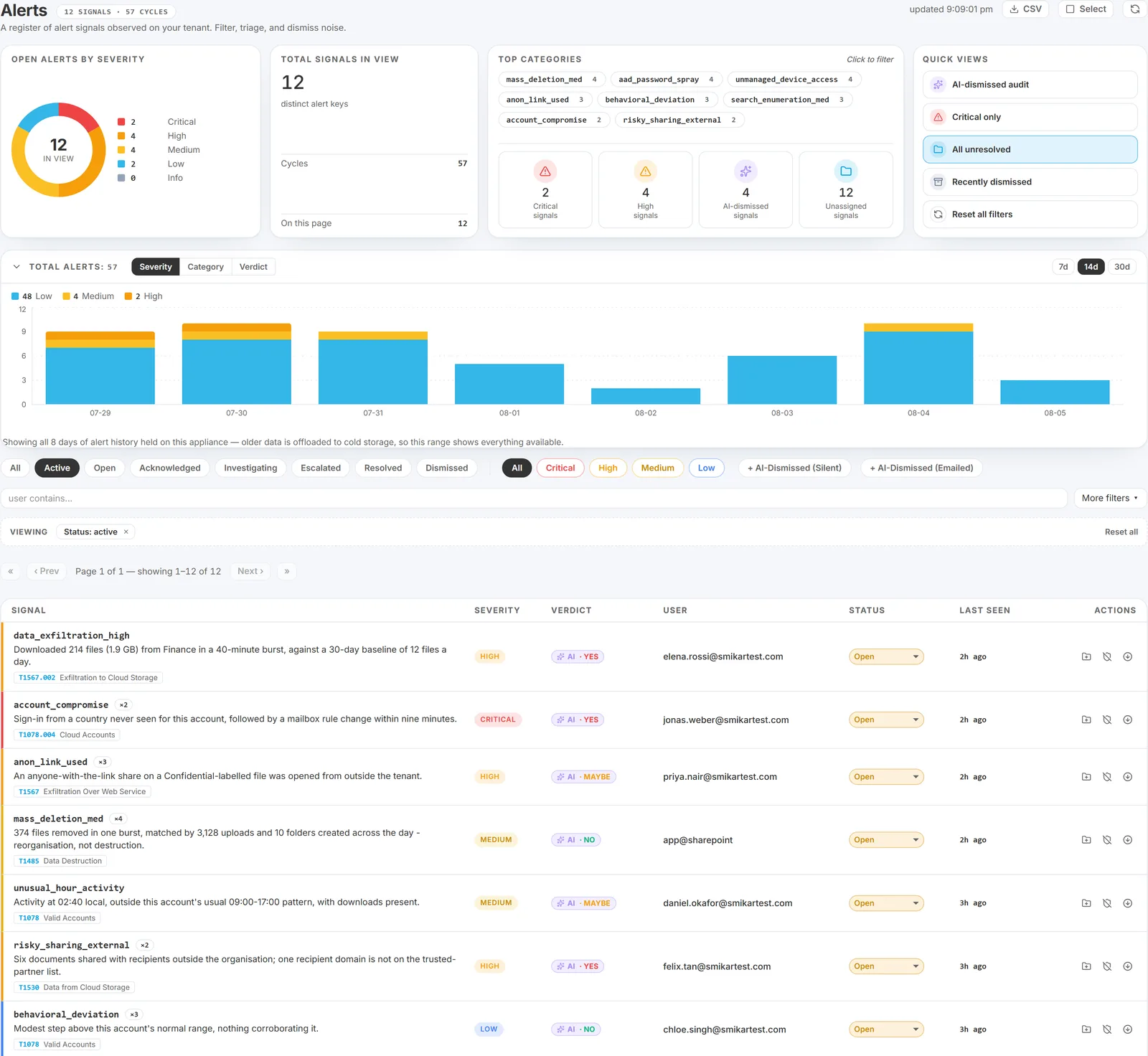
The day-to-day SOC queue. A four-panel hero reads the shape of the queue before the list, status tabs default to Active ("needs me right now"), and filter chips, a date range and Quick Views narrow it further. Rows carry inline disposition, link-to-case, and suppress / downgrade actions; clicking one opens the drill drawer.
Full detail: The Alerts page.
Identities, Identity dossier, and the entity drill drawer
The Identities page lists every entity Burrow has tracked, ranked by a decayed risk score. Filterable by risk band and humans / apps; full-text search; explicit Search button (no type-as-you-go).
It can now show your whole directory, not just the people who are active. By default the page lists monitored users - the risk roster, unchanged. Three chips widen it:
- No SharePoint activity - accounts enabled in your directory with no activity in the retained window. Dormant accounts are unwatched attack surface, and they are neither monitored nor counted toward your user total.
- Disabled - accounts disabled in your directory. Rows carry a status badge, and a disabled account with recent SharePoint activity is called out specifically - that is the leaver-with-lingering-tokens tell, and it now has its own alert as well.
- Whole directory - everyone: monitored users plus the rest of the directory.
A free-text search automatically covers the whole directory regardless of which chip is set, so "is user X covered?" always gets an answer rather than an empty table. A CSV export (top right) downloads the full filtered roster - not just the visible page - with each entity's risk score and band, alert counts, active days, top geo and app, typical hours, last-active, and the AI narrative, respecting whatever filters and search are active. Handy for a periodic access or risk review.
Clicking a row opens the full-page Identity dossier with three tabs:
- Profile - AI summary of the user's typical behaviour, stat cards, activity-by-hour histogram, behavioural baseline, top apps / geos / user agents, and an alert summary.
- Events - the user's raw event timeline (the same data Hunt queries, scoped to this user).
- Chat - free-form Q&A with the AI about this entity. Persisted between sessions so the next SOC shift sees prior conversations.
The same dossier also opens as a narrower right-side drawer when you click an entity from the Alerts page, Hunt results, or the home page Top items card - handy for triage without losing your place on the list.
External Sharing
A standing inventory of every share to someone outside your tenant - direct guest shares, anonymous links, and guests added to groups - over roughly the last 30 days. Summary tiles across the top; three searchable tabs (Recipients / Domains / Who shared); click any row for a detail drawer with the files, sites, and a timeline. Where risky_sharing alerts on external sharing in real time, this page answers "who outside currently has access to what, and who gave it." See External Sharing audit report.
Hunt
Cross-entity activity search. Type a user, a site, a date range, optionally an op class or a label, and Hunt returns the matching audit events. Three aggregate cards above the table (Top users, Top ops, Top sites). CSV export for HR and legal hand-off.
A Cold Storage panel at the top of the page lists audit data offloaded to your Azure Blob storage. Pick an entity and a month range, click Rehydrate, and once the job is READY you can search those months with one click.
Investigations
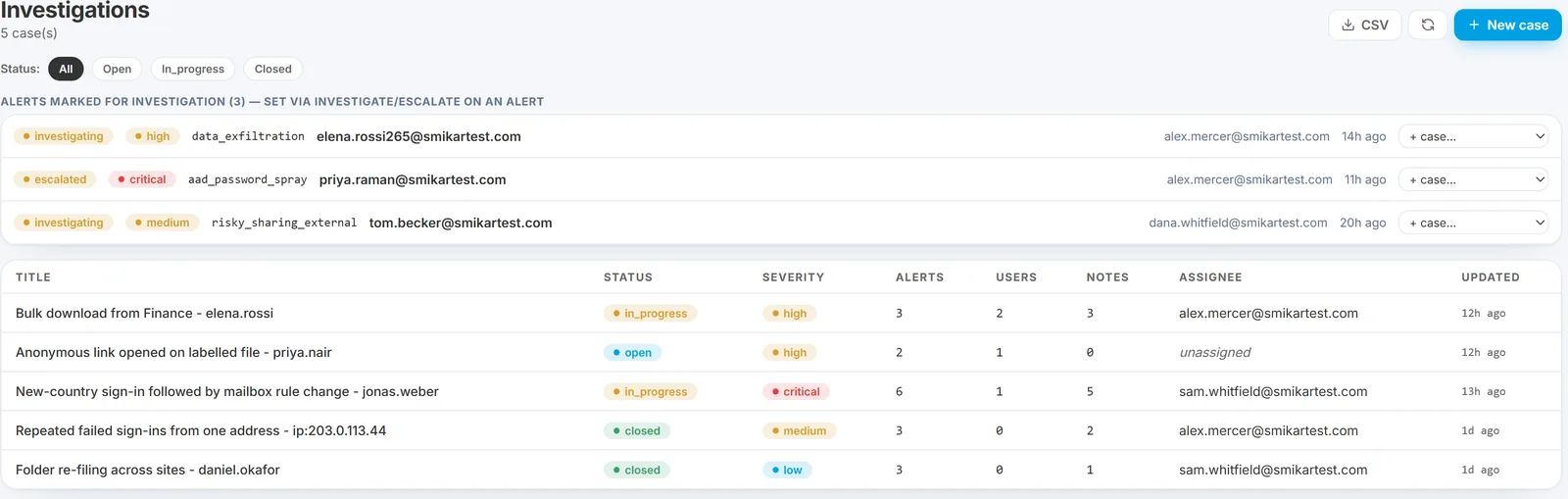
Related alerts on the same entity, grouped into one case with an AI attack-chain summary - so an incident is worked once rather than as several separate alerts. The detail view adds an editable summary, the linked alerts, an append-only notes thread, and a chat that answers questions across every alert on the case at once.
Full detail: Investigations (Cases).
Rules
Where you tune the detection engine. The page has three tabs - Built-in (the rule catalogue), Label rules (per-sensitivity-label rule builder, also reachable from the Sensitive Labels page), and Custom rules (operator-defined rules: name, condition, severity, MITRE).
On the Built-in tab:
- Detection posture - shown read-only here ("change in Settings"); the actual selector lives on the Settings page. It is one underlying setting.
- Per-rule overrides - for any specific rule, set a custom threshold that wins over the posture preset.
- Per-rule severity (edit sev) - pin a rule's severity to any level without touching its thresholds; the gentle way to keep a chatty-but-wanted rule visible on the dashboard while dropping it below the email floor.
- Enable / disable - a checkbox per rule turns it off globally (it stops evaluating, not just emailing). Prefer a severity pin or an entity exception first - a disabled rule sees nothing.
- Explain - an AI button on each rule that produces a plain-English description of what the rule watches for and when it fires.
Tuning suggestions have their own page (below), not this one.
Suggestions
In the Tuning menu group (main nav → Tuning → Suggestions). Burrow's tuning candidates, evidence-sorted, organised into Open / Applied / Dismissed tabs with per-tab Apply / Dismiss / Undo - add an exception from a named operator's repeated dismissals, mark a recurring site sensitive, or read a chronic-pattern / noisy-app heads-up. Applied and dismissed state persists. Capped at the strongest ~50 per kind. See Tuning a noisy rule and The Tuning menu.
Exceptions
Where you silence noise from known service accounts and other expected-noisy entities. Each entry is a user pattern (with wildcard support) plus a category, an action (suppress or downgrade), and a reason text.
Sensitive sites, Sensitive labels, and Internal domains
Three short pages (in the Tuning menu) that tell Burrow which content to treat specially:
- Sensitive sites - SharePoint URL patterns whose activity bumps alert severity. Includes a learner-suggested list awaiting your approval.
- Sensitive labels - Microsoft Information Protection label rules.
- Internal domains - the email-domain list Burrow treats as "your organisation" for internal-vs-external classification. Auto-learned, with manual override and exclude.
New to Burrow? These are covered as a first-week setup walkthrough in Configuring Burrow for your environment.
Known Networks
A read-only transparency page (main nav → Tuning → Known Networks). Shows the corporate-egress networks - office gateways, VPNs, cloud proxies like Zscaler - that Burrow has learned to treat as shared infrastructure and excludes from per-user sign-in geography. It answers "why didn't we get a new-country alert when someone signed in from abroad?" - because that egress is your proxy, not travel. Nothing to configure; it's there for transparency. See Known Networks.
Watchlist
Its own page (main nav → Watchlist). The operator-managed list of users under heightened monitoring - a departing employee, a privileged account. Shows who is watched, the reason, the expiry countdown, the digest email, and a full watch / un-watch audit trail. Distinct from the automatic top-risk entities panel on the home page.
Reports
Its own page (main nav → Reports - the sidebar's Reports entry now opens here). Five on-demand, read-only, printable reports: User Activity (any user + time period, with a CSV export), Security Posture Snapshot, Stale Guest Access (a cleanup list of dormant external access), External Sharing Audit (a printable inventory), and the Weekly Executive Briefing on demand with past briefings listed. See Reports.
History and Rule replay
- History - every admin action on the dashboard, with before / after diffs and the analyst's identity attached.
- Rule replay - re-run a rule over historical data with new thresholds to preview the effect before committing.
The weekly executive briefing is now one of the reports on the Reports page above (its own dashboard view still renders it too). See Weekly executive briefing.
Settings
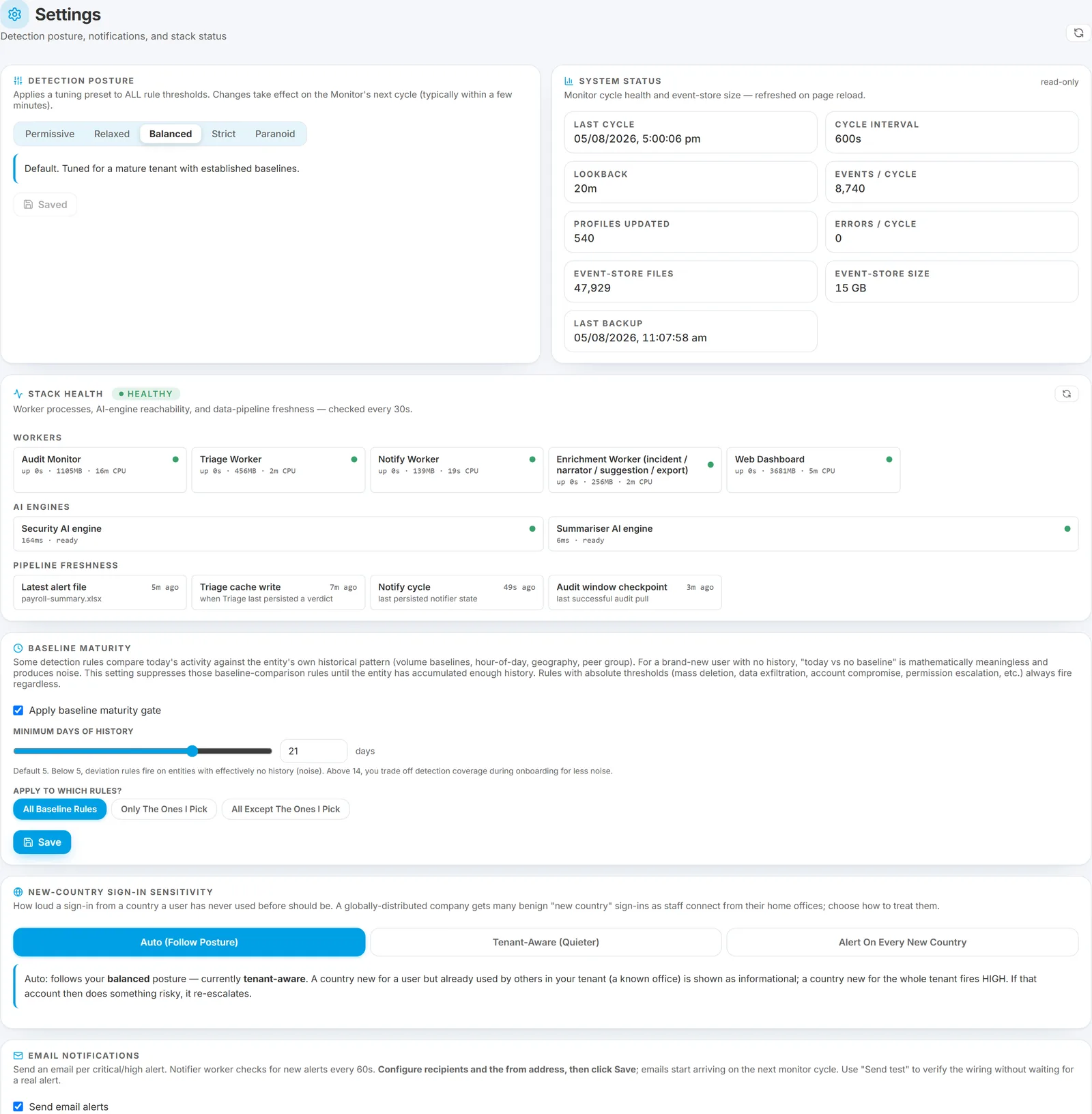
A single page of cards: detection posture (the only place it is set), system and stack health, the baseline-maturity gate, new-country sign-in sensitivity, the email notification gates, and a recent-activity audit log.
Full detail: The Settings page.
Setup
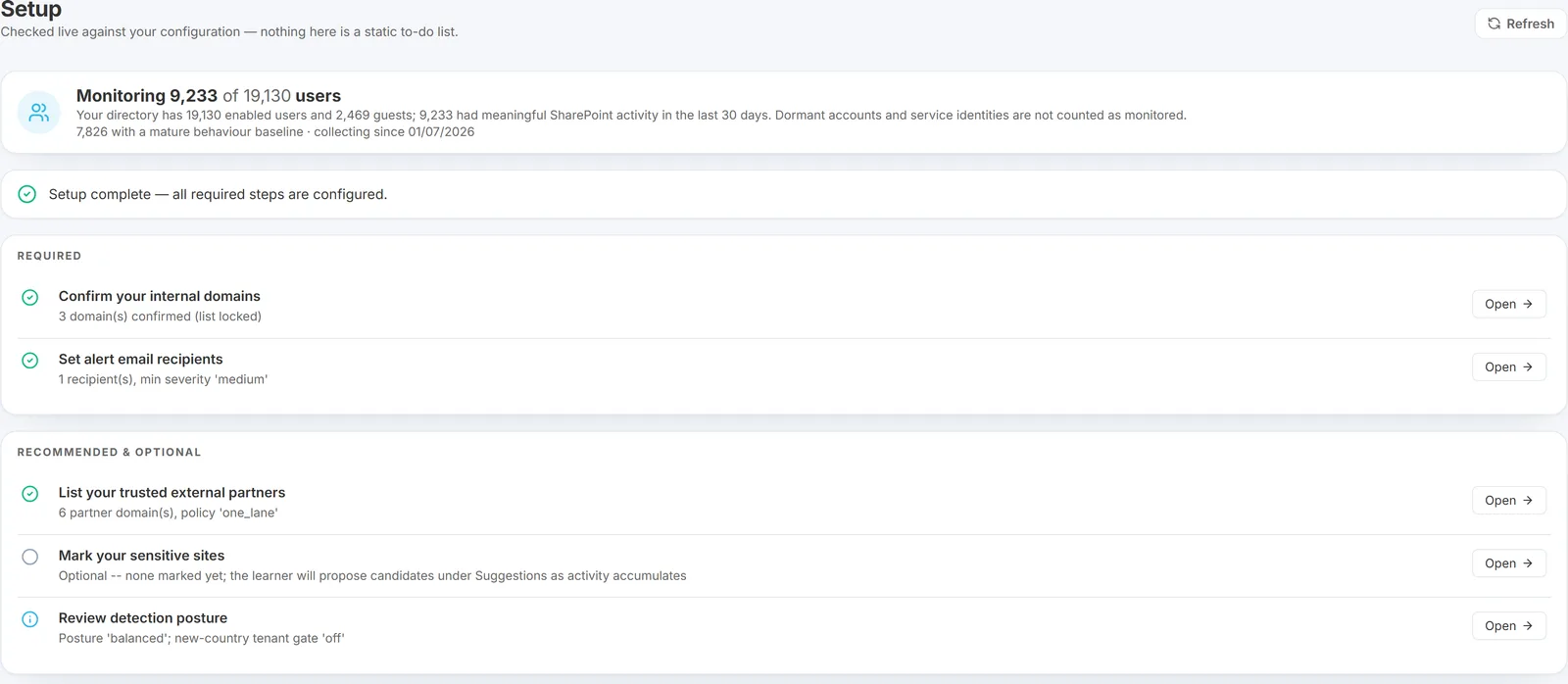
The onboarding checklist, checked live against your actual configuration rather than a static list you tick off yourself. Each step shows as done, needs attention or optional, with a plain-English status line ("3 domain(s) confirmed", "1 recipient(s), min severity 'medium'") and an Open button that deep-links to the page where the work is done.
Required steps are separated from recommended ones and a banner reports how many required steps remain, so "have we finished setting this up?" is answerable at a glance. At the top sits the coverage card - monitoring X of Y users, with the enabled-account and guest counts behind it. New steps appear here automatically as the product grows.
See the onboarding checklist, which follows the same order.
Where to go next
- New to Burrow? See the first-week onboarding checklist.
- Match your role to the right workflows: Who uses what.
- Unfamiliar word? Glossary.
Need help? support@smikar.com.