
Squirrel Site Settings - Per-Site Config
4 min read · Last updated · Page version 19
The Site Settings section in Squirrel allows administrators to manage the archiving behaviour and configuration of individual SharePoint sites. This section is part of the Admin Panel and is accessible via Site Archive Settings in the main Squirrel dashboard.
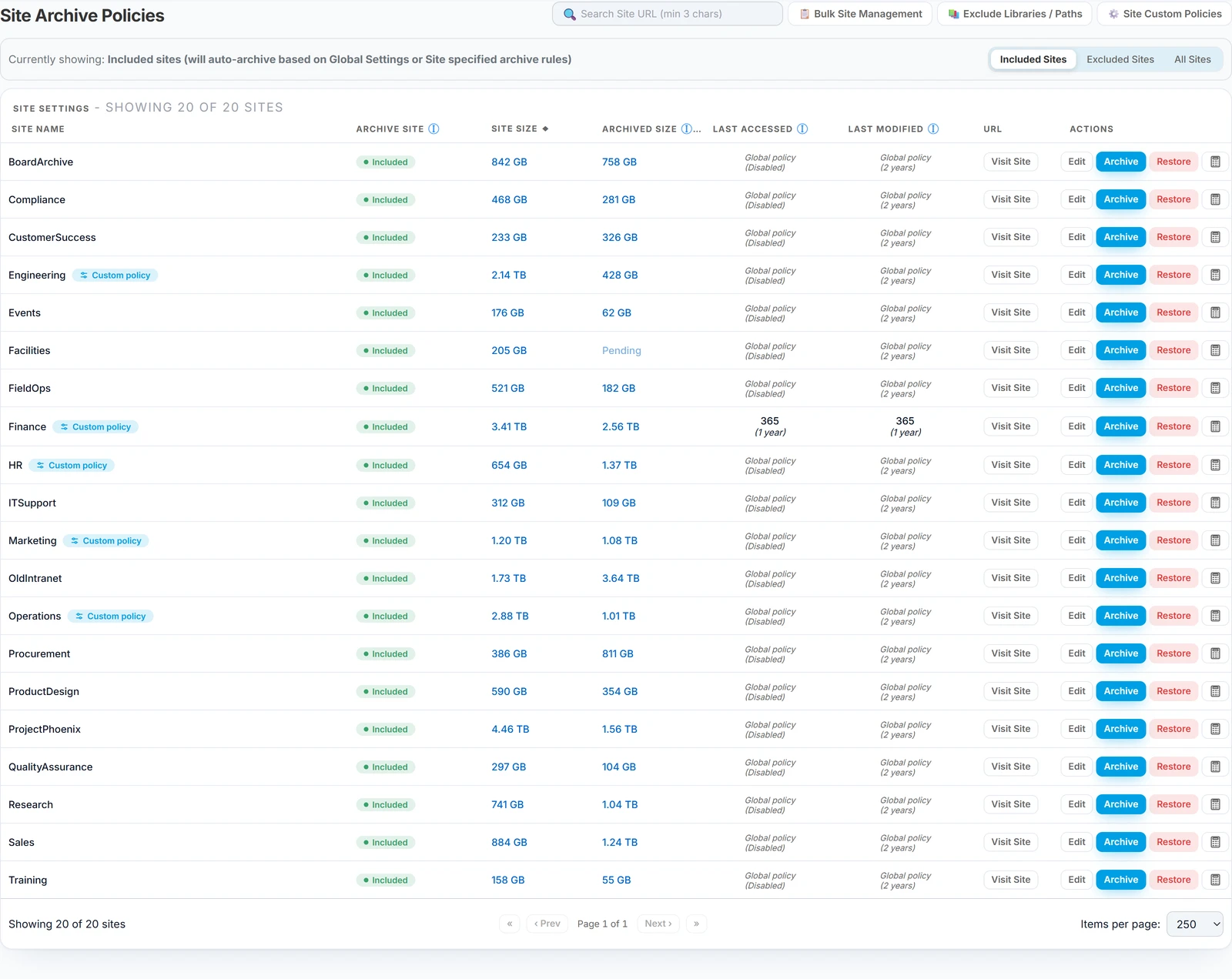
It enables granular control over site-specific policies, overrides for global settings, and site-level actions like archive or restore.
How to Access Site Settings
| From the Squirrel Dashboard, navigate to Site Archive Settings. | |
| You will be presented with a list of all connected SharePoint sites. | |
| Each site entry displays core information, including Site Name, Site GUID, Included/Excluded status, Site Size (current SharePoint size), Archived Size (data archived from the site, at original file size, updated daily and shown as Pending until first calculated), Last Accessed and Last Modified. Both size columns can be sorted. | |
| Action buttons let you launch, edit, archive, or restore a site as needed. |
Site Settings Table Overview
Each row in the Site Settings table includes:
- Site Name – The title of the SharePoint site
- Site GUID – Unique identifier for the site
- Included/Excluded – Indicates whether the site is included or excluded from archiving
- Accessed Days – Days since the site was last accessed
- Modified Days – Days since the site was last modified
- Actions – Includes: Launch, Edit, Archive, and Restore buttons
- Launch – Opens the site detail view
- Edit – Modify site-specific settings
- Archive – Archive the entire site
- Restore – Restore a previously archived site
Editing Site Settings
To change site-specific archiving behaviour:
- Click the Edit button next to the site you wish to configure.
- Adjust the following fields as needed:
Include/Exclude
- Click Edit to modify the setting
- Use drop down value to either Include or Exclude the Site from being archived
- Optionally, override global settings using custom access or modified values
Accessed Days
- Enter a numeric value to archive files not accessed in this number of days
- Example:
30means files not accessed in 30 days will be archived
Modified Days
- Enter a numeric value to archive files not modified in this number of days
- Example:
60means files not modified in 60 days will be archived
You can set different thresholds per site, allowing more flexible retention policies across departments or business units.
Need help configuring a site? Reach out to support@smikar.com, or speak directly with your SmiKar representative for best practice advice.
Site sizes read in the right unit. A site under a gigabyte is shown in MB (or “<1 MB”), gigabytes up to a terabyte, and terabytes above that, with the decimals kept. Sorting by size orders on the real value rather than the rounded one, so a column of small sites sorts properly instead of tying at zero.
What the row actions do
Each site row carries its actions on the right, and hovering any of them explains its scope before you click - worth reading, because two of them are site-wide and irreversible in the sense that undoing them means running the opposite job.
| Action | Scope |
|---|---|
| Edit | Opens this site's archive thresholds and its included/excluded setting. |
| Archive | Every live file in the site - the age thresholds do not apply. See full site archive. |
| Restore | All archived files for the site, back into SharePoint. |
| Preview | Counts how many files the current policy would archive. Changes nothing - the safe way to check a threshold before committing to it. |
| Visit Site | Opens the SharePoint site itself in a new tab. |
If you want the threshold-respecting behaviour, that is Preview plus the nightly policy run - not the Archive button.