
Sensitive Sites, Labels, and Keywords
7 min read · Last updated · Page version 19
Burrow treats most activity equally by default. Three lists let you tell Burrow which content matters more - and have alerts on that content fire harder. This article covers the three lists, how each affects detection, and how the auto-learner suggestions work.
The three lists
Sensitive sites
SharePoint site URL patterns whose activity bumps alert severity one tier when matched. Example: an unusual_hour_activity alert that would normally be Medium becomes High if the activity touched a sensitive site.
Sensitive labels
Microsoft Information Protection (MIP) labels that Burrow treats as confidential. Detections involving labelled files get tracked separately and can trigger label-aware rules (e.g. "Confidential-labelled file accessed from cross-geo").
Sensitive keywords
Substring patterns that, if seen in SharePoint search queries, trigger a dedicated sensitive_search rule. Examples: "password", "credential", "M&A", "acquisition", "termination."
How sensitive sites work
Adding a site manually
- Open the Burrow dashboard → Tuning → Sensitive sites in the left navigation.
- Click Add pattern.
- Enter a SharePoint URL substring. Common patterns:
/sites/Finance//sites/HR//sites/Legal//sites/Board/
- Save.
From the next detection pass, any alert on activity touching a matching site has its severity bumped one tier and gets a sev_bumped=true flag on the alert's evidence with the matched pattern as the bump reason.
The bump respects a rule's hard severity ceiling. Some rules declare a maximum severity - for example the internal site-provisioning alerts are capped at medium (see the rule catalog). The sensitive-site bump can no longer push an alert past its own declared ceiling: a "capped at medium" alert on a sensitive site stays medium, it does not re-escalate to critical. The cap is applied after the bump, so "capped at medium" now means exactly that.
The auto-learner
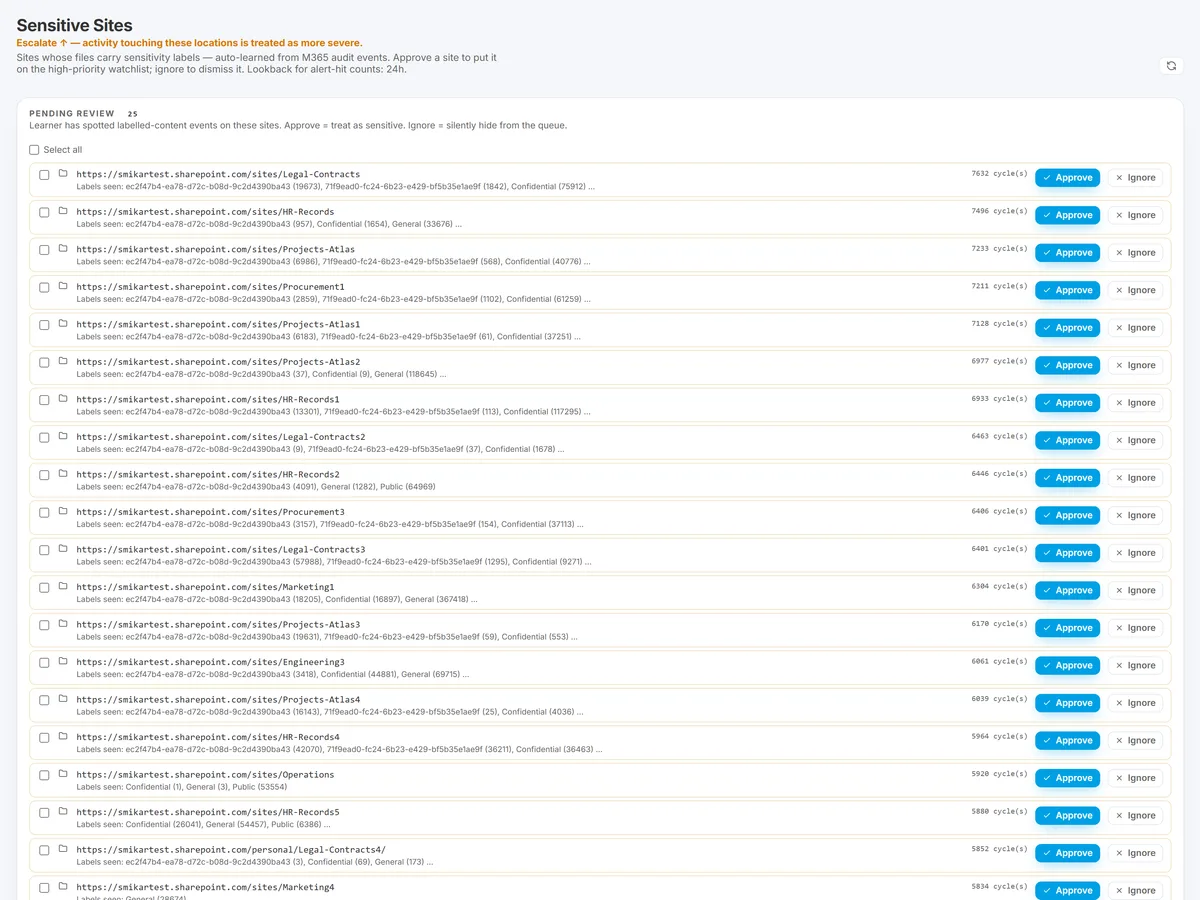
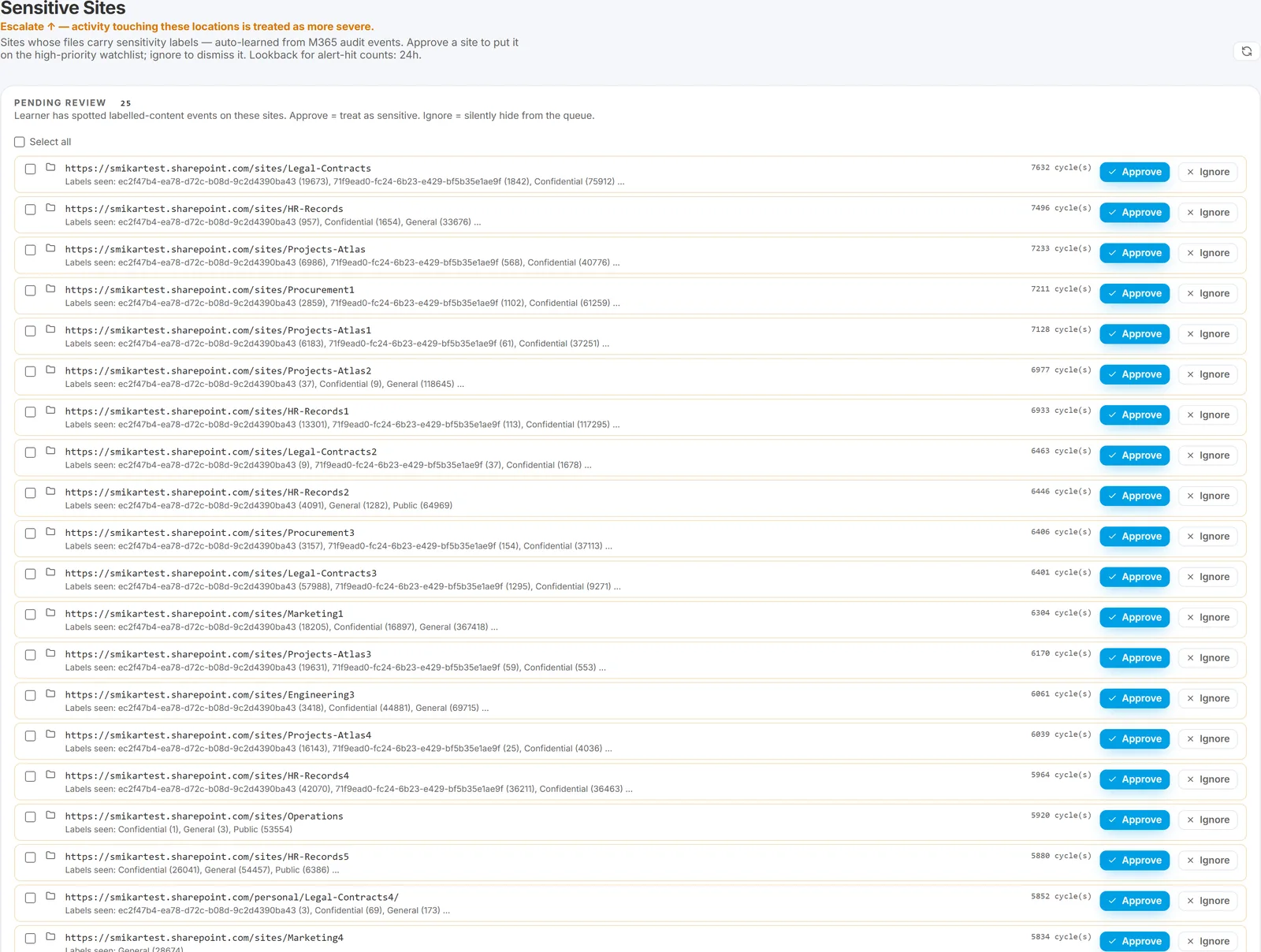
Burrow also watches for sites that have hosted labelled-file activity in the lookback window and surfaces them as suggested sensitive sites. Each suggestion has three buttons on the Sensitive sites page:
- Approve - adds the pattern to the active sensitive list.
- Ignore - dismisses the suggestion for now; it may re-surface if activity continues.
- Tombstone - permanently blocks re-suggestion of that pattern. Use this for sites the learner over-suggests.
The learner is conservative - it only suggests sites with confirmed labelled-file activity, not "any site lots of people use." Most suggestions are worth approving.
How sensitive labels work
The Sensitive Labels page is a single consolidated watchlist - one list of "labels I care about" that governs three things at once:
- Which labelled files bump alert severity (the file-downloaded / accessed / shared metrics on labelled content are what feed the
labeled_filesgate on rules likedata_exfiltrationandunmanaged_device_access). - Which labels the sensitive-site auto-learner uses to surface site suggestions (sites hosting activity on watchlisted labels become learner suggestions on the Sensitive Sites page).
- Which label changes trigger the
label_tamperingrule (removals or downgrades on a watchlisted label fire the alert; label changes on unwatched labels stay quiet). See thelabel_tamperingrule entry for the full scope.
Empty watchlist means label_tampering fires on all label changes (backward-compatible default), and no labels feed the site-suggestion learner.
Managing the watchlist
- Open the dashboard → Tuning → Sensitive labels in the left navigation.
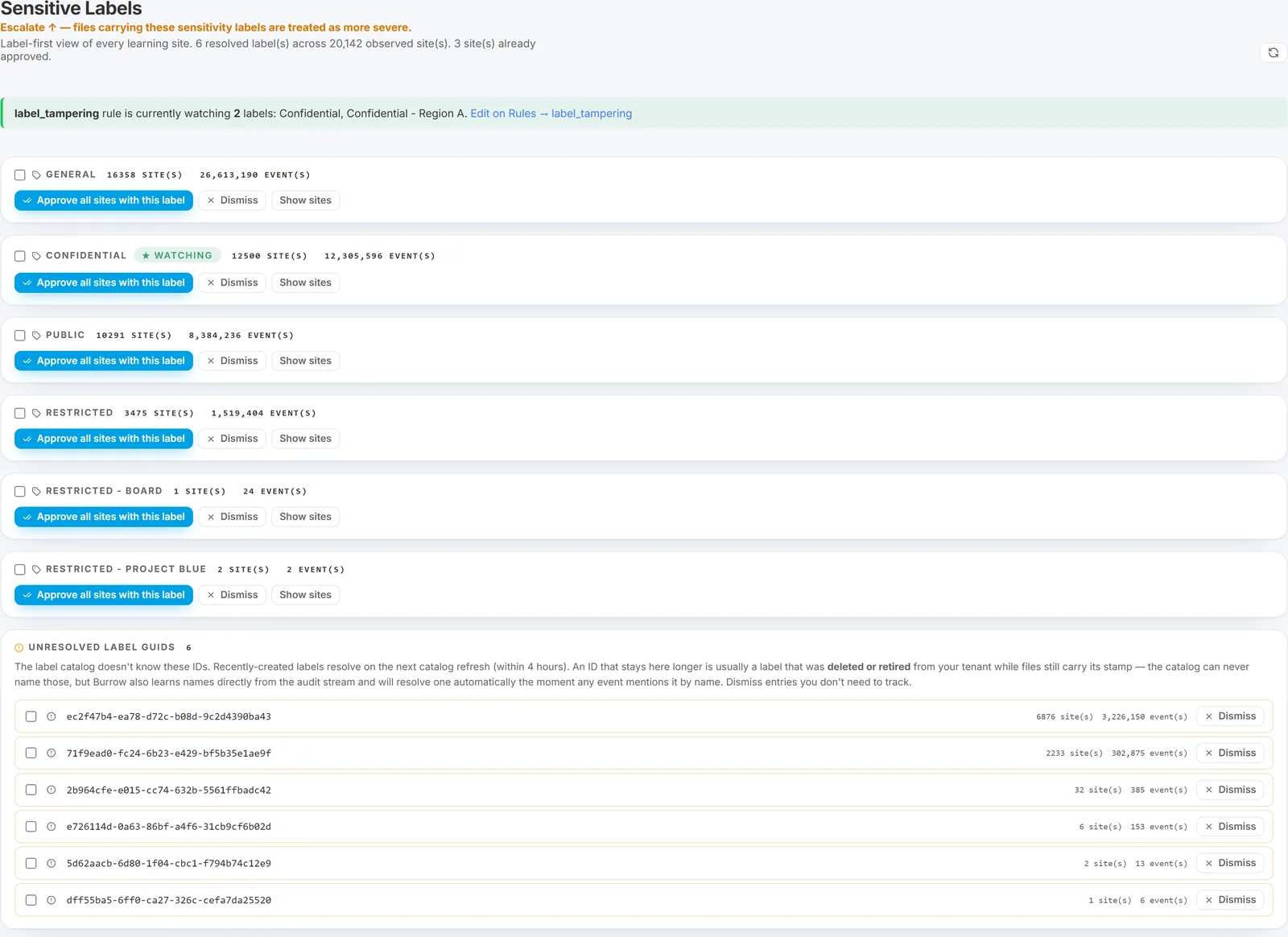
- The page lists every sensitivity label seen in your tenant (label name + GUID). Each row has a checkbox - tick to add the label to the watchlist, untick to remove it. There is no separate Save button; toggle takes effect on the next detection pass.
- Click Refresh from Microsoft at the top if a new label has been added to your tenant recently and you want the catalog re-pulled from Microsoft Graph.
Unresolved label IDs
The page also lists unresolved label IDs - label identifiers seen on files that the catalog cannot put a name to. There are two reasons this happens, and they need different responses:
- A recently created label. It resolves by itself on the next catalog refresh (within about four hours). No action needed.
- A deleted or retired label. Files still carry the stamp of a label that no longer exists in your tenant, so the catalog can never name it. These will stay unresolved.
Burrow also learns label names directly from the audit stream, so if any event ever mentions a label by name it resolves automatically - including retroactively, for IDs already sitting in the list. Entries you do not care about can be dismissed.
Ticking a label:
- Arms the
label_tamperingrule for that label - future removals or downgrades of that label fire the alert. - Bulk-promotes any sites hosting activity on files carrying that label to sensitive-site status via the learner.
- Feeds the
labeled_filesmetric ondata_exfiltration,unmanaged_device_access, and related rules.
Unticking reverses all three effects. Because it is one list, the Sensitive Labels sidebar page is the only place you need to manage label-driven behaviour - there is no separate label_tampering scope elsewhere.
The Rules page shows current scope
On the Rules page the label_tampering row shows a status banner: either "Currently firing on ALL label changes" (empty watchlist) or "Currently gated to N labels" with a jump-link to the Sensitive Labels page. This makes the watchlist state visible without having to open a second tab.
Starting point
For most tenants, tick the labels named Confidential, Highly Confidential, or Restricted (whatever your Microsoft Purview scheme calls them), plus any industry-regulated categories (HIPAA, PCI, GDPR-Regulated, etc.). Skip the everyday Internal / General / Public labels - they generate noise without meaningful signal.
How sensitive keywords work
Where the list lives
The keywords list is at the top of the Rules page, not on its own page. It is a simple list of substring patterns.
Adding keywords
- Open the Rules page → expand the Sensitive keywords section.
- Click Add keyword.
- Enter a substring pattern. Case-insensitive, matches anywhere in a SharePoint search query.
- Save.
When a user runs a SharePoint search containing the pattern, the sensitive_search rule fires with the matched keyword(s) as evidence. The actual query string is preserved in the alert.
What kinds of keywords work well
- Sensitive document types: "password", "credential", "API key", "secret".
- Corporate-confidential topics: "M&A", "acquisition", "merger", "due diligence".
- HR-sensitive topics: "termination", "redundancy", "performance plan", "salary".
- Project codenames specific to your tenant.
Avoid generic terms ("report", "presentation") - they generate too much noise to be useful.
A typical day-1 setup
For most tenants, the right starting point is:
- Sensitive sites: add
/sites/Finance/,/sites/HR/,/sites/Legal/, plus any board / executive sites. - Sensitive labels: if your tenant uses MIP, confirm the Sensitive labels page shows your
Confidential,Restricted, and similar labels. Add a label rule for "Confidential downloaded cross-geo" as a starter detection. - Sensitive keywords: add 5 to 10 high-signal terms specific to your business - codenames, M&A activity terms, HR-sensitive topics.
Revisit the auto-learner's Sensitive sites suggestions weekly for the first month, then monthly thereafter.
See also
- Internal domains - the parallel list for external-vs-internal sharing classification.
- Custom rules - for more complex tenant-specific patterns.
- Rule catalog - the built-in rules these lists modify.
Need help? support@smikar.com.