
Squirrel Restore Confirmation Thresholds
4 min read · Last updated · Page version 11
Overview
The Restore Confirmation Thresholds page allows administrators to control what happens when a user attempts to restore a large number of files or a large volume of data from SharePoint.
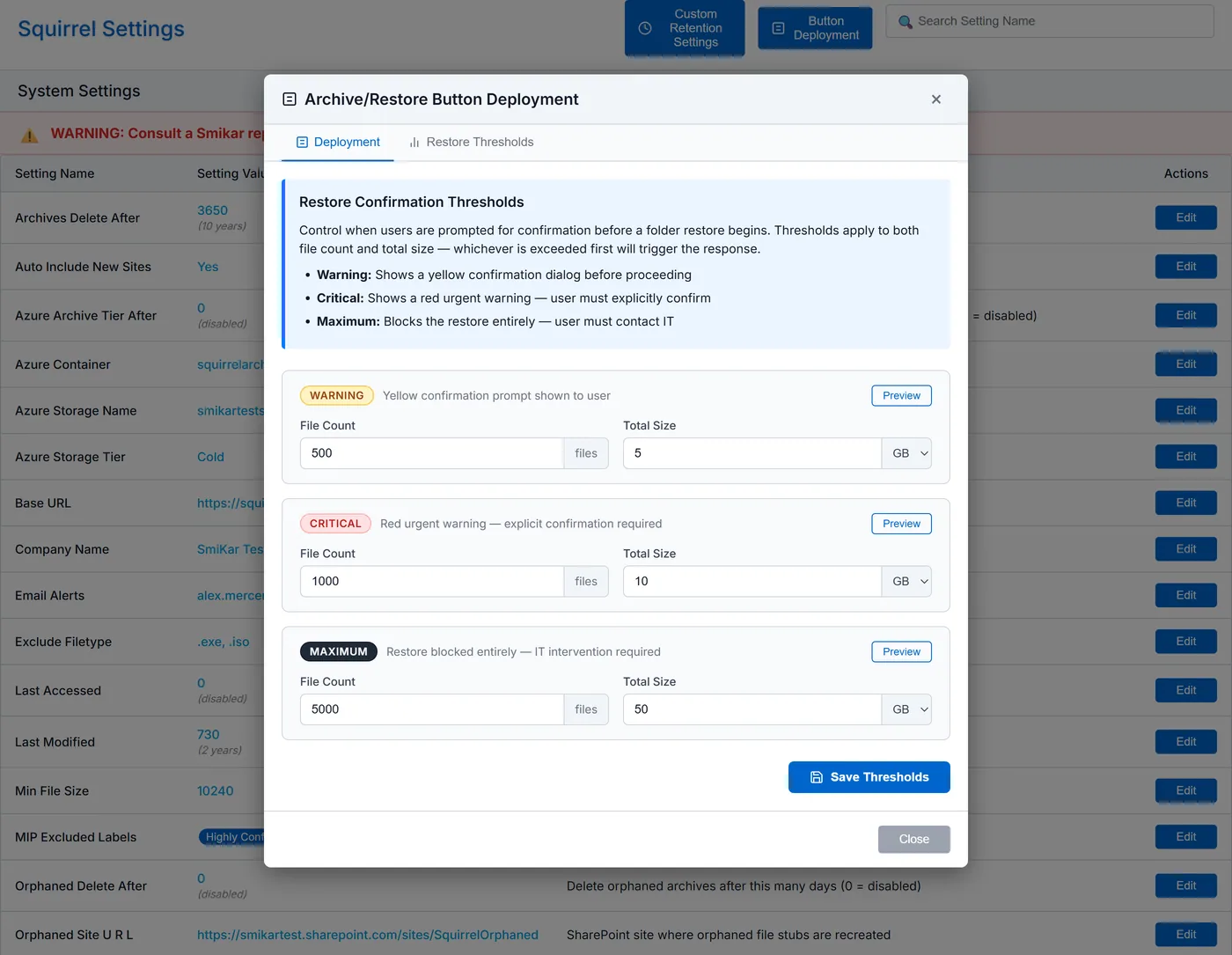
Thresholds protect users from accidentally triggering unexpectedly large or slow restore operations by displaying confirmation dialogs - or blocking the restore entirely - before any action is taken.
Key behaviours:
- Thresholds are evaluated against both file count and total size - whichever limit is exceeded first triggers the response
- Warning - prompts the user to confirm before proceeding
- Critical - shows an urgent warning requiring explicit confirmation
- Maximum - blocks the restore entirely and directs the user to contact IT
Getting There
To access the Restore Confirmation Thresholds settings, navigate to:
Global Settings → Button Deployment → Restore Thresholds tab
Threshold Levels
There are three configurable threshold levels, each escalating in severity:
| Level | What the user sees | User can proceed? |
|---|---|---|
| Warning | A yellow confirmation dialog showing the file count and total size of the restore. The user must click Confirm to continue. | Yes, after confirming |
| Critical | A red urgent warning showing the file count and total size. The user must explicitly confirm they wish to restore all files. | Yes, after explicitly confirming |
| Maximum | A red blocked message. The restore cannot proceed. The user is advised to select a smaller subfolder or contact their IT Operations team. | No - blocked |
Configuring Thresholds
Each threshold level has two independently configurable values:
- File Count - the number of files in the restore request that triggers this level
- Total Size - the combined size of files in the restore request that triggers this level (enter in MB or GB using the unit selector)
Validation Rules
The portal enforces the following rules to ensure thresholds are logically ordered before saving:
- Warning file count must be less than Critical file count
- Critical file count must be less than Maximum file count
- Warning size must be less than Critical size
- Critical size must be less than Maximum size
- All values must be positive numbers
If any of these rules are violated, an error message will be shown and the settings will not be saved.
Saving
Once all threshold values are set, click Save Thresholds. A confirmation notification will appear when the settings have been saved successfully.
Previewing Threshold Messages
Each threshold row includes a Preview button. Clicking it opens an overlay showing exactly what your users will see when that threshold is triggered, including the button options available to them.
Use the preview to verify that your threshold values and messaging are appropriate before rolling out to users.
| Preview Level | What is shown |
|---|---|
| Warning | Yellow confirmation box with file count, total size, and a Confirm Restore / Cancel option |
| Critical | Red urgent warning with file count, total size, bullet-pointed cautions, and a Yes Restore All Files / Cancel option |
| Maximum | Red blocked message with file count and size, guidance on alternatives, and a Close button only |
Close the preview overlay by clicking the in the top right corner.
How Thresholds Are Applied
When a user clicks the Restore button on a folder in SharePoint, Squirrel calculates the total file count and total size of all files within that folder path. It then compares these values against the configured thresholds:
- If neither the file count nor the size exceeds the Warning threshold - the restore proceeds immediately with no prompt.
- If the Warning threshold is exceeded - the user sees the yellow confirmation dialog.
- If the Critical threshold is exceeded - the user sees the red urgent warning.
- If the Maximum threshold is exceeded - the restore is blocked entirely.
The check is an OR condition - exceeding either the file count or the size limit at a given level is sufficient to trigger that level's response.
Need assistance configuring thresholds? Contact support@smikar.com or your SmiKar representative for help.