
Exclude SharePoint Libraries from Archiving
10 min read · Last updated · Page version 14
Excluding specific document libraries or folder paths from archiving allows you to prevent Squirrel from processing certain content during automated archiving policies. This is useful when you need to keep active working folders, sensitive directories, or frequently accessed content outside the archive scope.
This guide explains how to use the Excluded Libraries and Paths modal to manage exclusions and use wildcard patterns for flexible path filtering. For tenant-wide file-type and label exclusions (rather than per-path), see the Exclude_Filetype and MIP_ExcludedLabels controls in global settings.
Understanding Exclusion Scope
Important: Exclusions only apply to automated archiving policies - the rules administrators configure under Site Custom Policies. If you manually archive content using "Archive/Restore by path" or by selecting individual files/folders, these exclusions will not apply - manual operations override exclusions by design, so a deliberate admin action is never blocked by an existing path rule.
Steps to Exclude a Document Library or Path
| Step | Description | What you see |
|---|---|---|
| Step 1: Open the Exclusions Modal | Navigate to the Squirrel web portal and access the Excluded Libraries and Paths modal from your settings or archive configuration menu. | 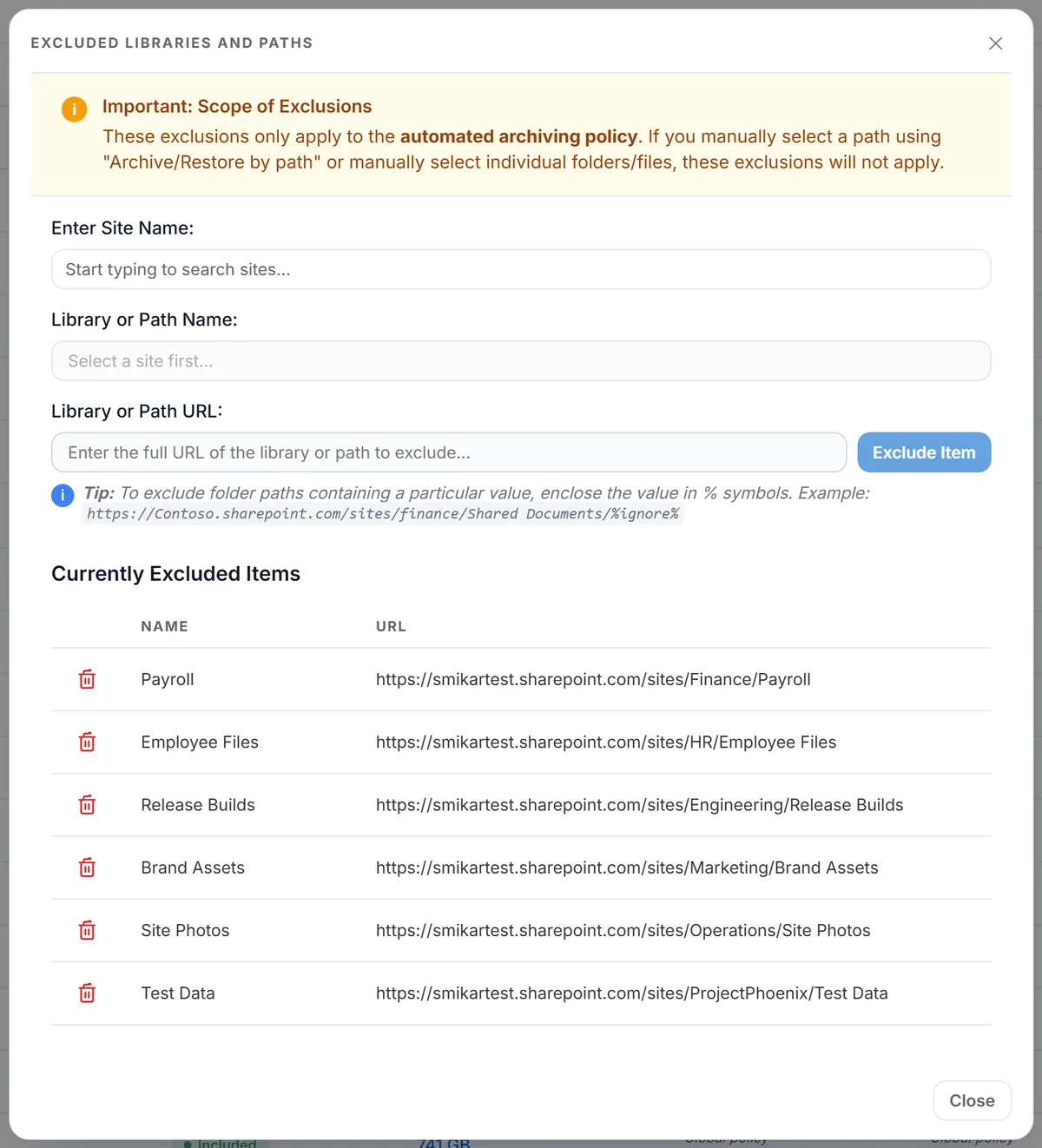 |
| Step 2: Search for a SharePoint Site | In the "Enter Site Name" field, begin typing the name of your SharePoint site. The search activates after entering at least 3 characters. A dropdown will display matching sites. Click to select your target site. | 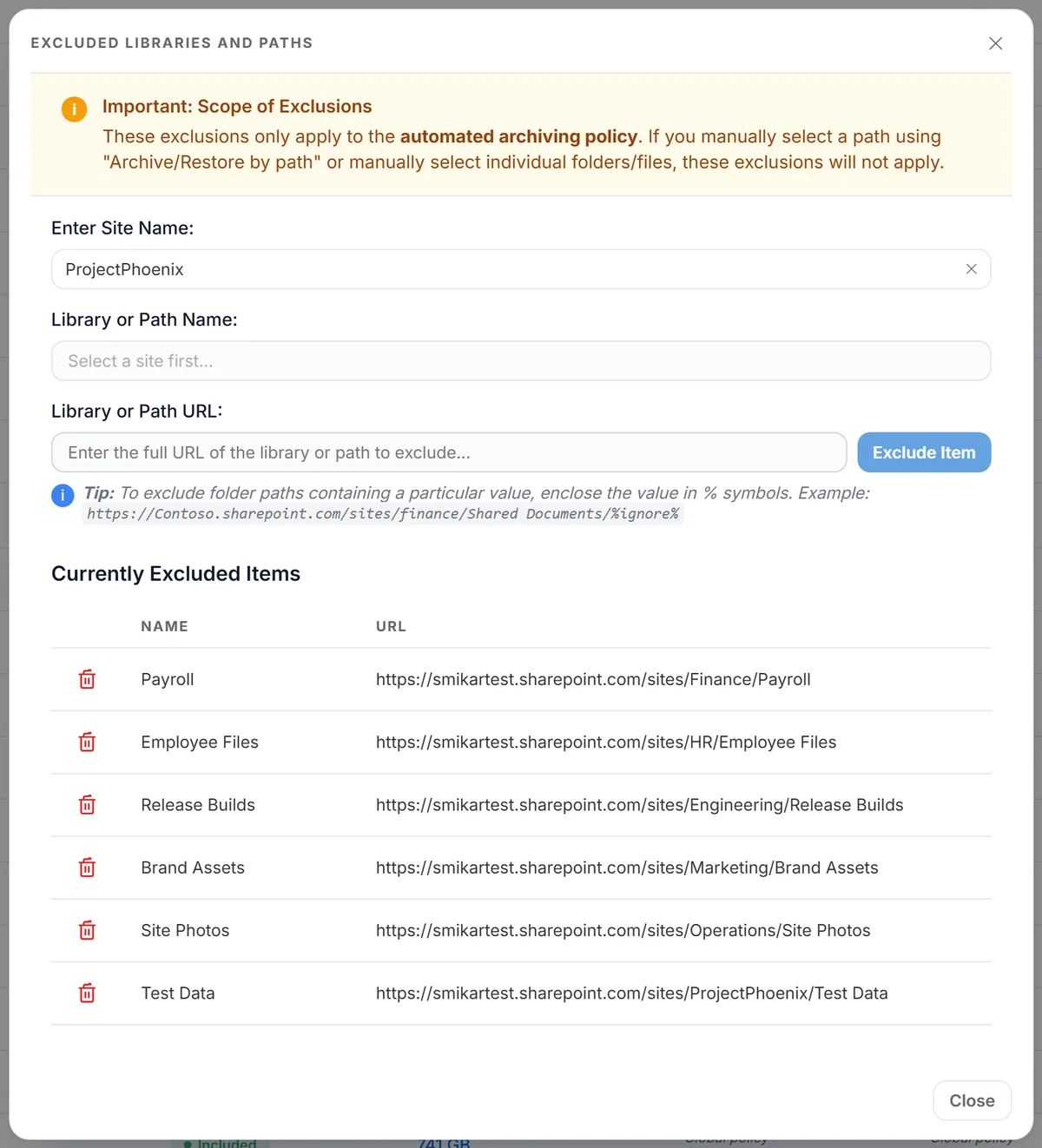 |
| Step 3: Select a Library | Once a site is selected, the available document libraries for that site are loaded automatically and the dropdown opens - no need to click into the field. Select a library from the dropdown, or start typing to filter the list. You can also manually enter a custom library/path name. | 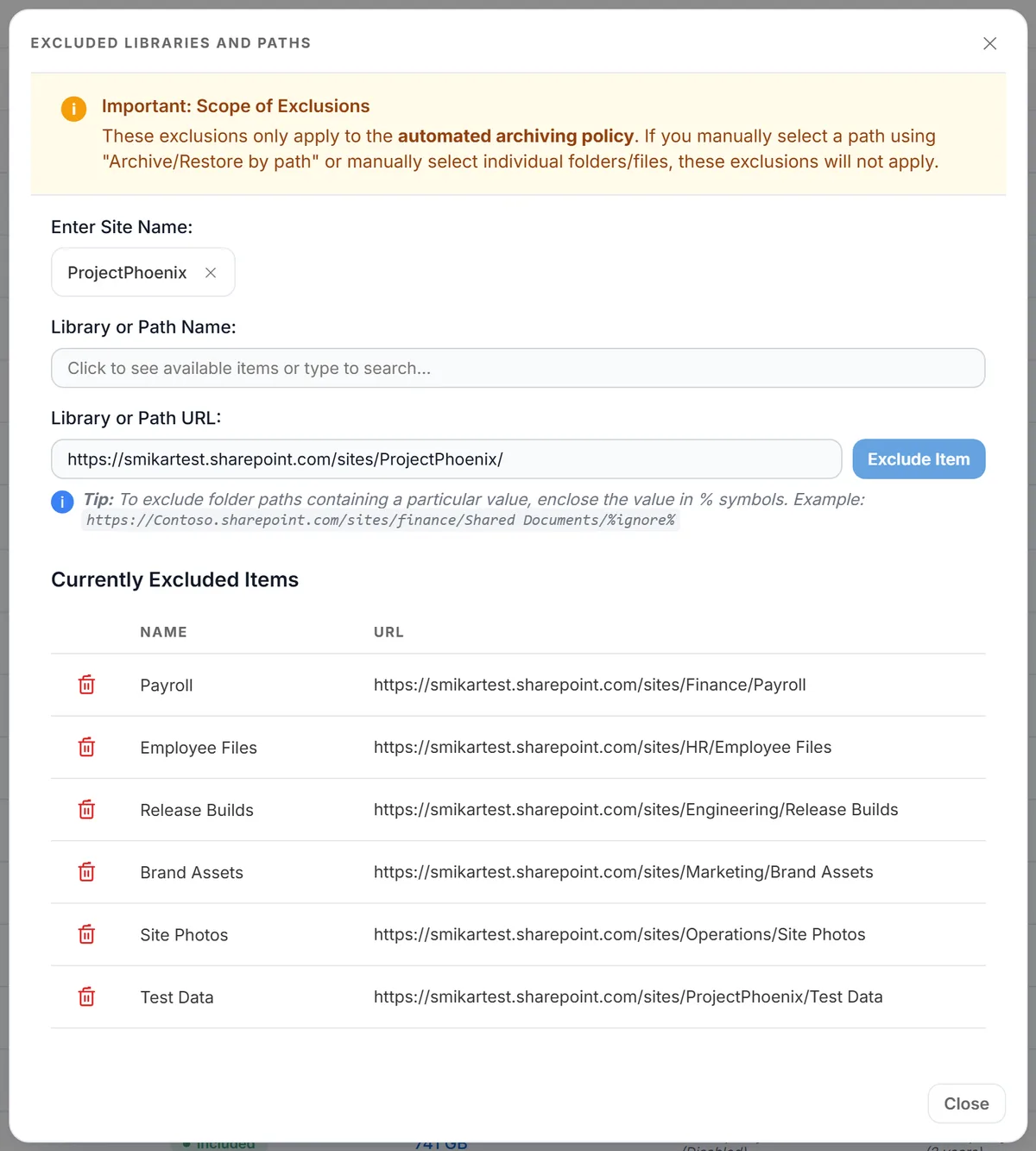 |
| Step 4: Drill into Folders (Optional) | After selecting a library, the "Library or Path URL" field is populated and a folder dropdown automatically appears showing the next-level folders inside that library. Click any folder to drill deeper - the dropdown updates to show the next level inside your selection. Continue clicking through folders until you've reached the path you want to exclude. You can also type directly in the URL field to filter or jump to a specific path. | |
| Step 5: Review the Generated URL | The "Library or Path URL" field reflects your current selection. You can manually edit this URL or paste a complete path at any point. | 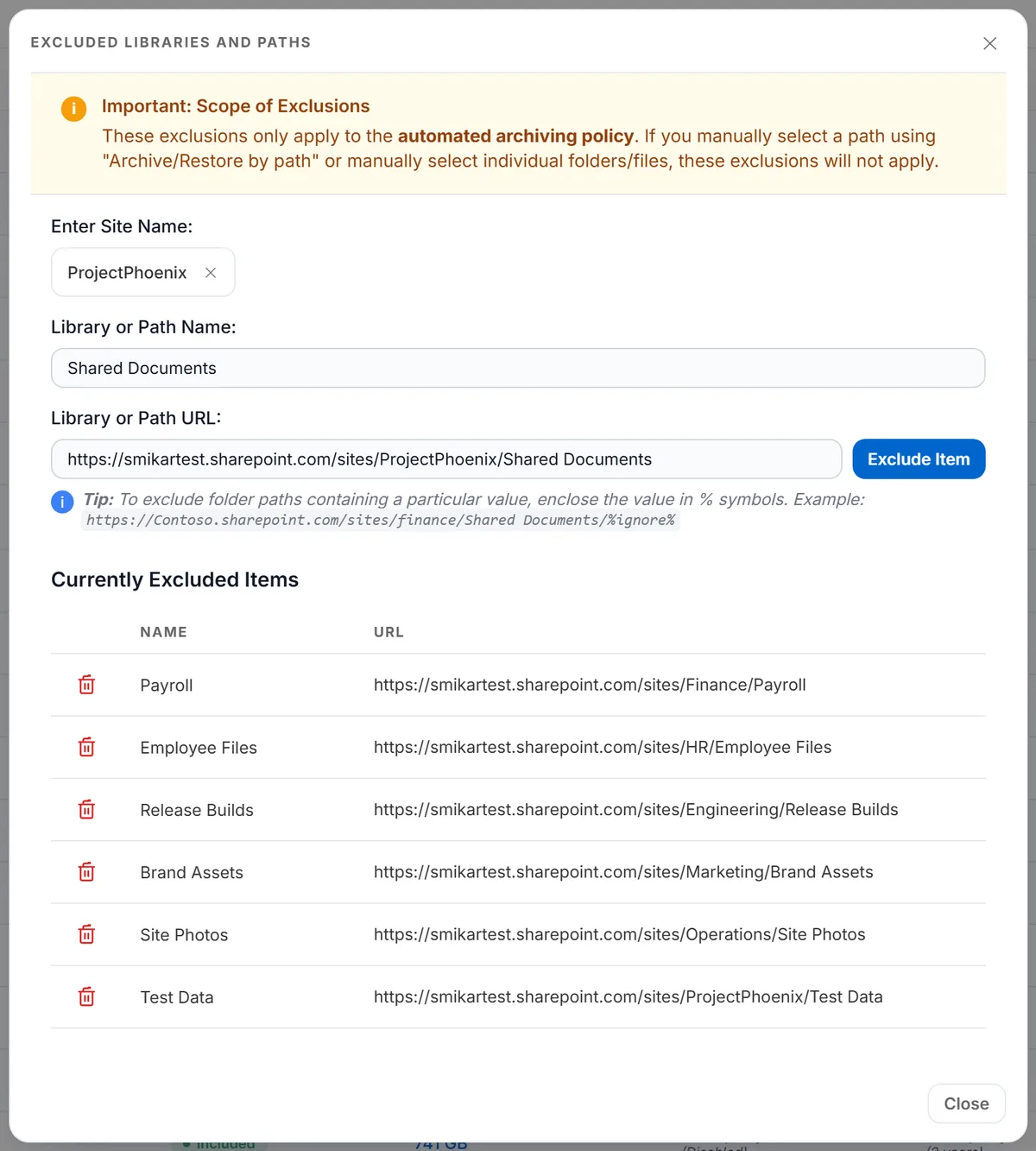 |
| Step 6: Exclude the Item | Click the Exclude Item button to add the library or path to your exclusion list. A success notification will confirm the action. | |
| Step 7: View Excluded Items | Scroll down to the "Currently Excluded Items" section to see all active exclusions. Each entry displays the name and full URL of the excluded location. |
Folder Path Autocomplete
The URL field supports live autocomplete of folder paths. As you select libraries or type into the URL field, Squirrel queries the live index of files in your SharePoint site and offers matching folder paths to choose from.
- Triggered automatically when you select a library - saves you having to type to drill in
- Triggered as you type in the URL field (after at least 3 characters), with a short debounce
- Click-through navigation - selecting a folder from the dropdown immediately offers the next level of folders
- Suppressed when wildcards are used - typing
%in the URL switches off autocomplete since wildcards are exclusion patterns rather than literal paths
You can stop drilling at any level by clicking Exclude Item - you don't need to navigate all the way to a leaf folder.
Using Wildcards to Exclude Path Patterns
Wildcards allow you to exclude multiple paths that share a common naming pattern, without needing to add each one individually.
Wildcard Syntax
Enclose any text value in percent symbols (%) to create a wildcard pattern:
https://Contoso.sharepoint.com/sites/finance/Shared Documents/%ignore%This pattern will exclude any file path that contains "ignore" anywhere in its folder structure.
Examples of Excluded Paths
The following paths WILL be skipped by archiving:
- .../Shared Documents/someignorefolder/file.docx
- .../Shared Documents/IgnoreThis/file.xlsx
- .../Shared Documents/abcignorexyz/sub/file.pdf
- .../Shared Documents/folder1/folder2/ignore/file.docx
Examples of Non-Excluded Paths
The following paths will NOT be skipped:
- .../Shared Documents/approvals/file.docx (doesn't contain "ignore")
- .../Shared Documents/versions/file.pdf (doesn't contain "ignore")
- .../Shared Documents/ignoredoc.docx (wildcard only matches folder names, not filenames)
Tip: Wildcards are case-insensitive and match partial text within folder names. When using wildcards in the URL field, the folder autocomplete dropdown is automatically disabled to avoid interference.
Excluding by Filename Instead of Folder
The wildcard on this page matches folder names only - .../Shared Documents/ignoredoc.docx is not excluded by %ignore%, because the only match is in the filename. That is deliberate: it keeps a site-level exclusion about where a file lives.
To exclude on the filename, use the Wildcard Exclusion setting in global settings instead. It matches anywhere in the full filepath, so the filename is included, and it applies across every site in the tenant.
A worked example. An integration writes files that another system reads directly, and they must never become stubs:
.../Shared Documents/Reports/EXPORT_daily_sales.csv.../Shared Documents/Archive/2026/EXPORT_ledger_q1.csv.../Shared Documents/Feeds/inventory_FEED.json
Setting Wildcard Exclusion to EXPORT_, _FEED skips all three wherever they sit, and skips them in any site, without anyone having to find the folders first.
Two things to know before relying on it:
- It is a substring match on the whole path, so it is blunt.
EXPORT_would also skip a file in a folder calledEXPORT_ARCHIVE. Choose a pattern distinctive enough that an unrelated folder cannot contain it. - Exclusions are not retroactive. They stop future archiving; they do not restore files already archived. If files matching the pattern have already been stubbed, restore them first, then add the exclusion.
Where you know the files will always live in one place, a dedicated excluded folder is the cleaner control and a filename pattern is the safety net behind it. Use the Preview action on the site to confirm what the policy would take before go-live - it counts and changes nothing.
Removing an Exclusion
| Step | Description |
|---|---|
| Step 1: Locate the Exclusion | In the "Currently Excluded Items" section, find the library or path you want to remove from the exclusion list. |
| Step 2: Click the Trash Icon | Click the trash/delete icon next to the item you wish to remove. A confirmation prompt will appear. |
| Step 3: Confirm Removal | Click "OK" in the confirmation dialog to remove the exclusion. The item will be deleted from your exclusion list and will now be included in automated archiving policies. |
Important Notes
- Path Format: Only forward slashes (/) are allowed in paths and URLs. Backslashes () are not supported and will trigger a validation error on input or paste.
- Site Selection Required: You must select a site before you can choose a library or enter a path name.
- Automatic URL Generation: When you select a site and library, the URL is automatically generated and the folder dropdown opens for further drilling. You can manually edit the URL at any time.
- Drill as Deep as You Need: The folder autocomplete dropdown will keep offering deeper folders each time you click one. Stop and click Exclude Item at any level.
- Clear and Start Over: Use the "Clear" button next to the site search to reset all fields and start a new exclusion entry.
- Press Escape to dismiss any open dropdown without making a selection.
Conclusion
Using the Excluded Libraries and Paths feature in Squirrel provides granular control over your archiving strategy:
- Protect active working folders from automatic archiving
- Drill through your SharePoint folder structure with live autocomplete to find exactly what you want to exclude
- Use wildcards to exclude multiple paths with similar patterns
- Keep sensitive or frequently-accessed content readily available
- Maintain full control over what gets archived automatically
By following this guide, administrators can fine-tune their archiving policies to match organizational needs while ensuring critical content remains accessible in SharePoint Online.
Common questions
Q: Can I exclude a specific file rather than a whole folder?
- Single-file exclusion isn't supported through this modal - exclusions operate at the library or folder level. The closest equivalent is the tenant-wide
Exclude_Filetypesetting in global settings, which excludes by extension. For a true per-file scope, label the file with a Microsoft Information Protection (MIP) label that you've added toMIP_ExcludedLabels- Squirrel will skip any file carrying an excluded label.
Q: What's the difference between this page and Site Custom Policies?
- Site Custom Policies defines what gets archived per site (age, size, file type rules). Document Library Exclusions defines where archiving doesn't run - specific libraries or folder paths inside an otherwise-included site. Both are evaluated when an archive cycle runs; an item must pass the policy AND not be excluded.
Q: I excluded a folder but Squirrel still archived files in it. Why?
- The most common cause is that the files were archived via a manual operation rather than the automated policy - exclusions only apply to automated runs, so manual "Archive by path" or selecting individual files in the SharePoint UI bypasses the rule by design. Other causes: the exclusion was added after the policy already evaluated those files, or the path entered doesn't match exactly (paths are case-sensitive and require forward slashes).
Q: How many exclusions can I add?
- There's no hard limit, but practical advice: keep exclusion lists under ~100 entries per site. If you find yourself excluding a large number of paths under one site, it's usually a sign that the site-level policy is too broad - consider whether the site should be archived at all, or whether a more targeted Site Custom Policy would be cleaner than a long exclusion list.
Q: Can I use wildcards to exclude across multiple sites?
- Wildcards in the URL field match within a single site. If you need to exclude a common folder pattern (e.g.
WIP) across every SharePoint site in the tenant, the cleaner approach is to use theWildcard_exclusionsetting in global settings, which evaluates the wildcard against every file path tenant-wide before archive.