
Watchlist: Heightened Monitoring of Specific Users
8 min read · Last updated · Page version 18
The Watchlist is an operator-managed list of specific users you want under elevated scrutiny for a bounded time. The classic use is a departing employee on notice - the single biggest insider-exfiltration window - but it also fits performance-managed staff, privileged accounts (admins, finance, execs), post-incident follow-up, and time-boxed contractor watching.
Two different "watchlists" - do not confuse them. This article is about the operator-managed heightened-monitoring Watchlist (the one you add users to, reached from the main navigation → Watchlist). That is a completely separate thing from the at-risk / top-risk entities panel on the home page, which Burrow computes automatically from risk scores. This page is only about the one you manage by hand.
What "watching" a user actually does
A watched user still generates hundreds of ordinary events a day. Watching them is not an "alert on everything" firehose - it changes how their signals are treated, not how much they are alerted on:
- Their alerts surface. The noise gates and the corroboration model that would normally quiet a lone behavioural signal are bypassed for a watched user. Their alerts are un-demoted and floored to at least medium so they clear the email threshold. A genuine primary-threat alert (data exfiltration, mass deletion, external share of labelled content) on a watched user with real-time notification enabled is floored to high.
- You get a daily digest. Once per day, a "here is everything this user did today" activity digest is emailed to a configurable address, with a CSV evidence file attached. This is a deterministic last-24-hour report (no AI), covering the day's activity - see The daily digest below.
- It is time-boxed and audited. Each watch carries a reason, an owner (whoever set it), and an expiry you choose when you add it (default 30 days, up to 120 days / about 4 months for a long notice period). It auto-expires so the list self-cleans, and every watch / un-watch is written to an append-only audit trail.
Importantly, watching only ever raises attention on the explicit watched set. It cannot suppress anyone, so the effect is contained and safe - and it does not re-inflate genuine benign-shape false positives (an Office-Online document open is still not exfiltration; the daily digest captures that activity anyway).
Watching a user
- Open the user in Identities and go to their identity page.
- Click Watch in the header.
- You are asked for three things:
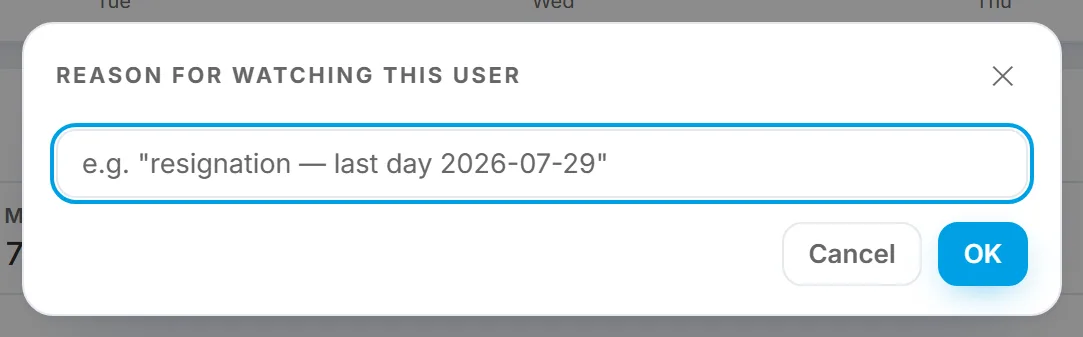
- Reason - e.g. "resignation - last day 2026-07-29". This shows on hover and in the audit trail.
- Digest email - where this user's daily activity report is sent. Leave it blank to use just the standard notification recipients.
- Duration in days - how long the watch runs before it auto-expires. Defaults to 30 days, and can be set up to 120 days (about 4 months) for a long notice period.
The header then shows a WATCHED badge (reason on hover) and the button turns amber and reads Watching. Click it again at any time to stop watching.
From a case. A user tracked on an investigation case can be watched straight from the case, using the eye button beside their name - a 30-day watch, no need to go via Identities. It is the same watchlist, not a parallel one: a user already being watched is shown as watched rather than added a second time.
The management view
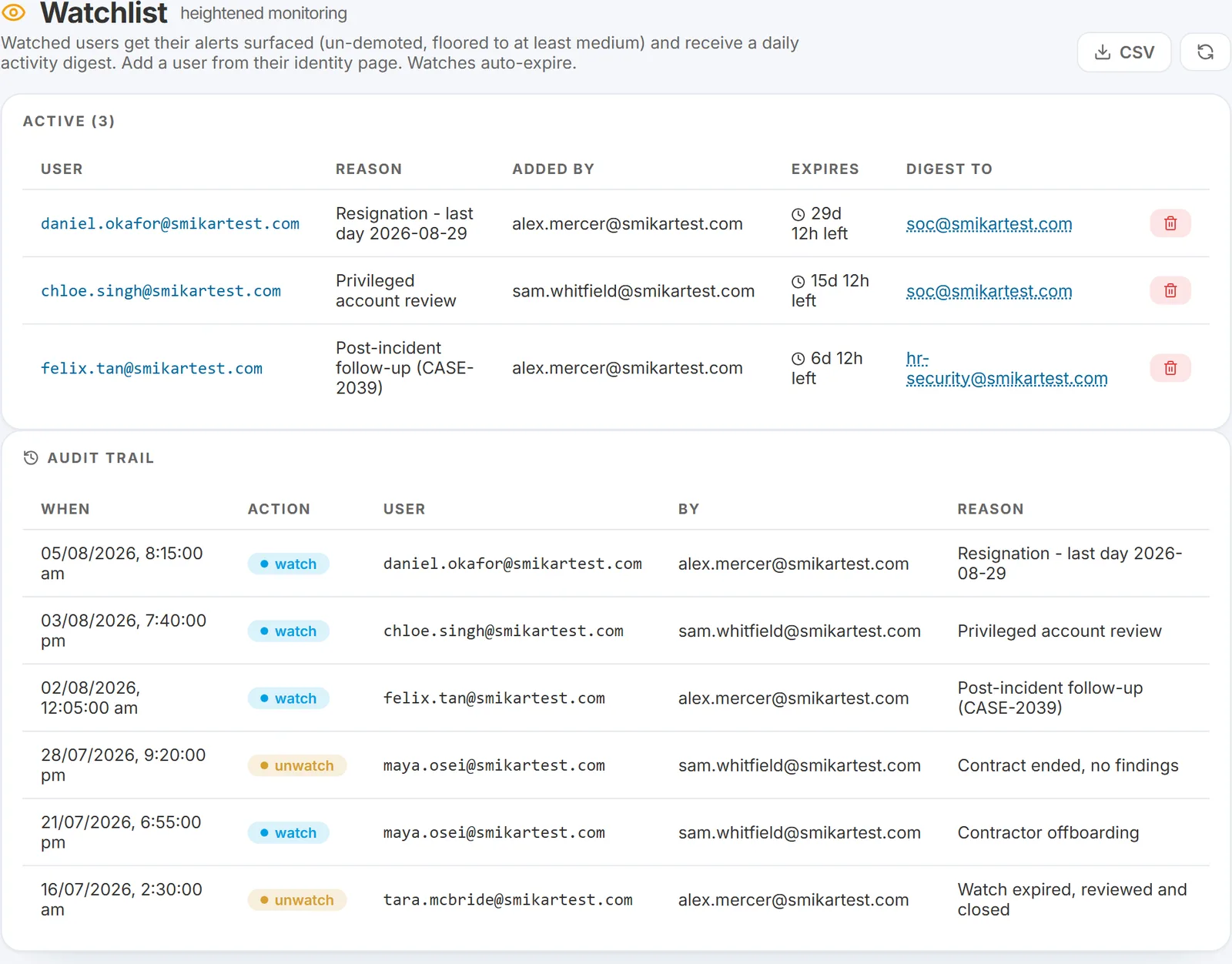
Main navigation → Watchlist gives you one screen for everyone under watch:
- Active table - user (click through to their identity page), reason, who added it, a live expiry countdown, the Digest to email (click to change it), and a Remove button.
- CSV export (top right) - downloads the active watch list, handy for a periodic "who are we watching, and why" review.
- Expired watches - listed separately. Kept on file as evidence; never auto-deleted.
- Audit trail - the full watch / un-watch history: when, the action, the user, who did it, and the reason. This answers "who decided to watch whom" and, just as importantly, "did anyone quietly un-watch someone right before they left."
Where the alerts and the digest go
Two separate channels:
- Individual alerts. Once watching has surfaced a watched user's alert, it emails to your standard notification recipients - the same list as every other alert. Watching makes the alert surface; it does not reroute it.
- Daily digest. The once-a-day activity digest goes to the watch's configured digest email (plus the notification recipients). This is the proactive "what did they do today" report you set up when you started watching.
The daily digest
The daily digest is a deterministic report of the watched user's last 24 hours - built entirely from the raw audit events, with no AI in the path. It is not the 30-day AI behavioural profile (that stays on the identity page, behind the Report button); it is a focused "what did this person do today" summary, which is what you actually want during a watch.
The email body contains:
- A watch-reason banner - why this user is being watched, so a reader who is not the SOC (an HR or legal recipient) has the context.
- Activity tiles - the day's counts: total events, manual and sync downloads, megabytes, uploads, edits, deletes, sharing operations, labelled-file touches, and distinct files / sites.
- Top downloads by size, deduplicated by filename (with an ×N count and the largest size).
- Deletions, and sharing / permission operations (deduplicated by operation and target).
- Real search terms the user ran (wildcard-only queries dropped, case-deduplicated).
- The device IPs the activity came from.
- The alerts that fired for this user in the last 24 hours - including ones that were demoted for everyone else, since a watched user's alerts are surfaced.
Because it is deterministic and needs no AI call, it generates in well under a second - so when several users are being watched, all their digests send in a single daily pass.
The CSV evidence attachment
Every digest carries an attached CSV - <user>_<date>_activity.csv - of that day's raw actions, as an exportable evidence record for a departing or suspect user. SharePoint / Office machinery (thumbnail and preview fetches, site-icon loads, Office-Online auto-opens, link bookkeeping) is stripped, so the file is the user's own actions in chronological order: timestamp, operation, target, site, client IP, app / user agent, file extension, size, share scope, managed-device flag, geography, and the sensitivity label (shown with both its friendly name and its GUID). It is the same day's activity the digest summarises, in a form HR or legal can file or analyse.
Expiry and cleanup
The watch auto-expires on its date - no cleanup needed. The expired entry stays on file (in the Expired section) as evidence that the watch existed and when it ended. To end a watch sooner, click Watching on the identity page, or Remove in the management view. Either way the action is written to the audit trail.
Worked example: watch a departing employee
- HR flags a resignation with a leaving date. Open that user in Identities → their identity page.
- Click Watch. Enter a reason ("resignation - last day 2026-07-29"), the digest email - your own inbox, or a shared SOC / HR address - and the duration. The default 30 days covers a standard notice period; set it up to 120 days for a longer one.
- From now until it expires: their alerts are surfaced (un-demoted, floored so they email), and a daily "what did they do today" activity digest - with a CSV evidence attachment - lands in the digest inbox.
- Review their activity anytime from their identity page: Report for the AI summary, Logs for the raw CSV evidence. See Identity report and log export.
- Manage everyone under watch from main navigation → Watchlist: change a digest email, remove a watch early, or review the audit trail.
- The watch auto-expires on its date. To end it sooner, click Watching on the identity page.
See also
- Identity report and log export - the on-demand Report (30-day AI profile) and Logs buttons on the identity page, distinct from the deterministic daily digest above.
- Using the Identity dossier - the per-user reference card you watch from.
- Detection architecture - the corroboration model that watching bypasses.
- Email types Burrow sends - where the daily digest fits alongside the other emails.
Need help? support@smikar.com.