
Recent Restored Files in Squirrel
3 min read · Last updated · Page version 12
Recent Restored Files lists files Squirrel has already brought back from the archive, newest first. It answers "what came back, and when?" - and lets you send any of them straight back to the archive.
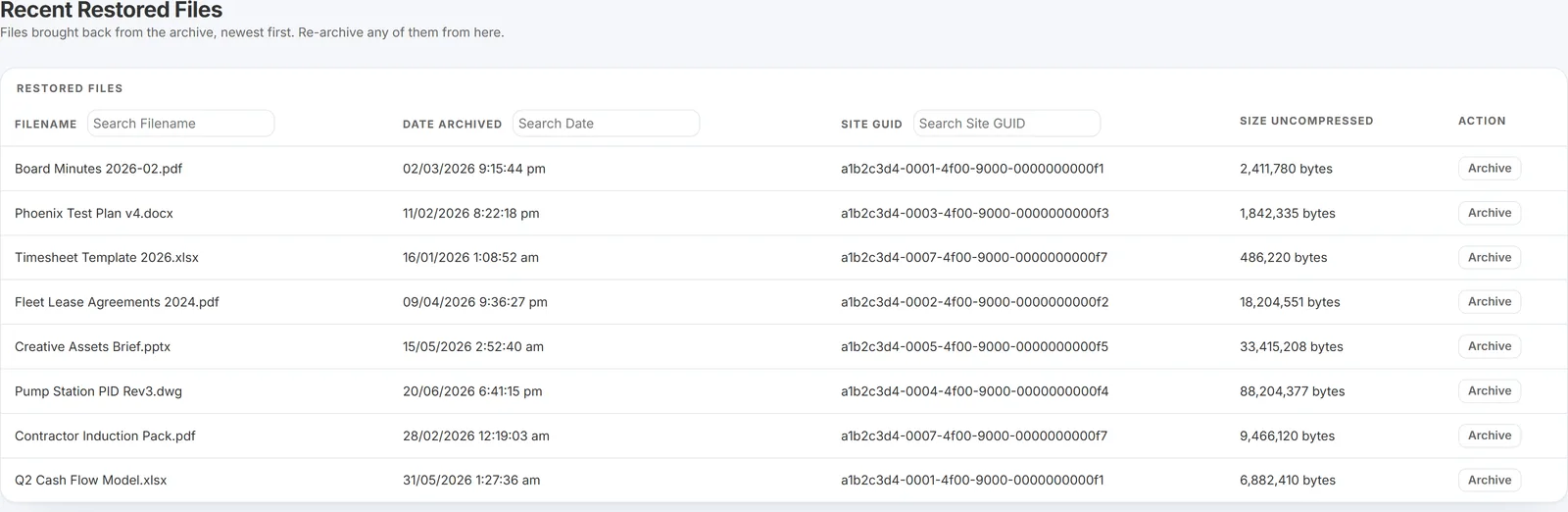
This is a record of completed restores, not a queue of pending ones. For work still in flight, use the Activity Monitor, which shows archive and restore jobs while they are running.
What each column shows
| Column | What it tells you |
|---|---|
| Filename | The file that was restored, under its original name. |
| Date Archived | When the file was originally archived - not when it was restored. Useful for judging how long it sat in the archive before somebody wanted it back. |
| Site GUID | The SharePoint site the file belongs to, as its unique identifier. |
| Size Uncompressed | The file's original size in bytes, before Squirrel compressed it for storage. This is the space it takes back in SharePoint. |
| Action | An Archive button - see below. |
Searching the list
Three of the columns have a search box in the header: Filename, Date Archived and Site GUID. Typing in any of them filters the list as you type, and they combine - so you can narrow to one site and then to one filename within it.
Re-archiving a file
The Archive button on each row sends that file back to the archive without you having to find it in SharePoint first. The button changes to Queued once you click it, so you can see which rows you have already actioned.
This is the practical reason the page exists. A common pattern is a restore that turns out to have been unnecessary - somebody needed one document from a folder, a whole folder came back, and the rest can go straight home again. Re-archiving from here is quicker than going back to Archive and restore by path and rebuilding the selection.
The file is queued rather than archived on the spot, so it follows the normal archive path: the content is written to your Azure storage and a stub is left in SharePoint in its place.
Why a restored file might not be listed
The list covers files Squirrel restored. A file recovered another way - from the SharePoint recycle bin by the user, or from Recycle Bin capture - did not come out of the archive, so it does not appear here.
If you are trying to work out what happened to a particular file and are not sure whether it was archived, deleted, restored or orphaned, start at File History. It answers all of those in one search and links back to the page that can act on it.
See also
- Activity Monitor - archive and restore jobs currently in progress.
- Archived files - everything currently in the archive, and where restores are started.
- Restore process - what happens between clicking restore and the file reappearing.
- Restore confirmation thresholds - the limits that make a large restore ask before it runs.
Need help? support@smikar.com.