
Squirrel Recycle Bin Capture for SharePoint
7 min read · Last updated · Page version 18
The Squirrel platform includes a Recycle Bin Capture feature that automatically monitors SharePoint site recycle bins and securely preserves deleted files before they are permanently removed.
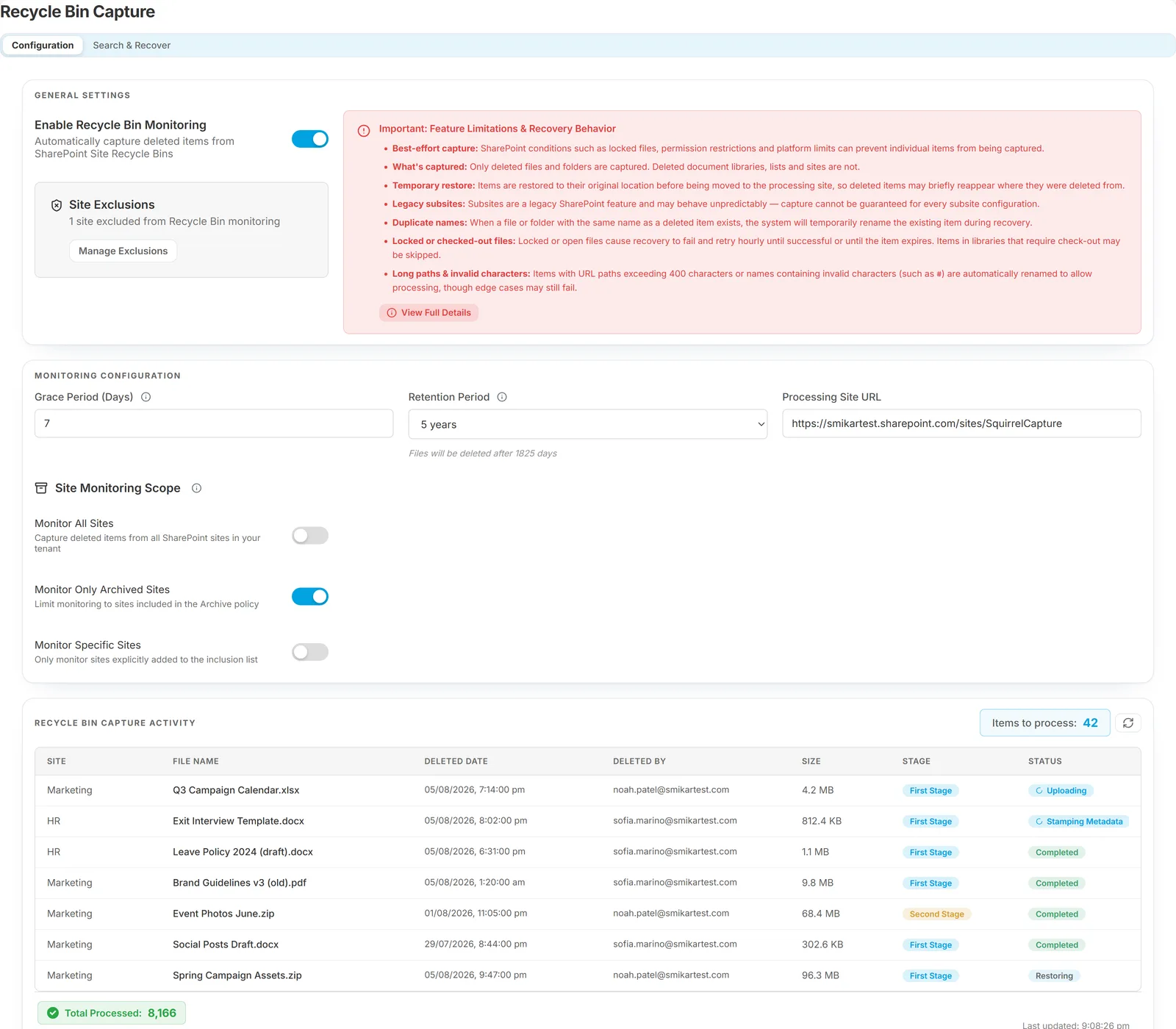
Captured items are archived off to Azure storage, ensuring they do not consume SharePoint quota while still remaining accessible for compliance, recovery, or audit purposes.
How capture works
SharePoint's recycle bin is a holding pen, not an archive - items in it expire on Microsoft's schedule and are then gone. Recycle Bin Capture takes eligible items out of that lifecycle before the deadline arrives.
An item becomes eligible once it has been deleted for longer than the grace period you set (7 days by default). That delay is deliberate: long enough that a user who deletes something and changes their mind can restore it themselves without Squirrel interfering, short enough to act well before SharePoint's own recycle-bin expiry.
Once an item is eligible, each capture runs the same sequence:
- Restore it from the recycle bin to its original location, temporarily.
- Copy it into the Squirrel processing site, into a monthly capture library that mirrors the original folder structure - so the shape of where things came from is preserved, not flattened.
- Stamp the provenance onto the captured copy: original file location, date deleted, deleted by, and original file size.
- Remove the temporary restore, so the user's own site is left exactly as it was. The capture is invisible from the site it came from.
- Archive as normal - from the processing site the item follows the standard Squirrel path: content is written to your Azure Blob Storage and a lightweight stub is left in its place, so the captured item can be identified and rehydrated when needed.
In short:
SharePoint recycle bin → temporary restore → copy to the processing site → provenance stamped → temporary restore removed → archived to your Azure storage, stub left behind
Nothing is emailed during capture. Progress is visible in the Capture Activity table on the page, where each item can be watched moving through its stages. Captured items are also searchable and recoverable from the Squirrel portal - see Monitoring Activity below.
Finding and recovering a captured item
Captured items are not browsed from SharePoint - SharePoint no longer has them. They are found from the Search & Recover tab on this page.
You can filter on any combination of:
- File name - with a Starts with or Contains switch. Starts-with is the fast path; contains is thorough but slower on a large capture set. Type the name with or without its extension; both find the item. A captured copy is stored under a stamped name, so matching is done on the base name rather than the exact string you typed.
- Original site or path - where the item lived before it was deleted, for example
sites/FinanceorShared Documents/Reports. - Deleted by - the person who deleted it.
- Deleted date range - useful when someone reports "it disappeared some time last month".
Older captures are found too. If the processing site has been changed at some point, items captured before the change still live where they were put. Search covers every processing site Squirrel has used, current one first, so an item does not become unfindable just because the setting moved on. Recovery is unaffected either way - Squirrel resolves where a captured copy actually lives from the record, not from the current setting.
Results are capped at 100 rows, so narrow the filters rather than paging through everything. Where a site or path filter is set, a Restore all matching files action applies to the whole matching set instead of row by row.
Recovering to a different location. A captured item does not have to go back where it came from. The restore dialog lets you pick a destination site, then a library, then an optional sub-folder, with a preview of the resulting path before you commit. That matters when the original site has been decommissioned, or when the file is wanted for a legal or HR request without disturbing the site it came from.
Accessing Recycle Bin Configuration
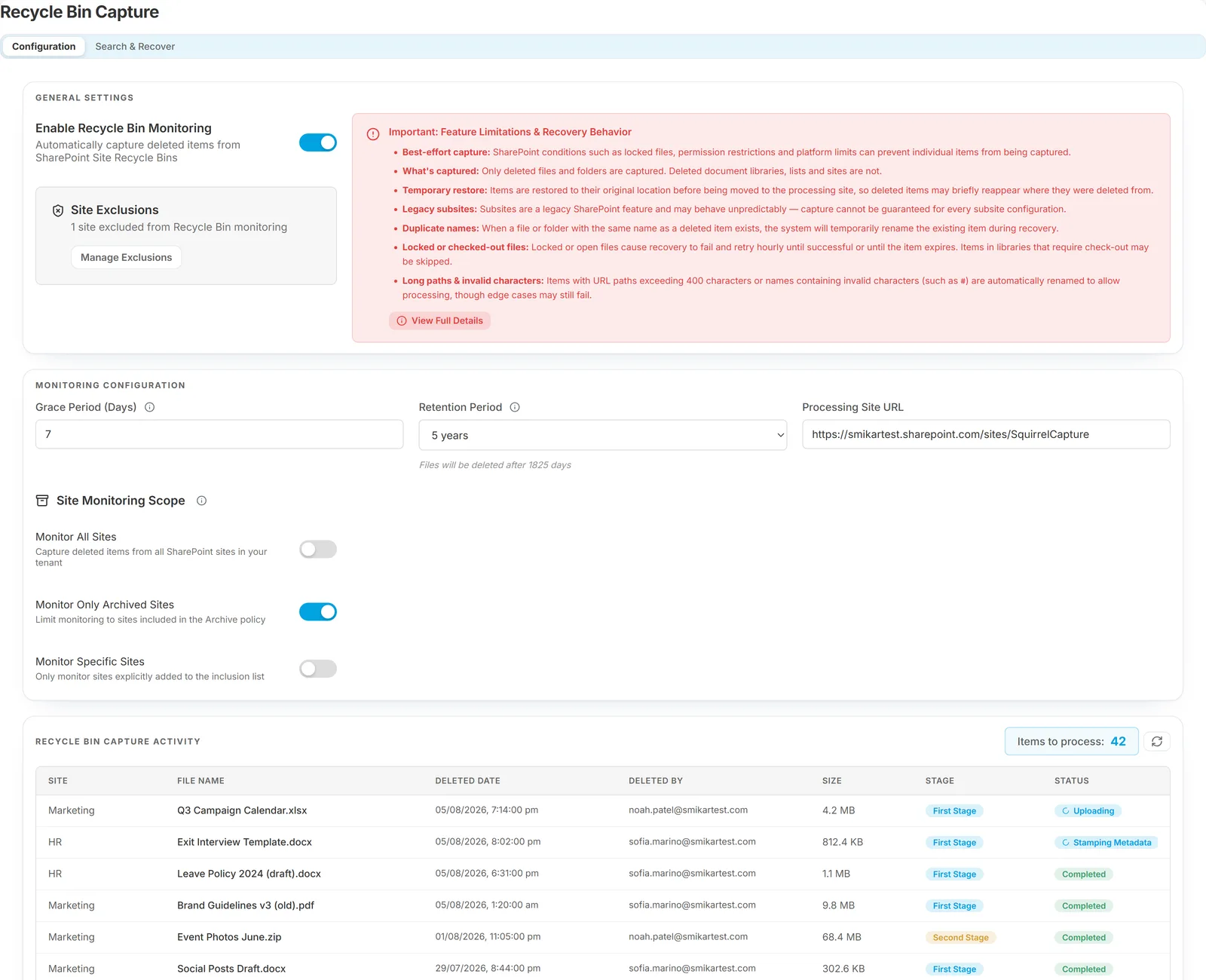
| Navigate to the Recycle Bin Capture section in the Squirrel Admin panel. | |
| Open the General Settings panel to enable monitoring and manage exclusions. | |
| Configure Grace Period, Retention Period, and Processing Site URL. | |
| Click Save Changes to apply configuration settings. |
Configuration Options
| Option | Description |
|---|---|
| Enable Monitoring | Toggle on/off automatic capture of deleted items from SharePoint site recycle bins. Captured files are archived off to Azure storage and do not consume SharePoint quota. |
| Site Exclusions | Exclude specific sites from monitoring to avoid unnecessary capture. |
| Grace Period (Days) | Defines how long to wait after deletion before capture begins (default: 7 days). |
| Retention Period | Determines how long captured files are retained (e.g., 1 year). After this period, archived files are permanently deleted. |
| Processing Site URL | Designates a SharePoint site where captured items are temporarily staged and processed. |
| Monitoring Scope | Choose whether to monitor all SharePoint sites in the tenant, or only those included in your archive policy. |
Important Notes
| Only the most recent version of a file is captured (version history is not included). | |
| Duplicate or locked items may delay recovery; the system retries until successful or until the deleted item expires. |
Limitations
| Limitation | Description |
|---|---|
| File Version Limitation | Only the most recent version of each file will be captured. SharePoint version history is not included in the capture process. |
| Subsite Exclusion | Subsites including the root of a subsite are not compatible with this feature. All subsites including their root site are excluded from monitoring and capture. |
| Duplicate Name Handling | When a file or folder with the same name as a deleted item exists, the system will temporarily rename the existing item to recover the deleted file or folder. |
| Recovery Retry Behaviour | If an existing file or folder is open or locked, the renaming process will fail. The system will retry hourly until successful or until the deleted item expires from the recycle bin. |
| Potential Capture Failure | Duplicate files or folders that remain in active use may prevent recovery and could result in failure to capture the deleted item if the lock is not released before expiration. |
| File Path Length & Invalid Characters | Files or folders with URL paths exceeding 400 characters or names containing invalid characters such as # will fail to process. Ensure file and folder names are concise and free of special characters to avoid capture failures. |
Monitoring Activity
| Review captured items under Recycle Bin Capture Activity. | |
| Logs display site name, file name, size, deleted date, deleted by, stage, and status. | |
| Use the refresh icon to reload activity and check for items awaiting processing. |
Best Practices
Set a grace period to allow for natural user recovery before automated capture.
Align the retention period with your compliance or legal hold requirements.
Regularly review the activity dashboard for capture conflicts or failed recovery attempts.
Use site exclusions to prevent unnecessary monitoring of test or temporary sites.
If you are not sure whether a file was archived, deleted or orphaned, start at File History - it answers all three at once and links back here to act.