
Squirrel Archive and Restore Buttons
5 min read · Last updated · Page version 15
Overview
The Squirrel Archive and Restore buttons sit directly in SharePoint, giving users a simple and secure way to archive or restore files with a single click - directly within the SharePoint interface.
Deployment is managed entirely through the Squirrel Portal - no PowerShell scripts or manual SPFx package uploads are required.
Key Features:
- One-Click Archive & Restore directly from SharePoint
- Secure authentication using the logged-in user's Entra ID (formerly Azure AD)
- Fully portal-managed deployment - enable, scope, and exclude sites without leaving the browser
- Configurable restore confirmation thresholds to protect users from accidental large restores
Accessing the Button Deployment Settings
- Log in to the Squirrel Portal.
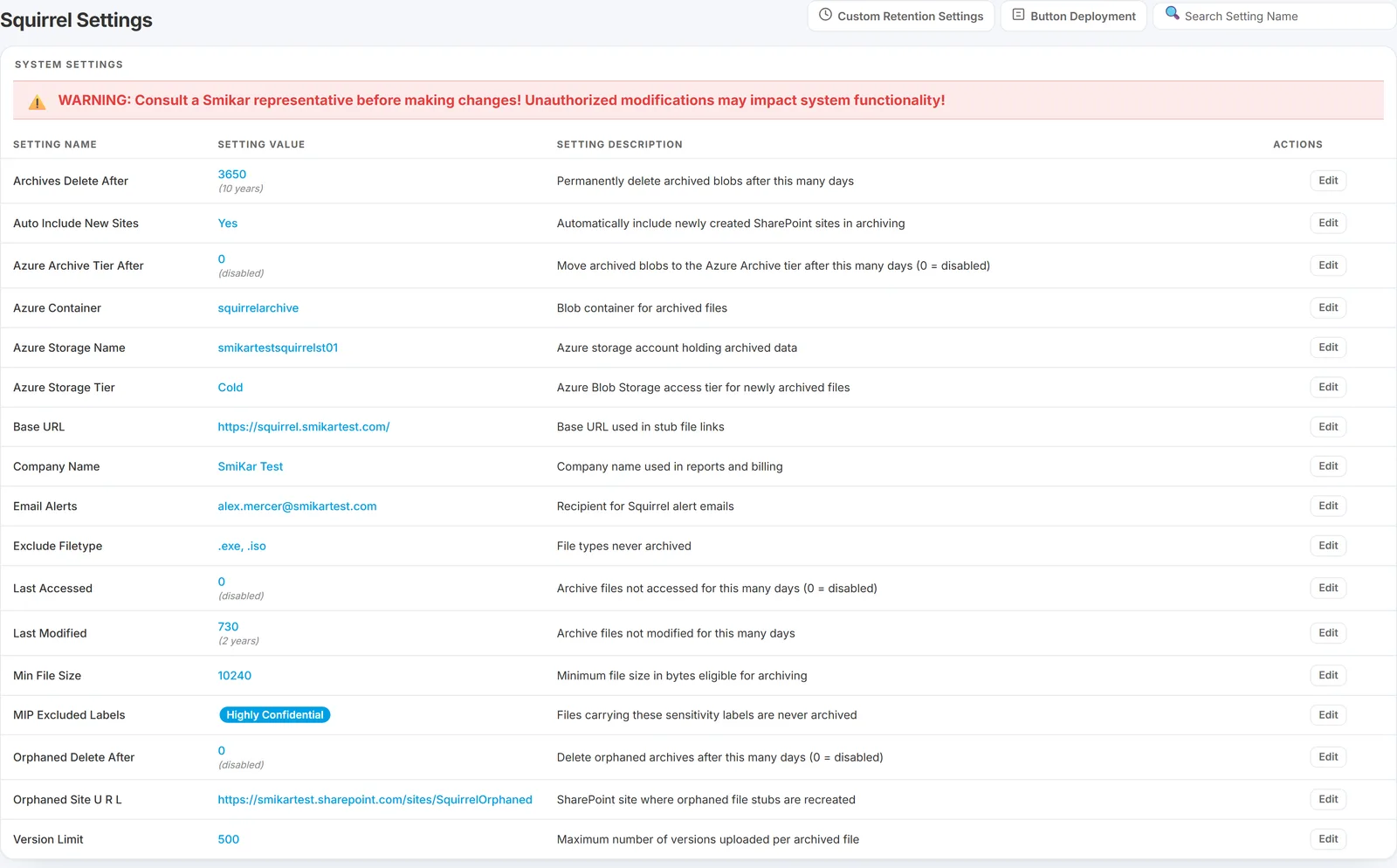
- Navigate to Settings and click the Button Deployment button.
- The page contains two tabs: Deployment and Restore Thresholds.
Configure Deployment (Deployment Tab)
Enable Button Deployment
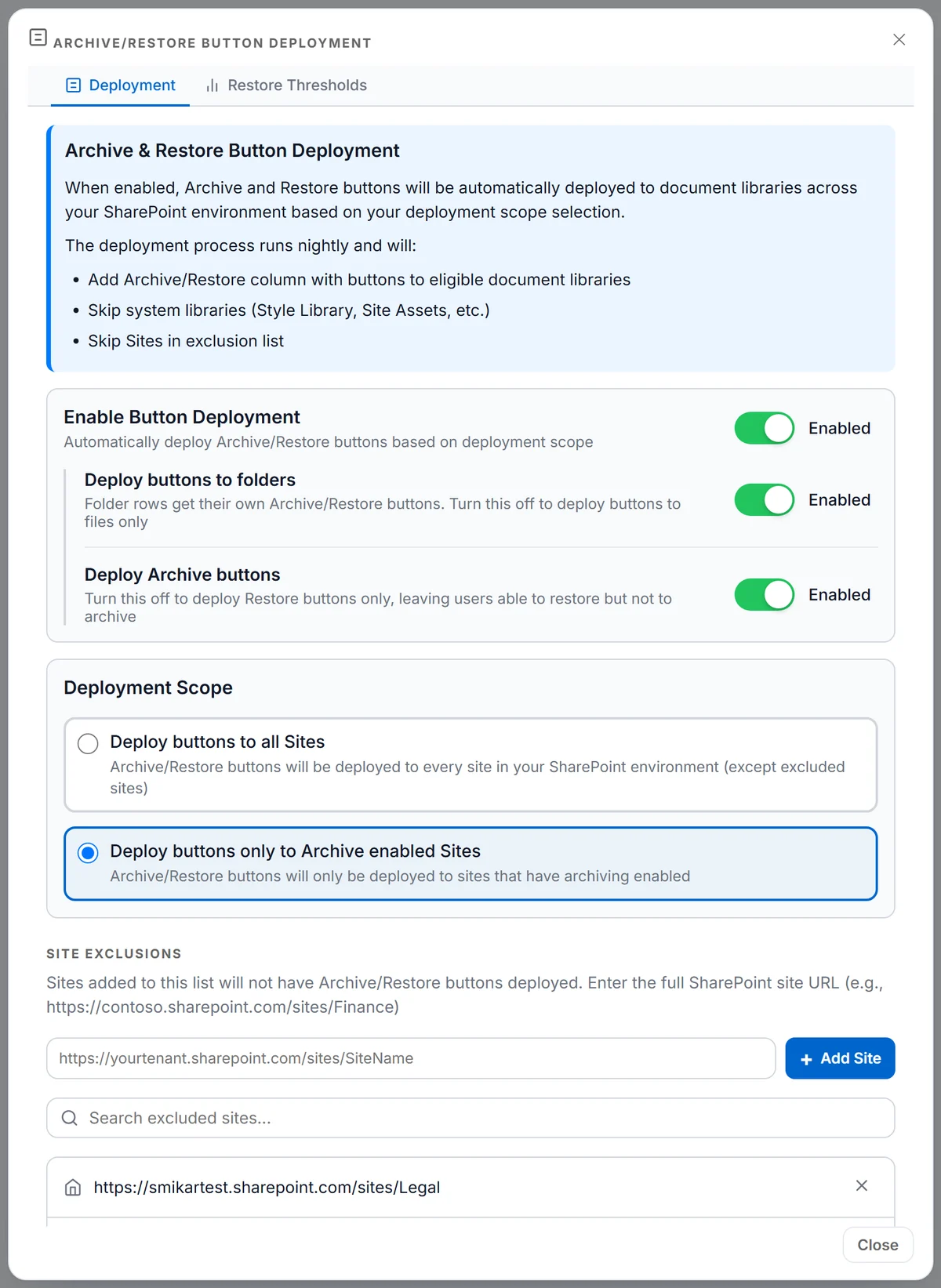
At the top of the Deployment tab you will find an Enable Button Deployment toggle.
- Enabled - Squirrel deploys Archive/Restore buttons to document libraries across your SharePoint environment at midnight, local time, on the same schedule as the archiving run.
- Disabled - No deployment will occur. Existing buttons already in place are unaffected.
Toggle this on to activate the service.
Choosing which buttons are deployed
Inside the Enable Button Deployment panel, two switches decide which buttons the deployment puts out. Both are on by default, so unless you change them users get the full set.
| Switch | Off means |
|---|---|
| Deploy buttons to folders | Buttons go to files only. Folder rows do not get their own Archive and Restore buttons, so a user cannot action a whole folder in one click. |
| Deploy Archive buttons | Only Restore buttons are deployed. Users can bring archived files back, but cannot archive anything on demand. |
Restore-only is the one worth knowing about. Turning Deploy Archive buttons off leaves users able to recover their own content without being able to move anything into the archive themselves - so archiving stays entirely with your policy and your administrators, while self-service recovery still works. That is the sensible setting where archiving decisions are governed centrally, or where you would rather users did not archive live content by hand.
Turning folder buttons off is usually about blast radius: a folder action covers everything inside it, and some organisations would rather a user archived or restored one file at a time.
Both switches are greyed out while Enable Button Deployment is off, because they have nothing to act on. Whatever you had chosen is remembered and comes back when you turn deployment on again.
Changes take effect on the next deployment pass, at midnight local time - the same as any other change on this page.
Deployment Scope
Once deployment is enabled, choose one of two deployment scope options:
| Option | Description |
|---|---|
| Deploy buttons to all Sites | Archive/Restore buttons will be added to every site in your SharePoint environment (except any sites in the exclusion list). |
| Deploy buttons only to Archive-enabled Sites | Buttons will only be deployed to sites that have Squirrel archiving actively enabled. |
Select the option that matches your rollout preference. Changes are saved immediately.
ℹ Note: The nightly deployment process automatically skips system libraries such as the Style Library and Site Assets regardless of the scope selected.
Site Exclusions
If there are specific SharePoint sites where you do not want Archive/Restore buttons deployed, add them to the exclusion list.
To add a site:
- Enter the full SharePoint site URL in the input field (e.g.
https://contoso.sharepoint.com/sites/Finance). - Click Add Site (or press Enter).
- The site will appear in the exclusion list and will be skipped during the next nightly deployment run.
To remove a site:
- Locate the site in the exclusion list (use the search box to filter if needed).
- Click the button next to the site URL.
- The site will be removed from the exclusion list and will receive buttons on the next nightly run.
Note: You must be authenticated in the portal to make changes. All changes are attributed to your logged-in account.
When buttons appear on a newly enabled site
Deployment is a scheduled pass, not an instant action. A site you enable for archiving today receives its buttons at the next midnight, so they will not be in SharePoint the same afternoon.
It is worth knowing if you are setting a site up and intend to archive something from SharePoint straight away: the buttons will not be there yet. Archiving on demand from the Squirrel portal - through search or archive and restore by path - needs no buttons and works immediately.
How the Nightly Deployment Works
Once deployment is enabled, Squirrel runs an automated process each night that:
- Loops through all SharePoint sites in your tenant (or only archive-enabled sites, depending on your scope setting).
- Adds the Archive/Restore column with buttons to eligible document libraries.
- Skips system libraries (Style Library, Site Assets, etc.).
- Skips any sites listed in the Site Exclusions list.
No manual intervention is required after initial configuration.
Need assistance with deployment configuration? Contact support@smikar.com or your SmiKar representative for help.