
Burrow First-Week Onboarding Checklist
7 min read · Last updated · Page version 15
A typical "stand up Burrow" reading and configuration order for your first week. Aimed at the admin or SOC lead who owns the deployment.
Burrow is fully managed by Smikar - the service is live on day one with the Balanced detection posture (default), the Entra ID security app consented, and your audit data flowing. The work in this checklist is about tuning Burrow to your tenant and onboarding your team.
The Setup page tracks all of this for you
Burrow's Setup page (left navigation, under Admin) shows every step below as done, needs attention or optional, checked live against your actual configuration rather than being a static list you tick off yourself. Each row carries a plain-English status line and an Open button that deep-links to the page where you do the work.
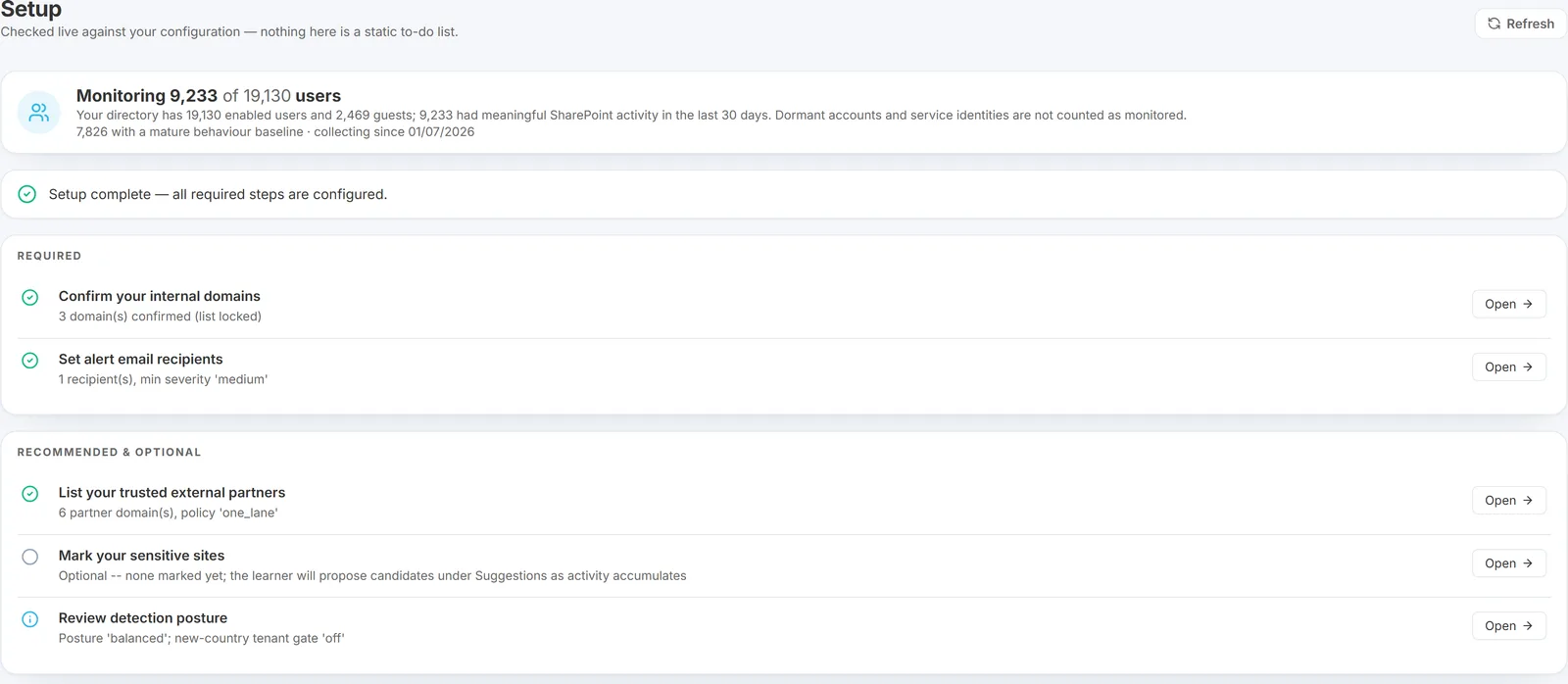
Required steps (internal domains, notification recipients) are separated from the recommended ones, and a banner tells you how many required steps remain - so "have we finished setting this up?" is answerable at a glance rather than from memory. The order on that page matches the order of this article.
New steps appear there automatically as the product grows. If the page shows you something you have not seen before, it is safe to work through it in order.
The coverage card at the top reads "monitoring X of Y users" - how many people Burrow is actively watching against the number of enabled accounts in your directory. Only people with meaningful SharePoint activity in the last 30 days count as monitored; dormant accounts and service identities are not counted. It is the quickest answer to "is Burrow actually covering our organisation?", and the same figure appears on the dashboard home page.
Day 1 - Orient
- Read What is Burrow? for the product overview.
- Read Quick tour of the dashboard to learn the surfaces.
- Read Who uses what so the right team members start with the right pages.
- Skim the Glossary - you don't need to memorise it, just know it exists.
- Log into the Burrow dashboard for the first time. Confirm you land on the home page and see alert counts populating. If counts remain at zero after a few hours, raise a support ticket.
Day 1 - Tell Burrow what's yours
Do this before anything else. Burrow decides whether a file was shared externally or internally by the recipient's email domain, so until your domains are confirmed it cannot reliably tell an outside recipient from a colleague. External-sharing detection is effectively blind in that state - and it fails quietly, reporting nothing rather than reporting a problem, which is why it is easy to leave until later and easy to regret.
- Open the Internal Domains page. Burrow has already learned the domains it sees in active use - review the promoted list and confirm they are all really yours.
- Add any missing ones: every domain your organisation owns - primary domain, subsidiaries, acquired brands, regional variants, vanity domains. Exclude anything the learner promoted that is not actually yours.
- Sanity check: open the External Sharing report. Everyone listed should be a genuine outside party - a colleague in that list means a domain is still missing from Internal Domains.
Day 1 to 2 - Configure email recipients
- Open the Settings page and scroll to the Email notifications card (Settings is one page of cards, no tabs).
- Add the email addresses that should receive alerts and the weekly executive briefing.
- Set the gates:
- Minimum severity - start at High (the shipped default - only the serious stuff), then lower to Medium once you have tuned the noisy categories.
- Email which rules? - All initially so you see everything; switch to "Only the ones I pick" (or "All except the ones I pick") once you know which categories matter most.
- Weekly briefing - leave on so recipients receive the Monday executive summary.
- Skip auto-downgraded alerts - leave on to keep routine, pre-filtered activity out of the inbox (it still shows on the dashboard); turn off during early tuning if you want to see every demotion.
- Save, then use Send test email to confirm delivery. Burrow picks up the changes within a minute.
Day 2 - Add your trusted partners, then set the posture
Order matters here: partners are only recognised correctly once your internal domains are confirmed, so do this after the step above rather than alongside it.
- On the Internal Domains page, open the External Partners section and add your trusted outside domains - auditors, contractors, joint-venture partners (e.g.
northwind-audit.example; subdomains are covered automatically, but per-country domains are not - add those separately). Then pick a demotion policy so routine sharing to them is quietened but never hidden entirely. See External Partners for the policy options. - Detection posture (Settings page): leave it on Balanced unless you have a specific reason to change it. You can tighten to Strict or loosen to Relaxed later, once you have seen a week of real volume - tuning against guesses tends to cost you more than it saves. See The tuning model.
Day 3 - Tag your sensitive content
Burrow doesn't know which SharePoint sites or labels matter to you until you tell it.
- Open the Sensitive sites page and add URL patterns for your most sensitive site collections - HR, Finance, board, legal, customer data. Activity on these sites bumps alert severity one tier. Burrow also suggests sites where labelled content lives - approve the genuine ones.
- Open the Sensitive keywords list (top of the Rules page) and add a few high-signal search terms - "acquisition", "termination", "salary", "M&A", whatever fits. A user searching for these phrases in SharePoint triggers the dedicated
sensitive_searchrule. - If your tenant uses Microsoft Information Protection labels, confirm the Sensitive labels page reflects the labels you treat as confidential.
Day 4 - Bring your team on
- Send the SOC team Investigating an alert, Reading the evidence box, and Using the Identity dossier.
- Send your compliance / audit lead Pulling activity history for HR or legal and Exporting the suppression journal.
- Walk one alert end-to-end with the SOC team using the canonical investigation workflow. Most teams pick up the rhythm after two or three alerts.
Day 5 - First tuning pass
Expect the first couple of weeks to be the noisiest as Burrow learns your tenant's behaviour and as service accounts that should be silent show up as alerting entities. The Baseline maturity gate suppresses the worst of the cold-start noise while per-user history accumulates, and volume drops noticeably once baselines mature.
- Open the Exceptions page and add suppress entries for known service accounts. Common patterns:
app@sharepoint*,SHAREPOINT\system, and any vendor or scanner accounts you know about. See Entity exceptions for the wildcard syntax. - Open the Suggestions page (main nav → Tuning → Suggestions). Burrow proposes specific tuning changes based on which alerts your team has been dismissing. Apply the ones that match your environment.
- Keep the detection posture at Balanced for now. Most tenants find Balanced is the right starting point and only need per-rule overrides for a small number of categories.
End of week - Review
- Check the Weekly briefing on Monday morning. Reads as an executive-style summary of the week's signal.
- Open the History page and review the admin actions your team has taken - a clean trail of who tuned what.
- Adjust on what you saw. Too much noise → tighten min-severity or add more exceptions. Too little signal → tighten the posture to Strict briefly and see what surfaces.
Where to go from here
- Tuning a noisy rule for week-two refinements.
- Custom rules when an out-of-the-box rule doesn't match a pattern you care about.
- Rule replay when you want to see what a rule change would have done over historical data, without waiting for new events.
Need help? support@smikar.com.