
How to Restore Files with Squirrel
5 min read · Last updated · Page version 14
Click here for more information about Squirrel Rehydration on the official SmiKar website.
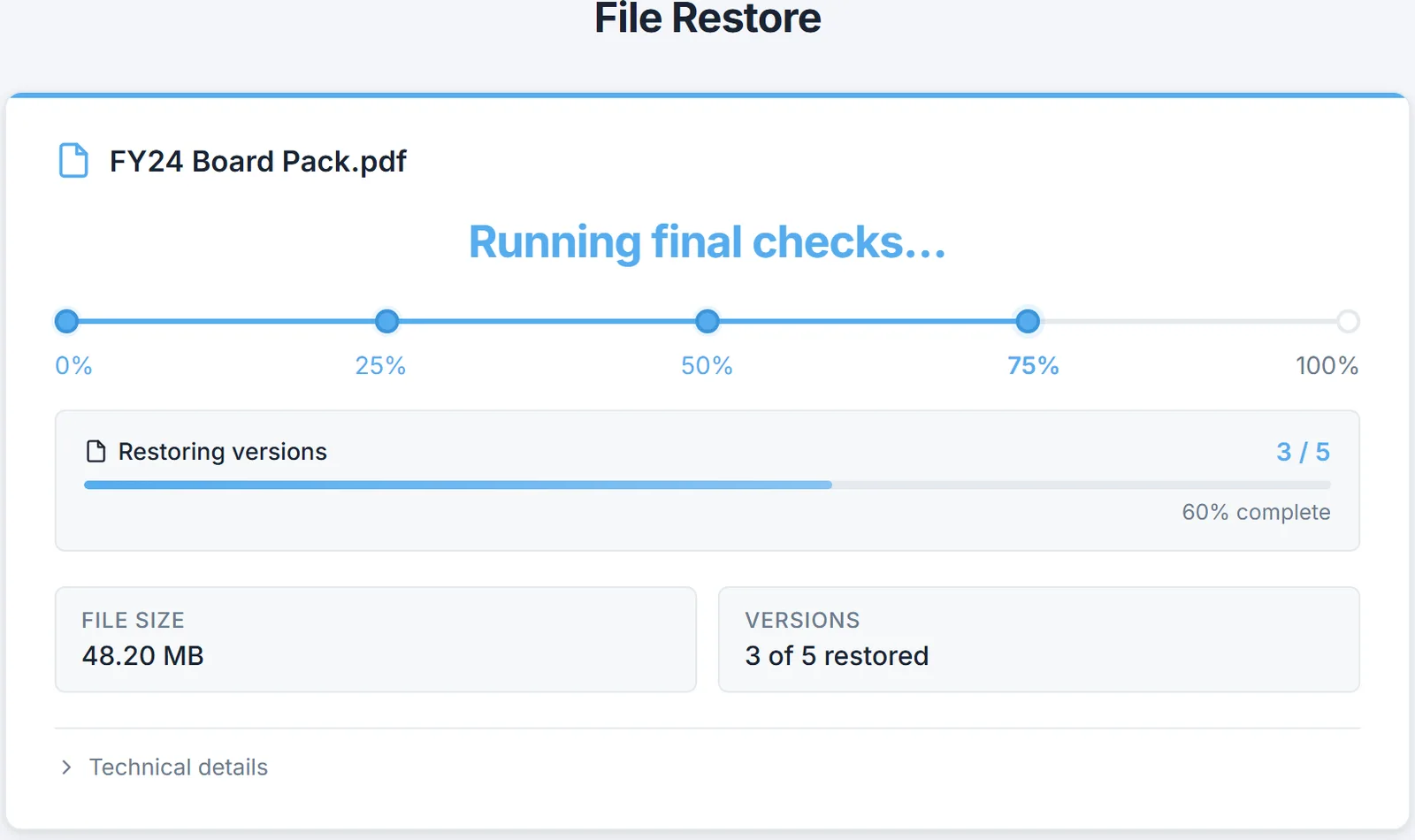
Squirrel makes restoring archived files quick and easy for end users, right from within SharePoint or Microsoft Teams. The file you click on is a small placeholder - see Stub Files for an explanation of how it works - and clicking it kicks off Squirrel's restore process automatically.
This guide shows you how to restore a file that has been archived. Administrators looking to bulk-restore entire SharePoint sites should see Full Site Restore instead.
What happens when a file is archived?
When a file is archived by Squirrel:
- The original file is replaced with a small "stub" file.
- This stub file looks like the original but only contains a link to restore the file.
- When you need the file again, you simply click the link to begin the restore.
Restoring a file
Step 1: Locate the stub file
- Go to the SharePoint site or Teams location where the file was originally located.
- You will see the file still listed - but it is a stub (small file with the same name, but amended with .html at the end).
Step 2: Click the restore link
- Open the stub file by clicking on it.
- The file will contain a URL that looks like this:
https://squirrel.smikar.com/restore/?site_guid=xxxxx&file_guid=xxxxx
- Click the link to open the Squirrel Restore page in your browser.
Step 3: Submit restore request
- The Squirrel Restore page will show details about the file and a clickable link to restore the file.
- Click the link to start the restore process.
Step 4: File is restored
- Squirrel will retrieve the file from the archive and restore it to the original location.
- You will receive an on-screen confirmation when the file has been restored.
- Refresh the SharePoint or Teams folder after a few moments - your file will be back and ready to use.
Notes
- Some files (especially large ones) may take a few minutes to be restored.
- You can continue working and check back later - the file will automatically appear in its original location once restored.
- If you have any issues restoring a file, contact your IT administrator or Squirrel support.
FAQ
Q: What if I delete the stub file?
- If a stub file is accidentally deleted, IT administrators can still restore the archived file using Squirrel management tools.
Q: Can I restore multiple files at once?
- Yes, if your SharePoint administrator has deployed the Squirrel buttons to SharePoint. Navigate to the folder containing the stub files, click the folder once to select it, and then click the Squirrel Restore button to restore every file inside that folder in one action. (The same approach works for archiving - click Squirrel Archive on a selected folder to archive its contents.)
- If the Squirrel buttons aren't deployed, restores fall back to one file at a time via the stub link.
Q: Where are the files restored to?
- The restored file will always be placed back in the exact same SharePoint or Teams folder where it was originally archived from. If that original folder no longer exists (for example the site was deleted), the file goes to the orphaned-restore location configured in global settings - typically a designated "Orphaned Restore" SharePoint site your IT team has set up.
Q: How long does a restore take?
- Most restores complete in seconds for small files. Larger files (over ~100 MB) may take a minute or two. Files in the Azure Archive tier - used for very long-term retention - can take up to 24 hours because Microsoft has to physically rehydrate the data before Squirrel can pull it. You don't have to wait at the browser; the file appears in SharePoint/Teams automatically when ready.
Q: Will I lose the file's version history when it's restored?
- No. Squirrel preserves the full version history when files are archived and restores it intact. After restore you should see every previous version of the document just as it was before archiving.
Q: Can I tell if a file is a stub before I click it?
- A stub file is a tiny
.htmlfile with the original filename appended with.html. SoQuarterly Report.docxbecomesQuarterly Report.docx.htmlafter archiving. The icon also typically changes to the browser icon rather than Word/Excel/etc. If in doubt, hover over the file - the stub is only a few kilobytes.
Making the page look like yours
End users reach the restore page from a stub link, often without realising they have left SharePoint, so it can be themed to your own colours. The palette is set centrally and applied on the server, so the page renders in your colours immediately rather than flashing the stock ones first. Anything not set falls back to the defaults, and the browser tab reads SharePoint Restore rather than a Squirrel-branded title.
Ask SmiKar support to set the palette for your tenant.