
Cold Storage Rehydrate
5 min read · Last updated · Page version 11
Burrow keeps recent audit data on disk for fast Hunt searching. Older data is automatically moved to your Azure Blob cold-storage container after 14 days. To search those older months in Hunt, you first rehydrate them - bring the cold data back into a local cache for query.
This article covers when to rehydrate, how to rehydrate, and what to do if a job gets stuck.
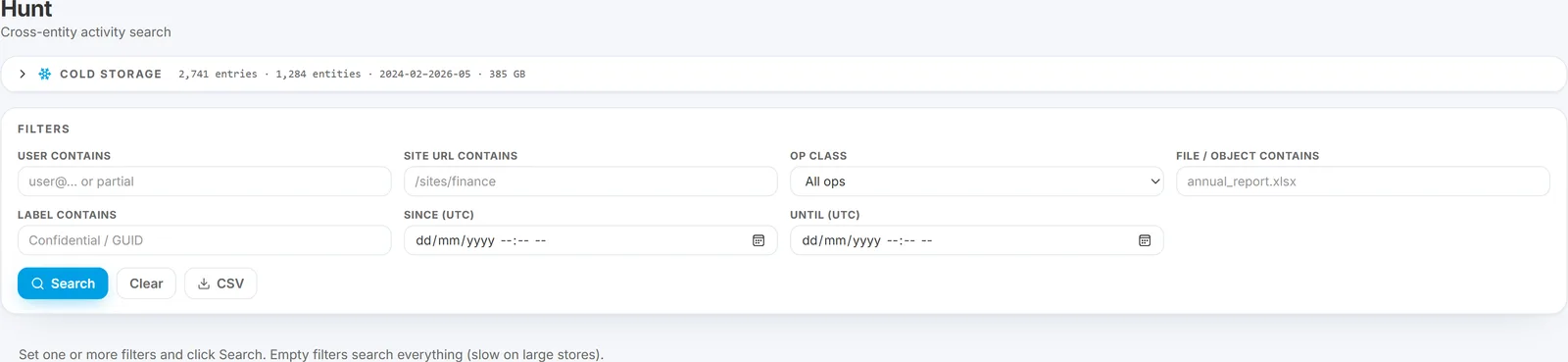
The panel sits collapsed at the top of the Hunt page until you open it. Its header line is the archive at a glance - entries, entities, the month range held, and total size - so you can tell whether the months you need are there before starting anything.
When to rehydrate
You need to rehydrate when:
- The Hunt date range you're searching extends earlier than the on-disk retention window.
- An auditor or HR question covers months that haven't been searched recently.
- You're building a Rule replay against a rule change to see what would have fired over a historical window.
You do not need to rehydrate for normal recent-activity searches - Burrow keeps the last 14 days on disk, queryable directly. That window is a fixed product behaviour, the same on every deployment. The Cold Storage panel header states the months actually held in the archive.
The Cold Storage panel
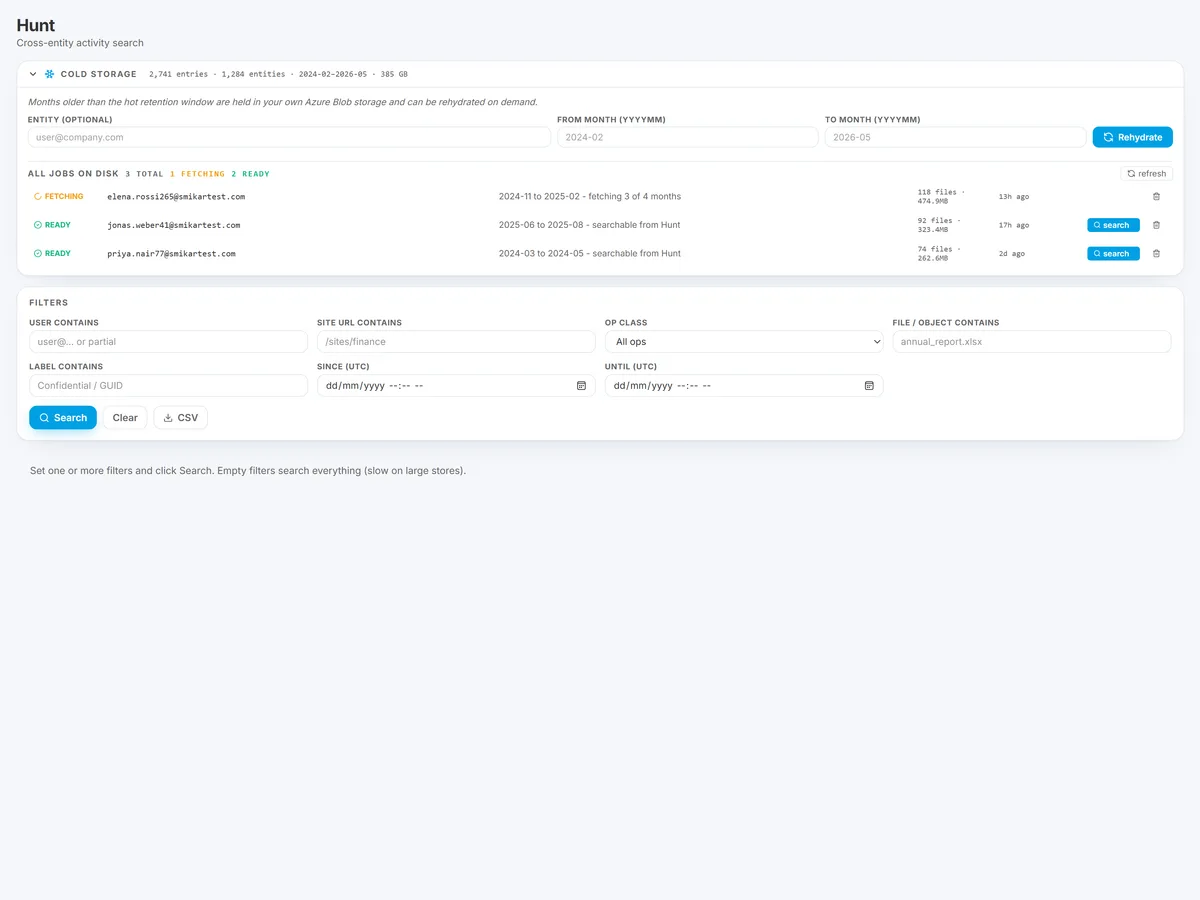
Open the Hunt page. The Cold Storage panel sits at the top, collapsed by default. Expand it.
The header shows manifest stats - total entities in cold storage, the month range available, total bytes, last manifest refresh.
Below the header:
- Entity input - optional. Leave blank to rehydrate every entity for the month range (uses more storage bandwidth and a larger cache). Fill in to rehydrate just one user.
- From month / To month -
YYYYMMformat. Leave blank for all available months. - Rehydrate - submit the job.
Below the controls, two job lists:
- Active and recent jobs (this session) - jobs you've submitted in the current dashboard session.
- All jobs on disk - every rehydrate that's left a cache on the server, with state, age, and a delete button.
A worked example: rehydrate a quarter of one user's activity
An auditor asks: "What did Jordan do between March and May?" You're querying that in late June, so March, April, and May are all in cold storage.
- Open the Hunt page → expand the Cold Storage panel.
- Enter Entity
jordan.hale@example.com. - Enter From month
202603, To month202605. - Click Rehydrate.
- A new job row appears in "Active and recent jobs" with state
queued. Within seconds it flips tofetchingand a percentage progress fills in. - Wait for state to flip to
ready. Typical: 30 seconds for one user-month, longer for entity-wide rehydrates or busy entities. - The READY row shows two buttons: a delete (trash) icon and a blue Search this entity button.
- Click Search this entity. Hunt auto-fills the User filter, populates Since / Until to span the rehydrated months, and runs the search.
- Review results and export CSV as needed.
Job states
- queued - submitted but waiting to be picked up.
- fetching - actively downloading matching files from Azure Blob into the local cache. Progress percentage updates as it works.
- ready - cache populated. Hunt will include these months in subsequent searches automatically.
- failed - something went wrong. The row stays visible with the failure reason. Resubmit after addressing the cause; raise a support ticket if it repeats.
Cache lifetime
Rehydrated data lives in the local cache for 24 hours, then is auto-purged. If an audit takes longer than a day, resubmit the rehydrate - the cold-storage source is permanent, only the local cache expires.
Tips
- Scope by entity when you can. A whole-tenant month rehydrate uses significantly more storage bandwidth and cache space than a single-entity rehydrate. Auditor questions are usually entity-specific.
- Pre-warm before a big audit. If you know an audit window is coming, rehydrate the months you'll need ahead of time.
- Watch the all-jobs list. If multiple operators have rehydrated the same entity recently, the data is already cached - your search will pick it up without a fresh rehydrate.
See also
- Hunt 101 - the search interface used after rehydrate completes.
- Data retention and storage - what is kept hot, what is archived, and who owns it.
- Pulling activity history for HR or legal - auditor-perspective walkthrough.
Need help? support@smikar.com.