
Using Chipmunk Day-to-Day - Admin Guide
2 min read · Last updated · Page version 5
Once Chipmunk has been deployed and configured, the archiving process runs automatically - no manual jobs are required.
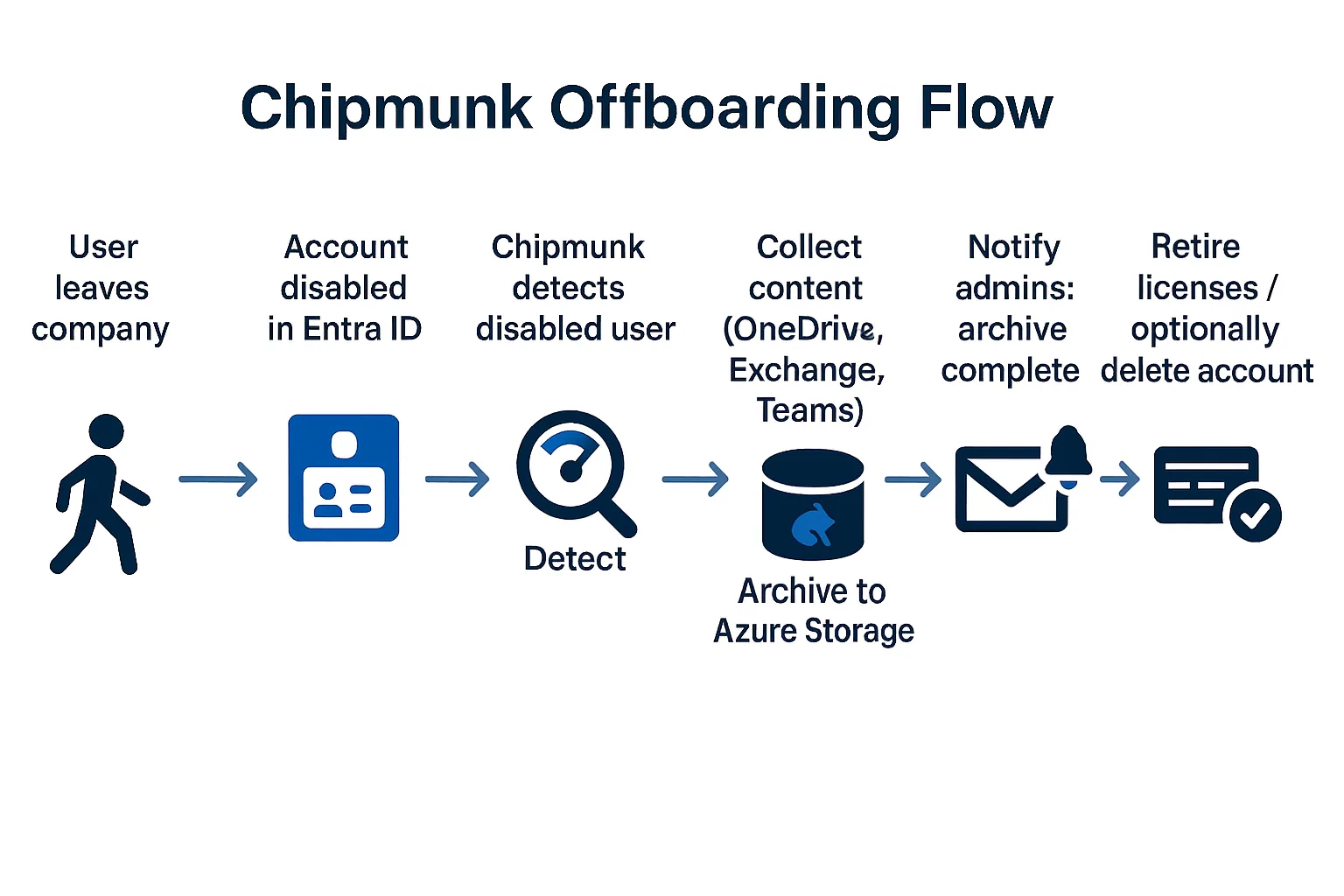
How the Process Works
- Disable the User in Entra ID – An administrator disables the account when an employee leaves.
- Automatic Detection – Chipmunk detects the disabled state and queues the archive.
- Archive Execution – Chipmunk archives the user’s Microsoft 365 data:
- Exchange Online (email)
- OneDrive for Business (files)
- Microsoft Teams (chats & files)
- Completion Notification – When archiving finishes, Chipmunk sends an email to the administrator group.
What Administrators Do Next
- After receiving the completion email:
- Remove active Microsoft 365 licenses associated with the user (to reduce ongoing costs).
- Optionally delete the account if your internal policy allows and no further access is required.
Notes & Good Practices
- Ensure the account is disabled (not deleted) so Chipmunk can detect and archive it.
- Large archives can take time; duration depends on data size and Microsoft 365 throttling.
- Keep your administrator notification group up to date so the right people receive completion emails.
- If you need data later, Chipmunk supports restoring a full archive or specific items (files, emails, chats) without re-licensing the original user.