
Chipmunk Monitoring and Logging Dashboard
1 min read · Last updated · Page version 5
The Logging section in Chipmunk provides real-time and historical insights into system operations. This is useful for diagnostics, auditing, and ongoing monitoring of archive and restore activities.
1. Live Activity Log
The Live Log tab provides a real-time console-style view of operations. Includes:
- Email/file backup operations per user
- Folder and file-level granularity
- Archive results (success/failure)
- Progress counters (e.g., email count, % complete)
- Status icons for easy visual scanning
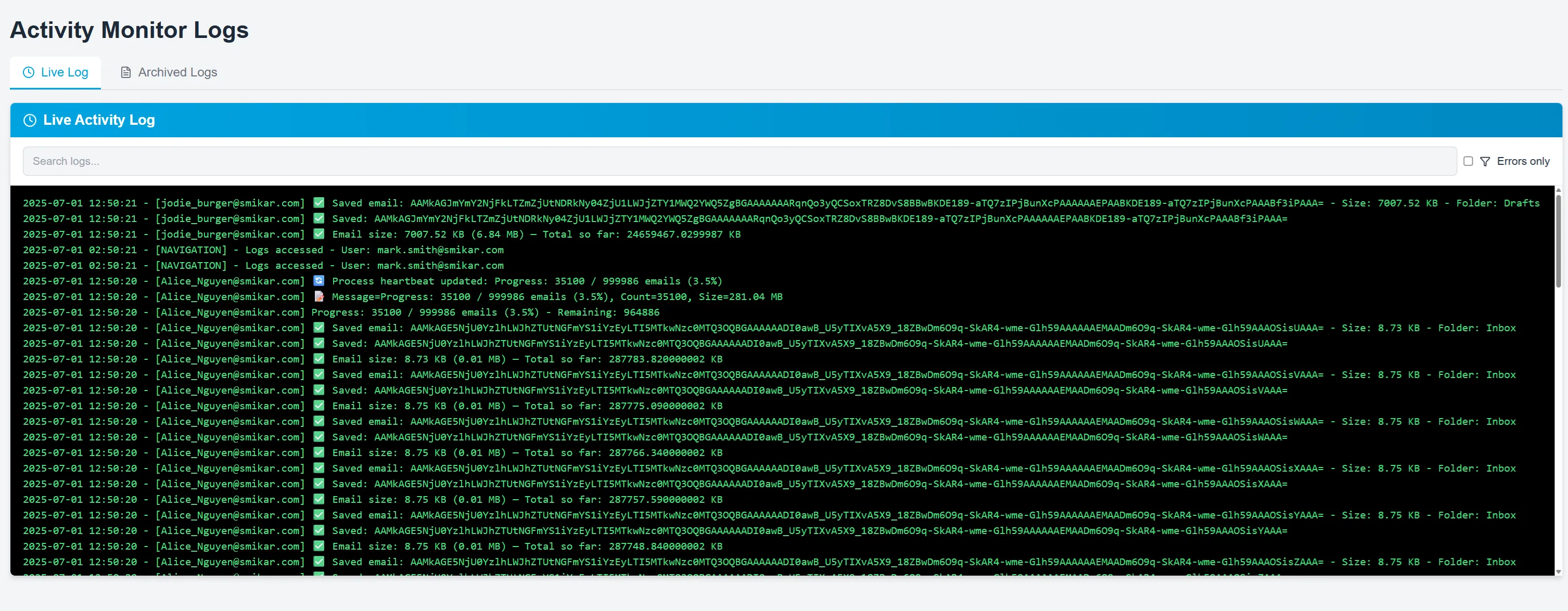
Use the search bar to filter logs by keyword, user, or component. You can also enable Errors only to focus on failed actions.
2. Archived Logs
The Archived Logs tab shows past logs saved to disk for long-term auditing. Features include:
- Log file selector (by date)
- Full searchable output
- Download option (for CSV or raw text)
- Error filtering
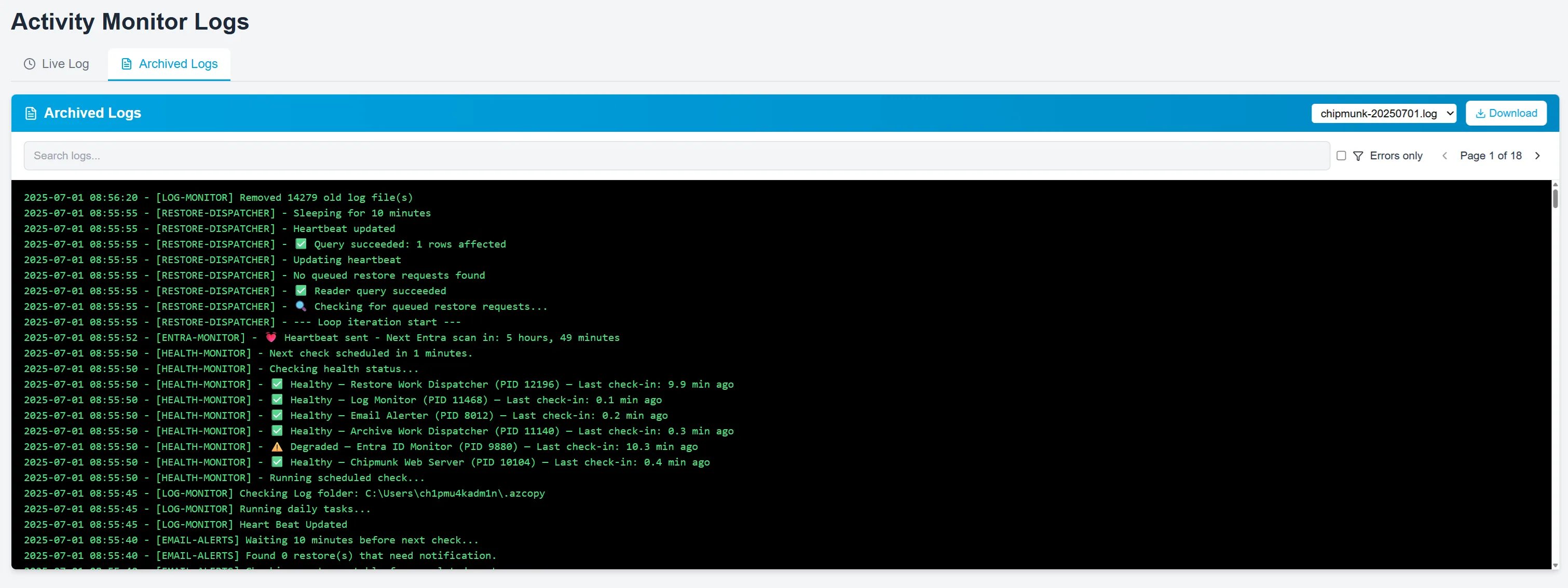
This is especially useful for compliance investigations or reviewing past activity during an incident response.
Good for:
- Compliance and audit trails
- Operational discovery
- Forensics and troubleshooting
For assistance interpreting log outputs, refer to the Chipmunk admin guide or contact support@smikar.com.