
Restore Microsoft 365 Data - Chipmunk
2 min read · Last updated · Page version 6
Chipmunk includes a built-in restore interface that allows administrators to recover archived data from Exchange, OneDrive, or Teams. Restores can be full account-level or individual file/email level.
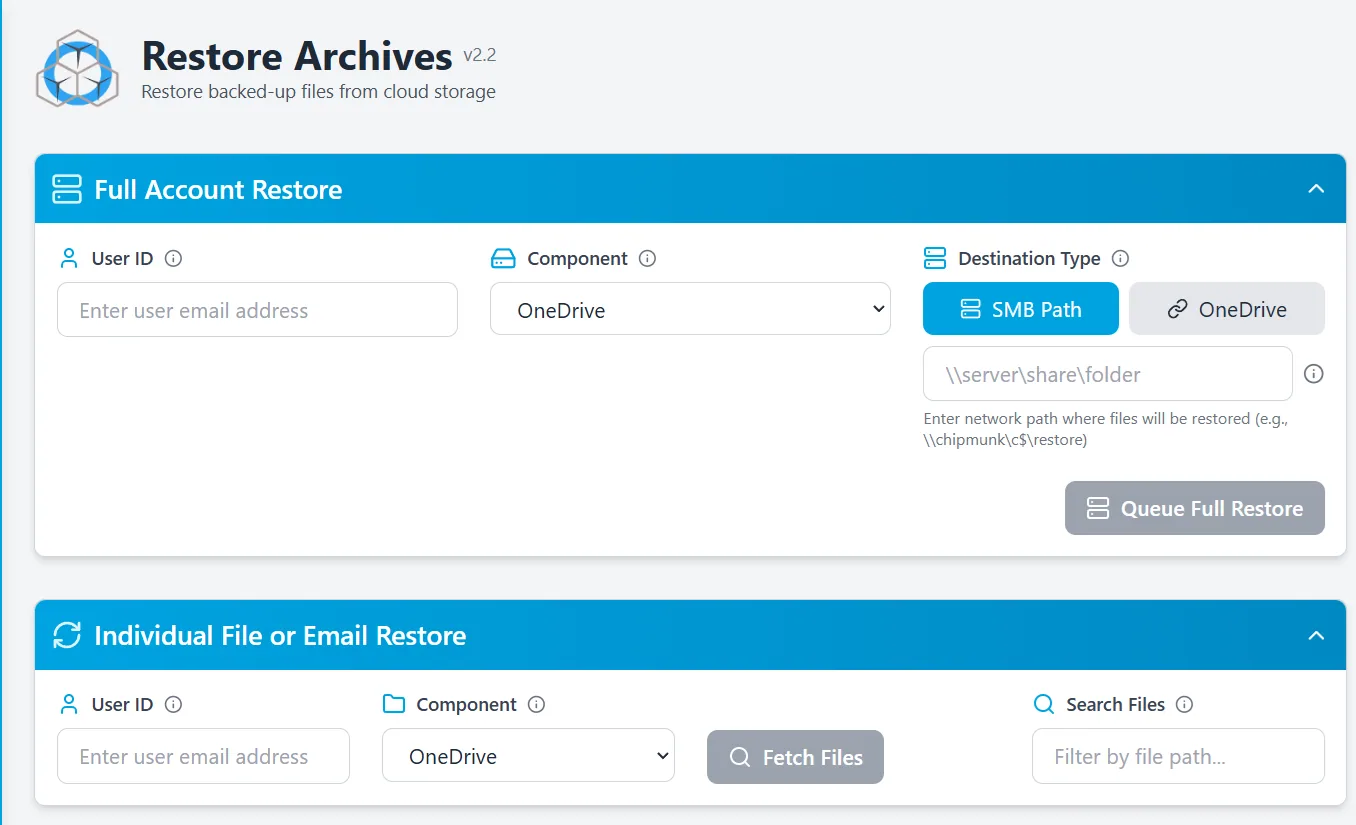
Full Account Restore
This section allows you to restore an entire user's archive by selecting:
- User ID – Enter the archived user's email address.
- Component – Choose from:
OneDriveEmail(Exchange)Teams- Destination Type – Choose where the restore will go:
- SMB Path – UNC network path (e.g.,
\\server\share) - OneDrive – Another user’s active OneDrive account
→ After filling the required fields, click Queue Full Restore to begin processing.
Individual File or Email Restore
For targeted recovery of specific items:
- User ID – Enter the user to search for.
- Component – Select OneDrive, Email, or Teams.
- Search Files – Use path-based filters to find specific items (e.g.,
/Inbox/*or/Documents/report.docx)
→ Click Fetch Files to browse and restore selected files or emails. These files will download locally within your browser.
Notes
- Restores are tracked in real-time on the Dashboard.
- Only archived users are eligible for restore operations.
For troubleshooting restores, see the Troubleshooting Guide or visit Support.