
Chipmunk Reports - Archive and Restore Data
2 min read · Last updated · Page version 6
The Reports page in Chipmunk provides a centralised dashboard to analyse, monitor, and export archive activity across the organisation.
Five main tabs are available:
- Overview
- Performance
- OneDrive
- Teams
Overview Tab
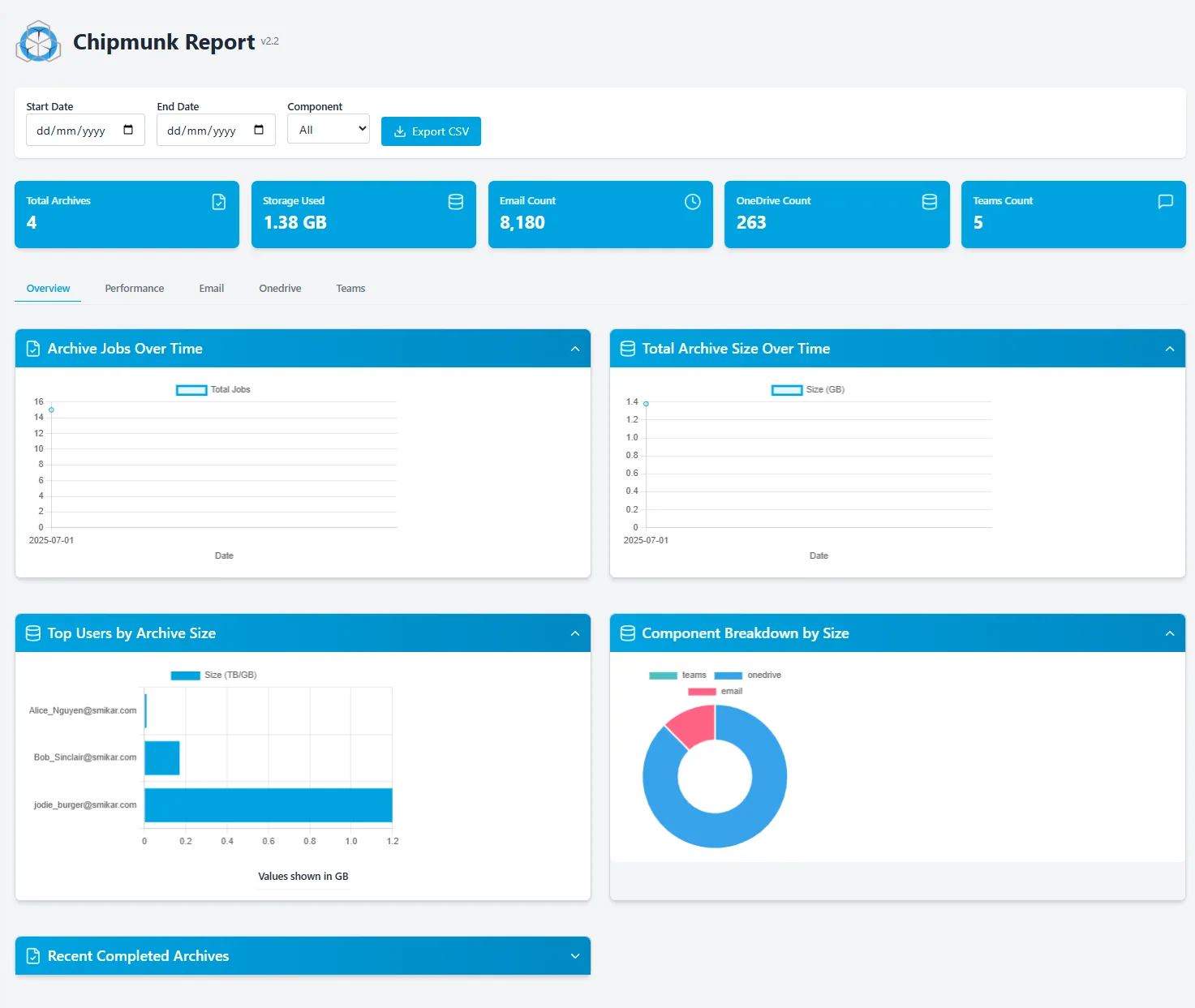
The Overview tab gives a high-level summary of system-wide archive statistics.
- Total archives performed
- Total storage used (in GB)
- Count of archived emails, OneDrive files, and Teams chats
- Graphs showing:
- Archive jobs over time
- Total archive size over time
- Top users by archive size
- Component breakdown by storage used (email, OneDrive, Teams)
Additionally, users can:
- Filter by date range and component
- Export CSV reports showing detailed archive records
Performance Tab
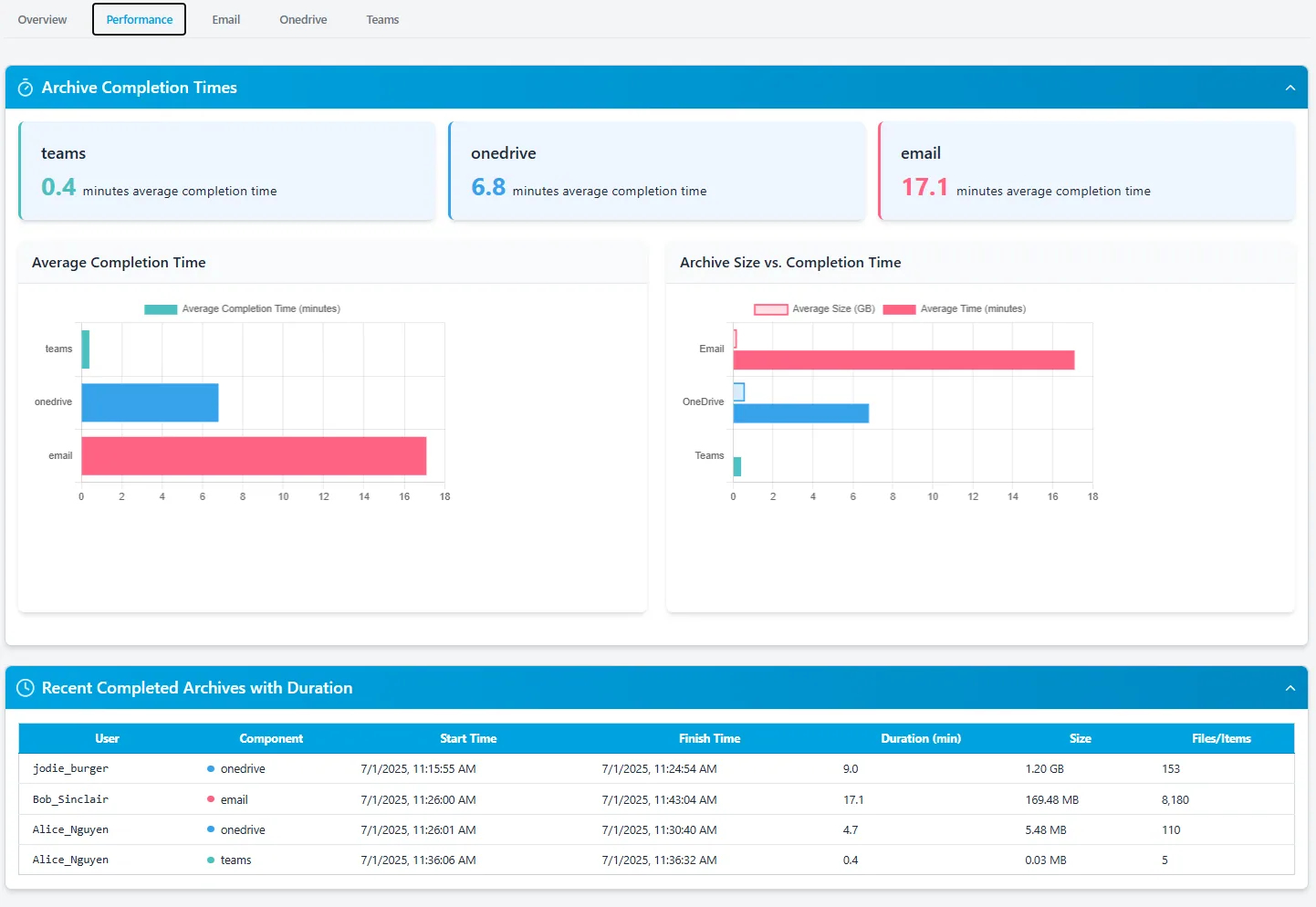
This tab helps benchmark archiving performance by comparing average times across each component.
- Displays completion times for Teams, OneDrive, and Email
- Correlates archive size with completion time
- Lists recent archive durations
Email Tab
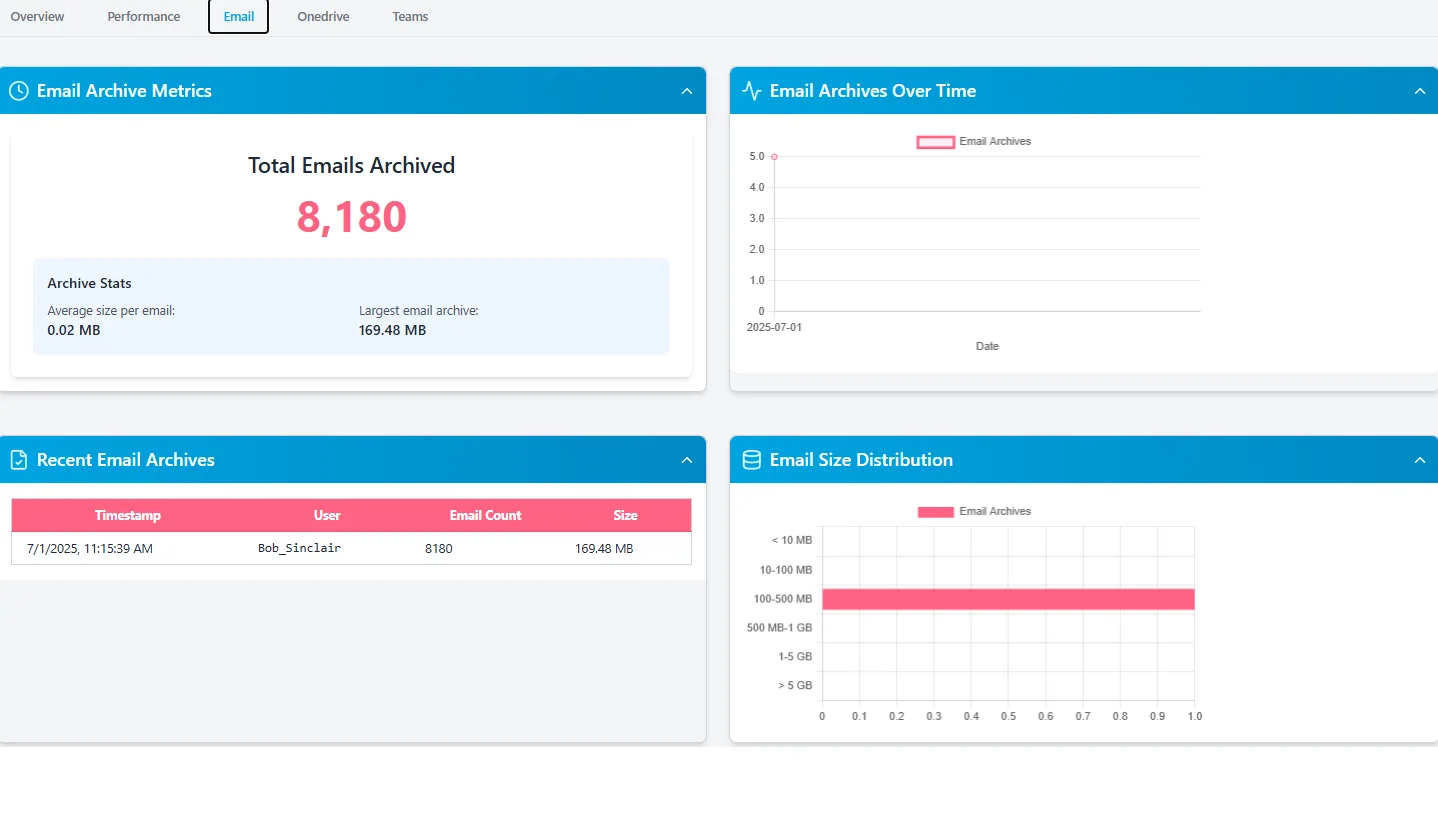
Focused view of email archiving activity.
- Total email count
- Average and largest archive size
- Distribution of email archive sizes
- Archive trend over time
- Recent email archive history
OneDrive Tab
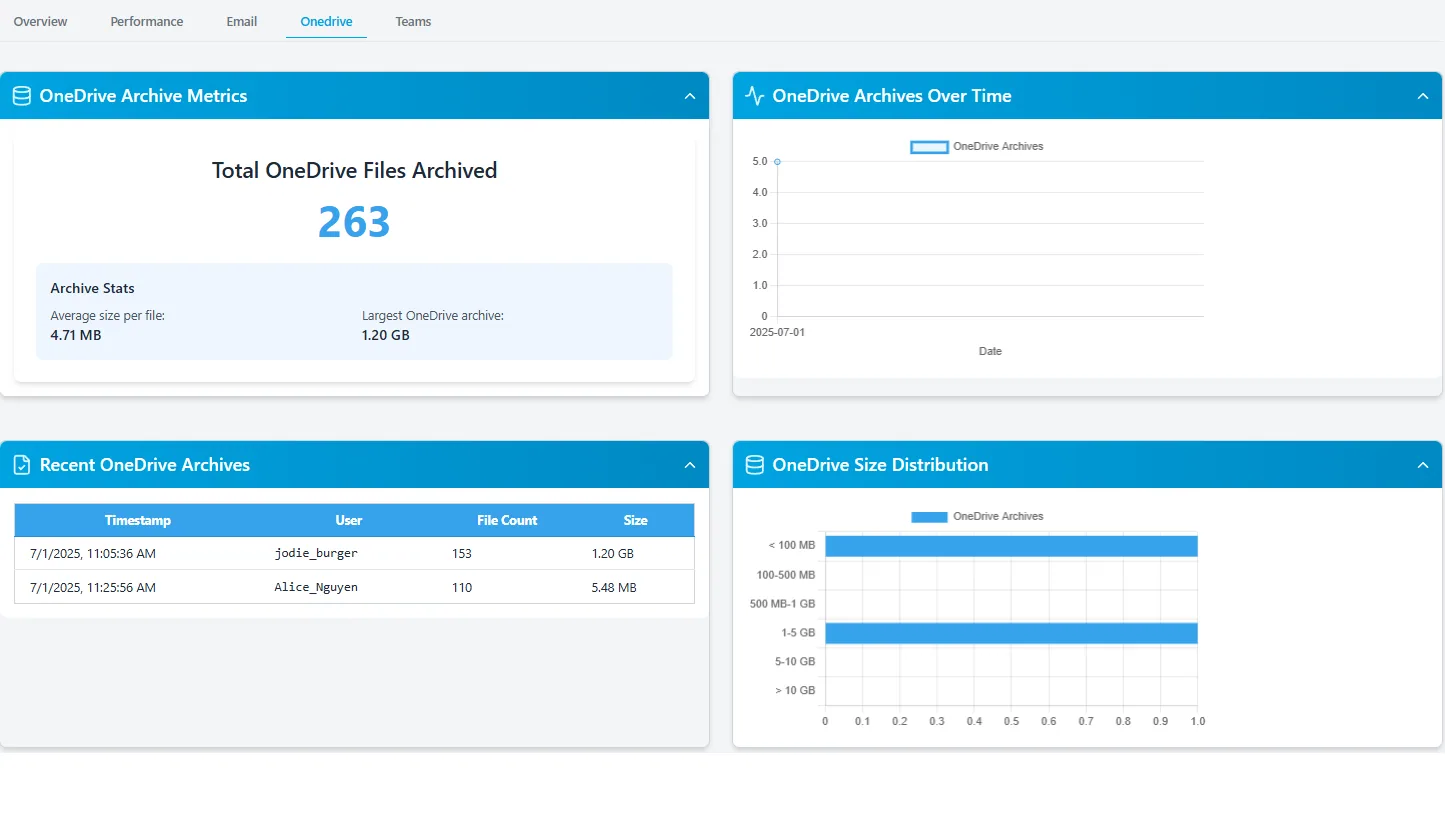
Breaks down OneDrive backup activity.
- Total files archived
- Average file size and largest OneDrive archive
- Size distribution chart
- Timeline view
- Recent archive entries
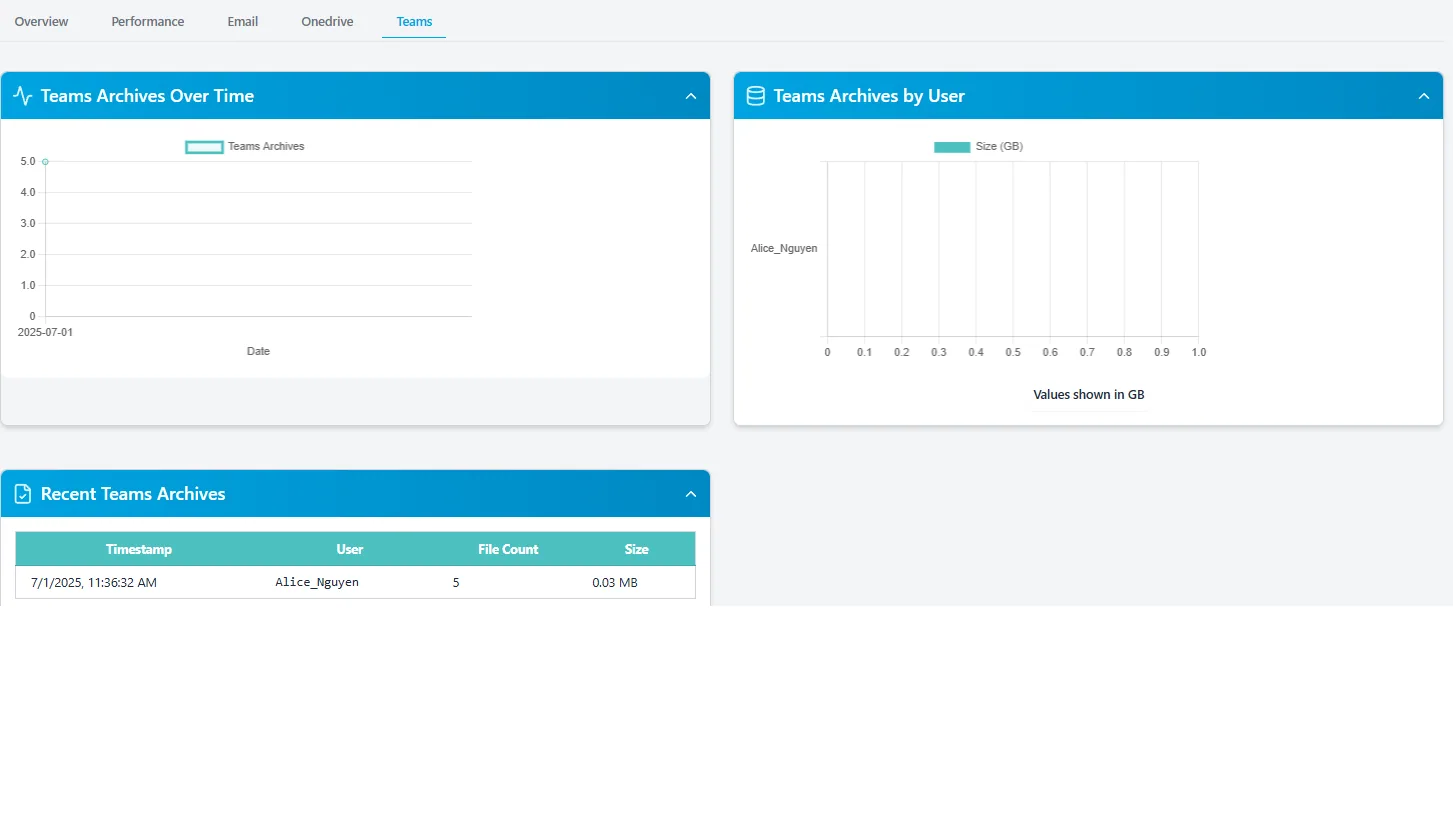
Teams Tab
Presents metrics for archived Teams chat data.
- Archives over time
- Breakdown by user
- Recent archive history
Exporting Reports
The Export CSV button at the top of the Reports page allows administrators to download filtered archive records.
- Filter by start date, end date, and component (Email, OneDrive, Teams)
- The exported file contains user ID, component, size, and archive time
- Useful for auditing, reporting, and usage analysis
Previous
← Chipmunk Monitoring and Logging Dashboard
Next
Chipmunk UI: Admin Interface Screens Overview →