
Chipmunk Web UI Menu and Navigation Overview
2 min read · Last updated · Page version 4
Below is an overview of the Chipmunk appliance’s main navigation menu. This menu appears on the left-hand side of the screen once you log in.
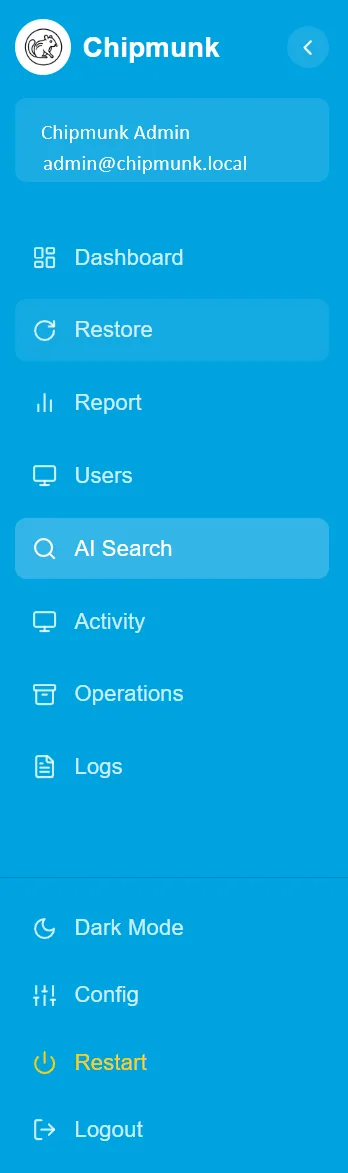
Menu Options
| Menu Item | Description |
|---|---|
| Dashboard | Provides a high-level summary of system status, job counts, storage usage, and recent activity. |
| Restore | Allows admins to browse archived user data and restore files from OneDrive, Exchange, or Teams. |
| Report | Shows charts and usage stats - including archived volume, top users, error rates, and success metrics. |
| Users | Displays all archived users and their status. You can search, filter, and access individual history here. |
| AI Search | (Optional) Search across all archived content using Microsoft Azure AI. Supports natural language queries across emails, documents, and chat. |
| Activity | Live job activity feed showing real-time archive and restore actions. |
| Operations | View Archive operations. |
| Logs | Detailed logs per component: Exchange, OneDrive, Teams. Filter by user, status, date range, or job ID. |
Bottom Controls
| Control | Description |
|---|---|
| Dark Mode | Toggle between light and dark themes. |
| Config | Opens the current system configuration for viewing or updates. |
| Restart | Restarts the Chipmunk appliance. Useful after making configuration changes. |
| Logout | Securely log out of the dashboard. |
If you're unsure where to begin, start with the Using Chipmunk Overview page.
Previous
← Chipmunk UI: Admin Interface Screens Overview
Next
Data Operations - Chipmunk Archiving Jobs →