
Chipmunk UI: Admin Interface Screens Overview
3 min read · Last updated · Page version 10
This guide outlines each key page within the Chipmunk interface, providing a high-level overview of functionality and visual context for administrators and users.
1. Main Menu
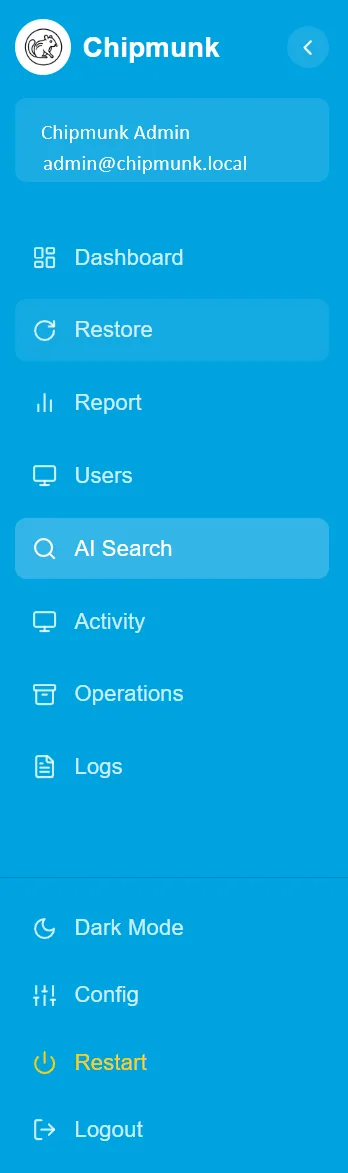
The menu down the left is the same on every screen:
- Dashboard - overall status at a glance.
- Restore - bring archived data back for a user.
- Report - archived data per user, and licence status.
- Users - the user list Chipmunk is tracking.
- AI Search - search inside archived content.
- Activity - jobs running now.
- Operations - jobs that have finished.
- Logs - the detailed record.
Below those sit Dark Mode, Config, Restart and Logout.
2. Report
Archived data per user, with tabs for Profile Info, Contacts and Calendar.
The practical use is licence recovery: the page shows whether an archived user still holds an active Microsoft 365 licence, so you can reassign or remove it once their data is safely archived.
3. AI Search
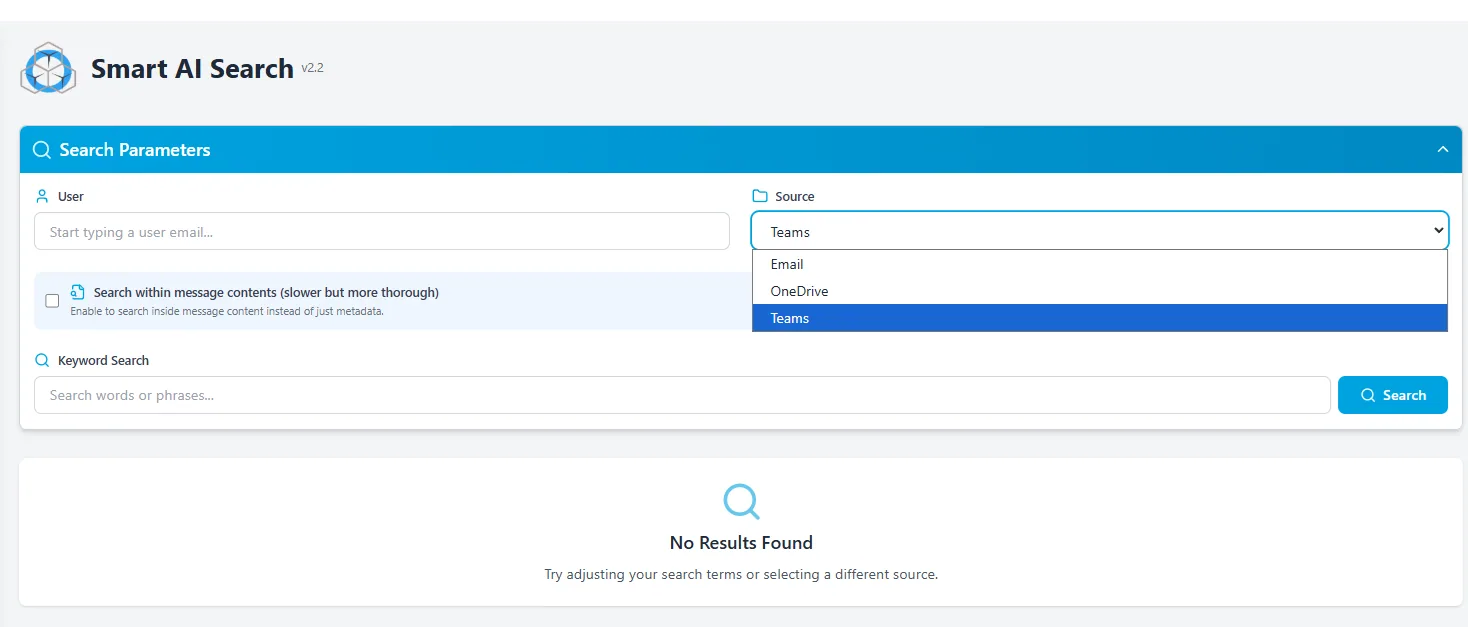
Discovery and compliance search across archived content. Pick a source - Email, OneDrive or Teams - and search it.
- Filter to one user, or search across everyone.
- Keyword search runs against metadata by default.
- Tick Search within message contents to search inside the content itself. It is slower, and it is the option that finds things metadata alone will not.
4. Activity Monitor
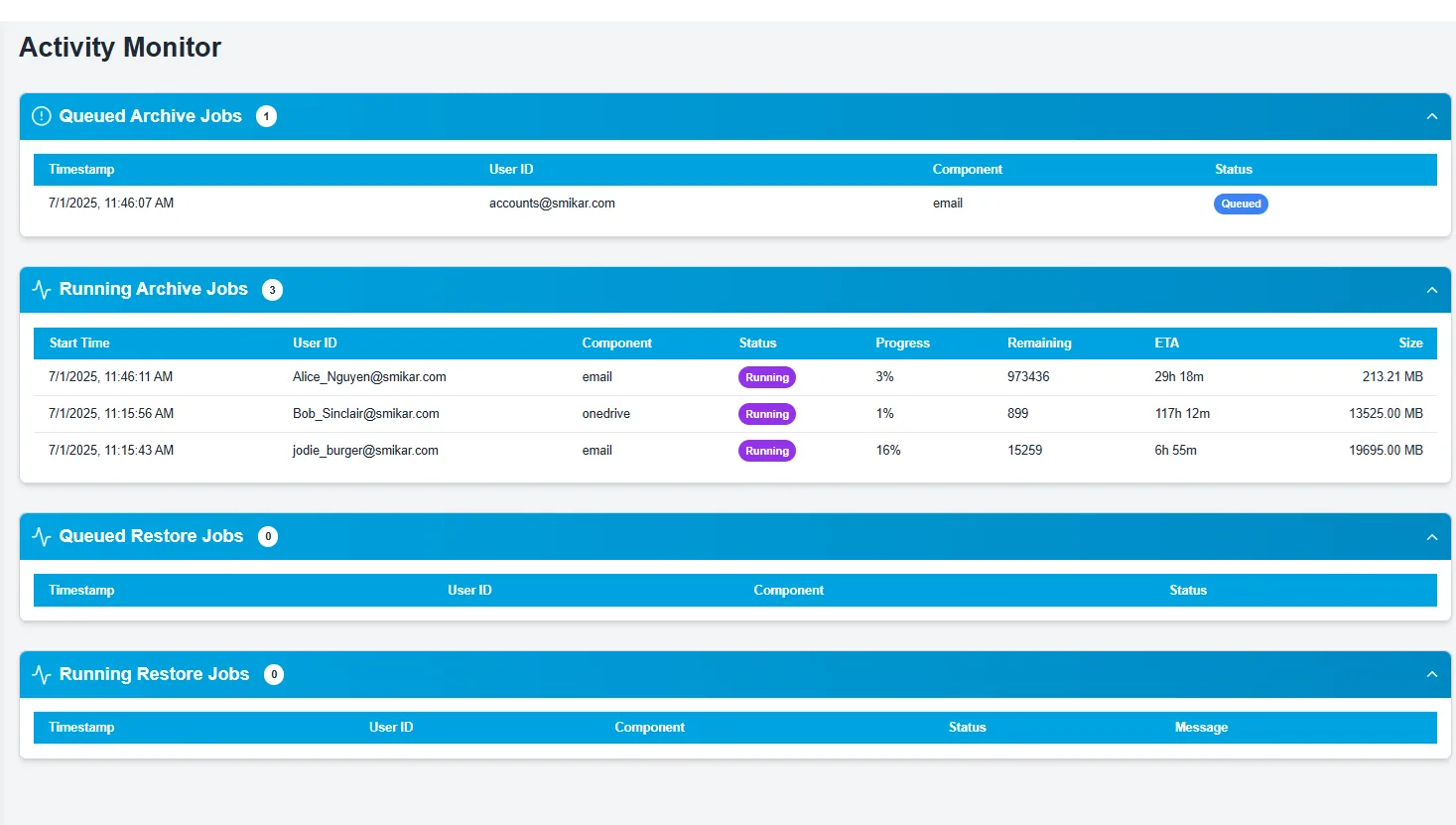
Live job tracker for both archive and restore operations. Displays:
- Queued Jobs
- Running Jobs
- Component (Email, OneDrive, Teams)
- Progress, ETA, File Count
Useful to observe archive/restore throughput and diagnose bottlenecks.
5. Data Operations
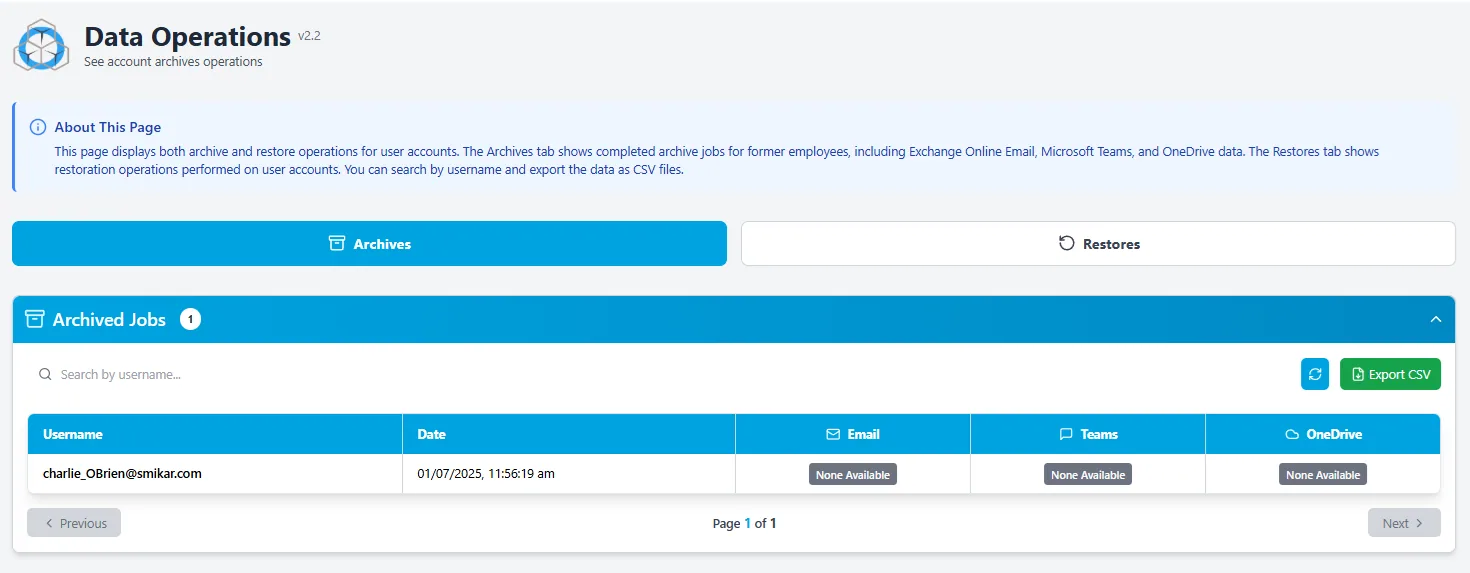
Displays finalised archive and restore actions across user accounts. Includes:
- Archives tab
- Restores tab
Admins can:
- Export job history as CSV
- Click a user to view detailed archive job breakdown in a popup
6. System Configuration
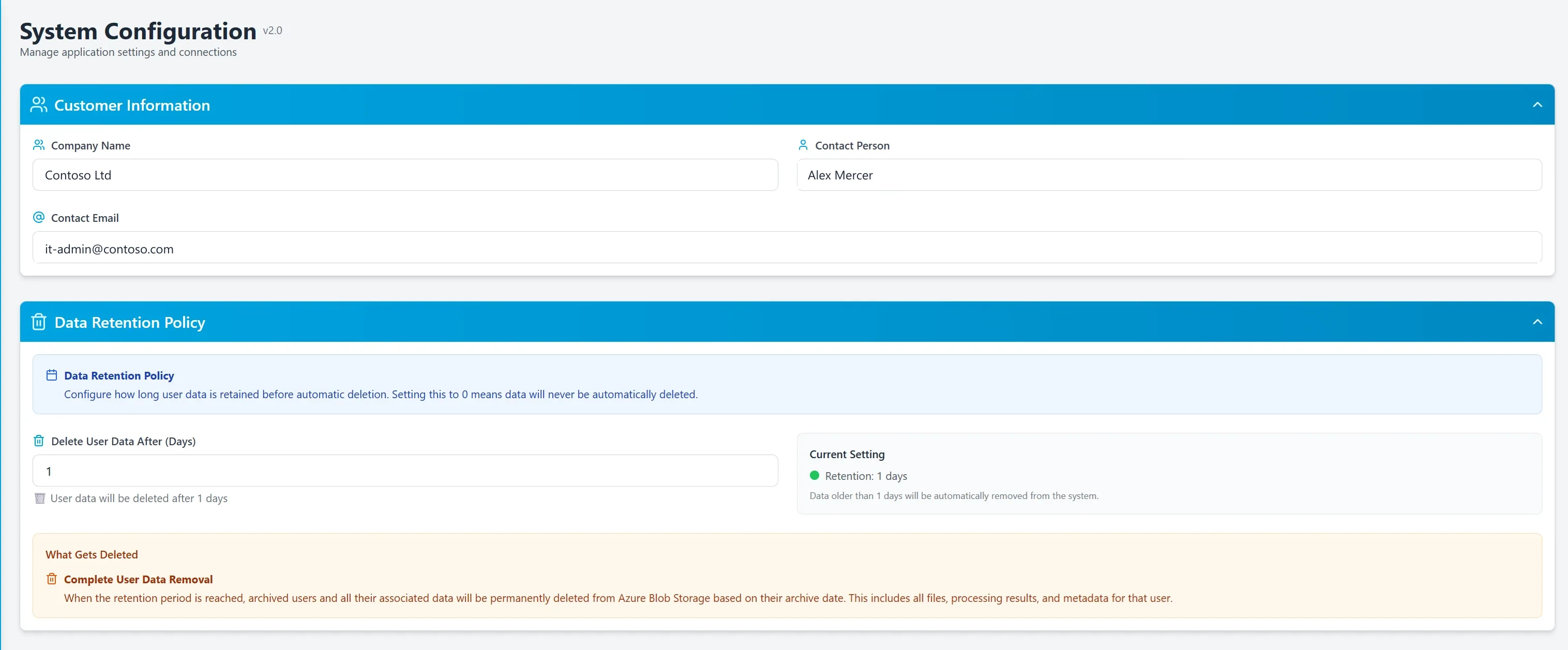
Customer details and how long archived user data is kept before automatic deletion. Setting retention to 0 means data is never deleted automatically.
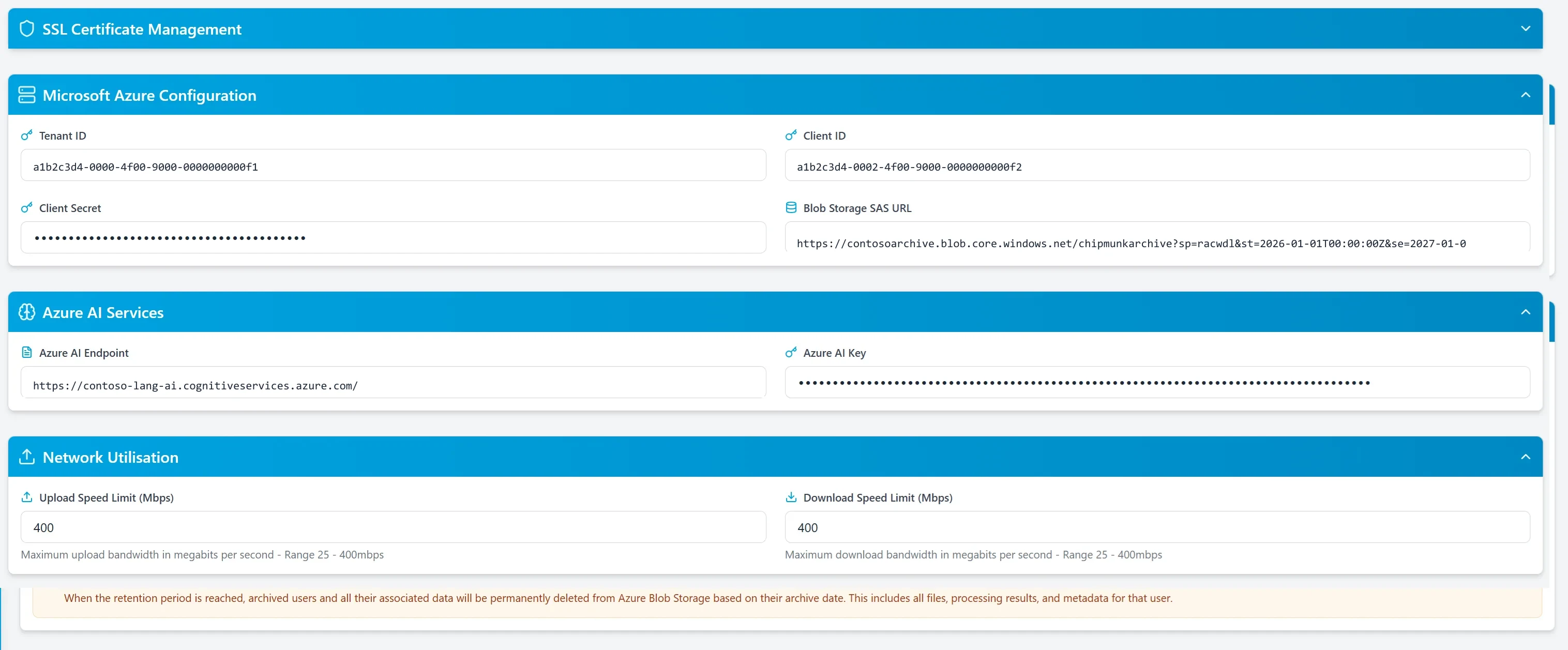
Where Chipmunk is pointed at your Azure storage and AI services, and where upload and download bandwidth are capped. The values shown are examples.
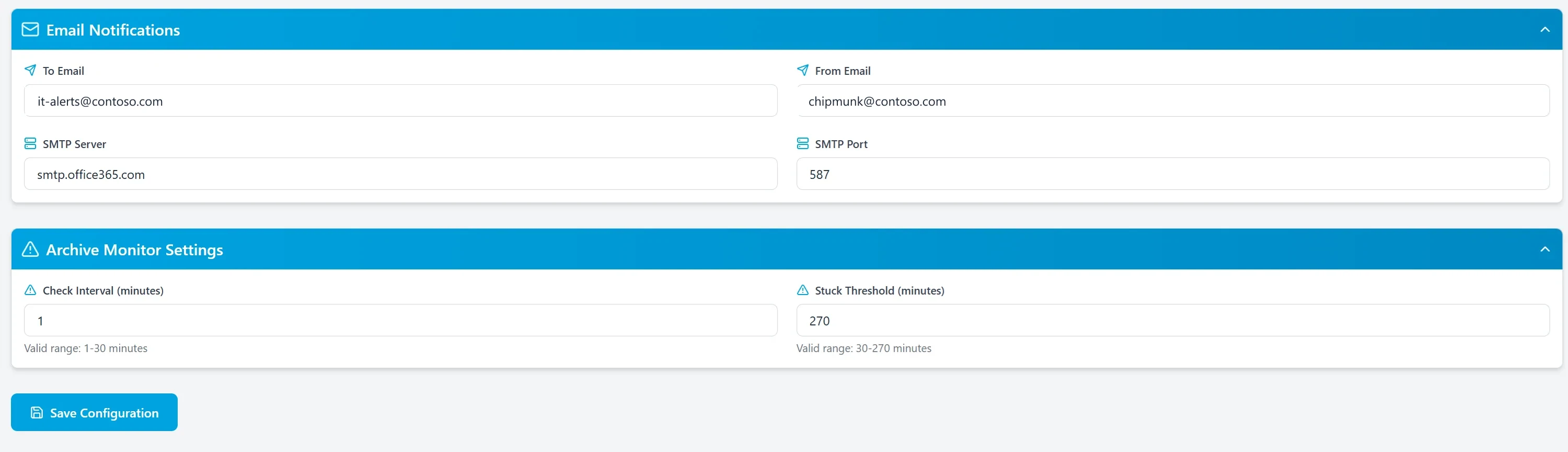
Who gets told when an archive finishes, and how quickly a stalled job is flagged.
Used for managing:
- Customer Info
- Data Retention
- Azure & AI settings
- SSL Certificates
- Email Notifications
- Archive Monitor thresholds
- Network bandwidth controls
Note: Some changes will automatically restart the Chipmunk appliance. In-flight jobs will pause and resume once restarted.